SILENT HILL f

SILENT HILL f

76 ratings
How to get better performance in SILENT HILL f
By Special Week ♡
Unlike many Unreal Engine 5 games that have come out lately, NeoBards Entertainment did an admirable job optimizing the game (as they should, and as should be the standard for all studios).

Even so, the game is still demanding for more modest setups, and this guide focuses on trying to get the most performance possible.
6
   
Award
Favorite
Favorited
Unfavorite
Intro
English Guide‎ ‎ ‎ ‎‎ ‎ <---- You're here


Guía en Español


In my personal opinion, I think NeoBards Entertainment did an excellent job optimizing the game on PC. Even so, it’s important to keep in mind that this game isn’t designed for very modest computers, and even in some more recent ones it presents stuttering.

The method is identical to any other Unreal Engine 5 game, so you shouldn’t run into major issues when following this guide.
Download
Ultimate Engine Tweaks[www.nexusmods.com]

Credits to P40L0X[next.nexusmods.com] for taking the time to optimize this engine in almost every game that uses it.

If this solution is very helpful to you, please consider donating[www.paypal.com] to support his work.

Alternatives

Depending on your setup, your performance could be negatively affected. You can try alternatives like:

Optimax - Performance[www.nexusmods.com]

by Hybred

or

SHF - SPF[www.nexusmods.com]

by xowny

Both mods use less aggressive CVARs compared to Ultimate Engine Tweaks. It may be useful in some cases.
Setup
Installing the .ini file is simple:
Just copy the file in
AppData\Local\SHf\Saved\Config\Windows

To access the location without changing any Windows settings, simply press Windows + R and run the following command:

%localappdata%\SHf\Saved\Config\Windows


Hints

For some strange reason, the opening cutscene (even in NG+) will display a black screen when using any of the optimization mods with Frame Generation. Temporarily removing FG fixes the issue.

The good ending also has this problem.

The UFO ending will not work correctly when using Frame Generation by modifying Engine.ini.

Some cutscenes (again, even in NG+) may freeze when using SHfFix.
CVARs that could work to improve performance
We're interested in performance without significantly sacrificing visual quality—and that's exactly what we're going to achieve.
All we need to do is download the .ini file (VRR or No VRR, your choice) from Nexus Mods and tweak a few settings to make it as optimized as possible.

First, uncheck the Read-only option and open the .ini file, then add the following line at the end, without the comments explaining what each one does:


r.Shadow.Virtual.Enable=0 // Disables virtual shadows. It may cause visual glitches in certain parts of the game in exchange for a very noticeable performance gain. I don't recommend it at all, since the virtual shadows in this particular game are better optimized than the cascade shadows, but hey, it might result in better performance in your case. It's a matter of trying.

Once you add the line that disables virtual shadows, you must change one to avoid glitches in shadows

r.InstanceCulling.OcclusionCull=0 // This line appears twice in the file (Ultimate Engine Tweaks, not in the alternatives) with the value 1. I recommend changing the value to 0 in both instances or removing them to avoid visual glitches when disabling virtual shadows.

Set the file to read-only again.

Warning: Depending on your setup, performance may be worse after disabling virtual shadows, so try it and draw your own conclusions.
Sometimes it's better to have them turned on.


You can also try adding more experimental parameters that I haven’t tested, so I cannot guarantee better performance:

r.Shadow.Virtual.ForceOnlyVirtualShadowMaps=0 // Forces the engine to disable virtual shadows on moving objects or characters. If you don’t want to fully disable virtual shadows, you can choose this option and gain a slight performance boost without visual glitches. r.Lumen.TraceMeshSDFs=0 // Disables detailed tracing for Software Ray Tracing, Lumen in the case of Unreal Engine 5. Sacrifices final shading quality in exchange for a good performance boost. It should work, although I didn't notice any difference in my setup.


I don’t recommend disabling Virtual Shadow in Optimax - Performance, since the cascade shadow distance is reduced so that virtual shadows handle all the work and avoid double processing. Disabling it will only leave very poor shadows in both distance and quality.


r.VolumetricFog=0 // Disables volumetric fog. r.VolumetricCloud=0 // Disables volumetric clouds. r.Nanite.MaxPixelsPerEdge=4 // In theory, limits Nanite quality by reducing the geometric detail of each 3D model to only four edges per pixel.


Advanced CVars

sg.ResolutionQuality=0 // Possibly used to limit the internal resolution scale. This is the default value, so I’m not sure how to implement it correctly—perhaps as a percentage value from 0 to 100. sg.ViewDistanceQuality=3 // Apparently refers to the rendering distance in graphics scale level, Epic. sg.AntiAliasingQuality=3 // Edge smoothing at graphics scale level, Epic. sg.ShadowQuality=0 // According to Epic Games documentation[dev.epicgames.com], this disables shadows in the game. For a lower value without completely disabling them, I recommend using 1 as the value. sg.GlobalIlluminationQuality=3 // Global illumination (Lumen) at scale level, Epic. sg.ReflectionQuality=3 // Reflection quality at scale level, Epic. sg.PostProcessQuality=0 // Limits post-processing quality to the lowest possible according to Epic Games documentation.[dev.epicgames.com] sg.TextureQuality=3 // Texture quality at scale level, Epic. sg.EffectsQuality=0 // Reduces on-screen effects quality to the lowest possible according to Epic Games documentation.[dev.epicgames.com] sg.FoliageQuality=3 // Foliage quality at scale level, Epic. sg.ShadingQuality=3 // Shading quality at scale level, Epic.


Values to keep in mind


0 equals Low and 3 equals Epic in Unreal Engine 5.
I recommend testing values from 0 to 3 for each advanced setting and seeing which one best fits your needs.
Enabling Frame Generation via Engine.ini
DLSS Frame Generation libraries are not natively available; however, you can choose to use FSR Frame Generation until Konami implements it in a future update:

r.FidelityFX.FI.Enabled=1 // Enables Frame Generation in FSR, valid for any graphics card

It may present some visual problems, due to the Frame Generation not being correctly implemented.

Some of these problems can be fixed by using OptiScaler. More info below.
Update DLSS and FSR
Updating DLSS to the latest version is always the most optimal choice, especially in poorly optimized games or those with Frame Generation, since this technology is tied to DLSS on NVIDIA, as well as FSR for AMD.

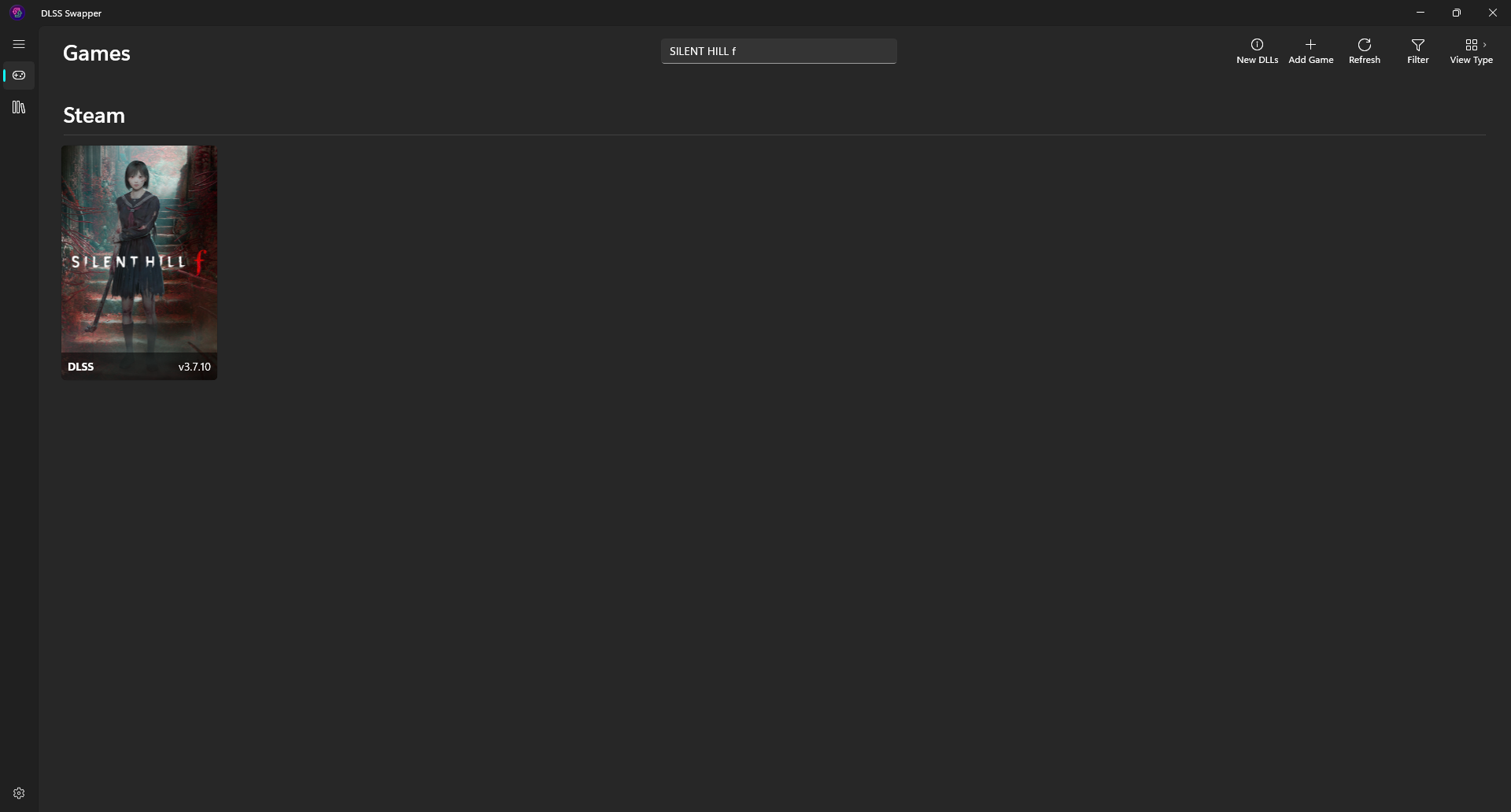
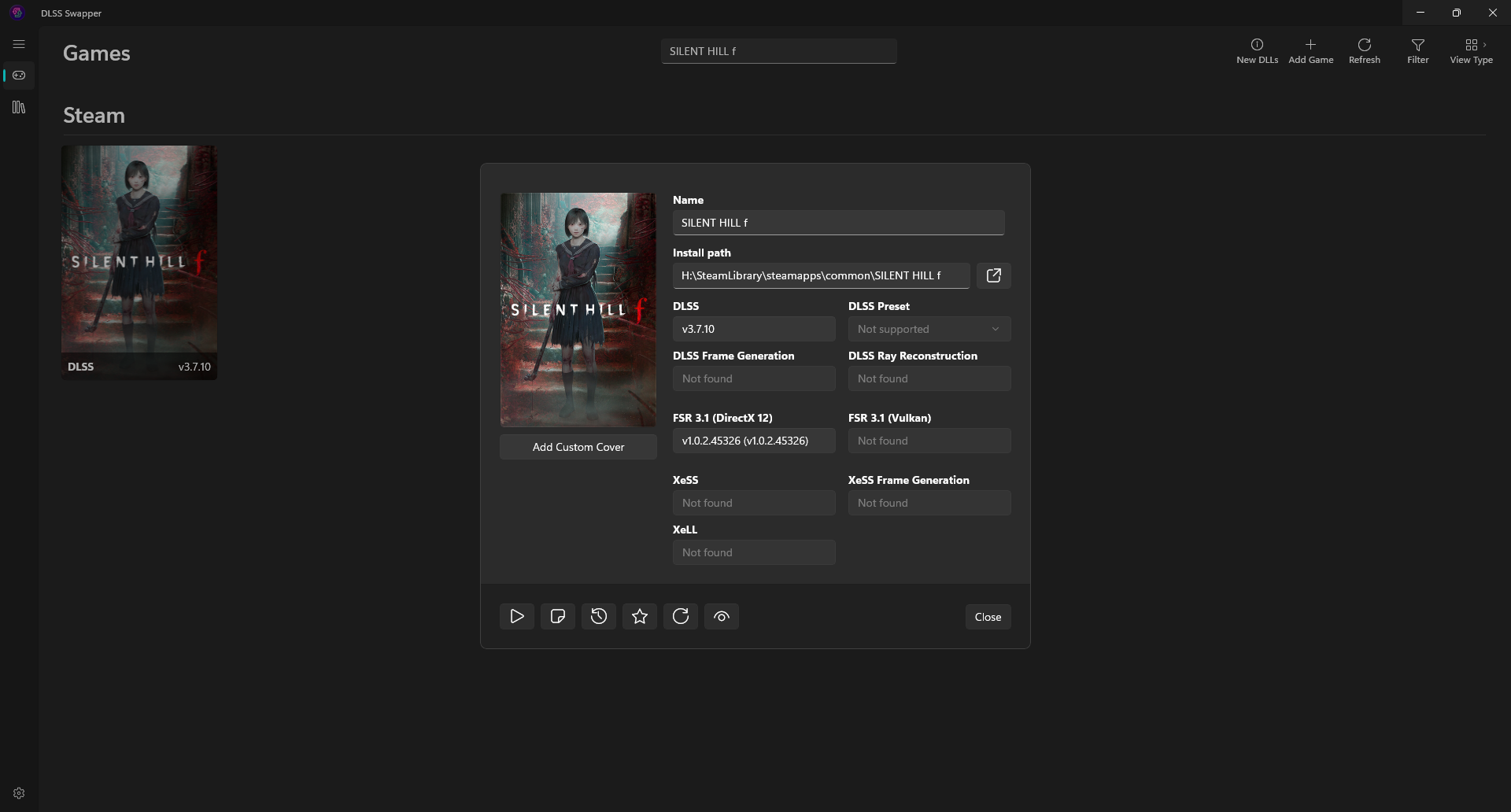
We can use an easy method: download DLSS Swapper[github.com] and run it.

Once inside the application, it will load all the games in your library. What we’re interested in is updating SILENT HILL f.


You just need to update the DLSS and FSR libraries, although for now it’s better to do it manually since the latest recent update is not yet available in the tool.


DLSS 310.4.0[www.techpowerup.com]
SILENT HILL f\Engine\Plugins\Marketplace\NVIDIA\DLSS\Binaries\ThirdParty\Win64

FSR 3.1.5/4.0.2[gpuopen.com]
SILENT HILL f\SHf\Binaries\Win64
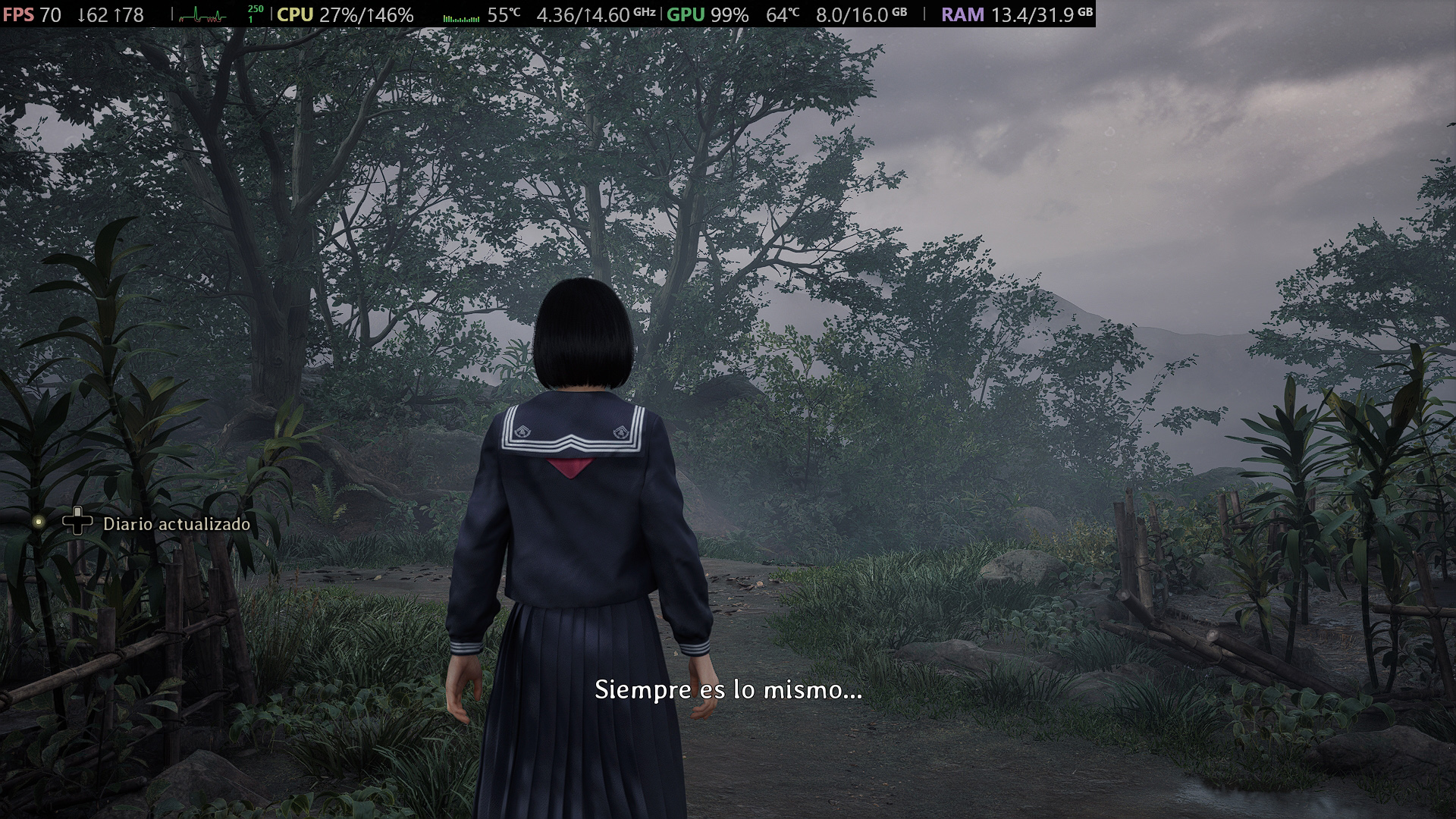
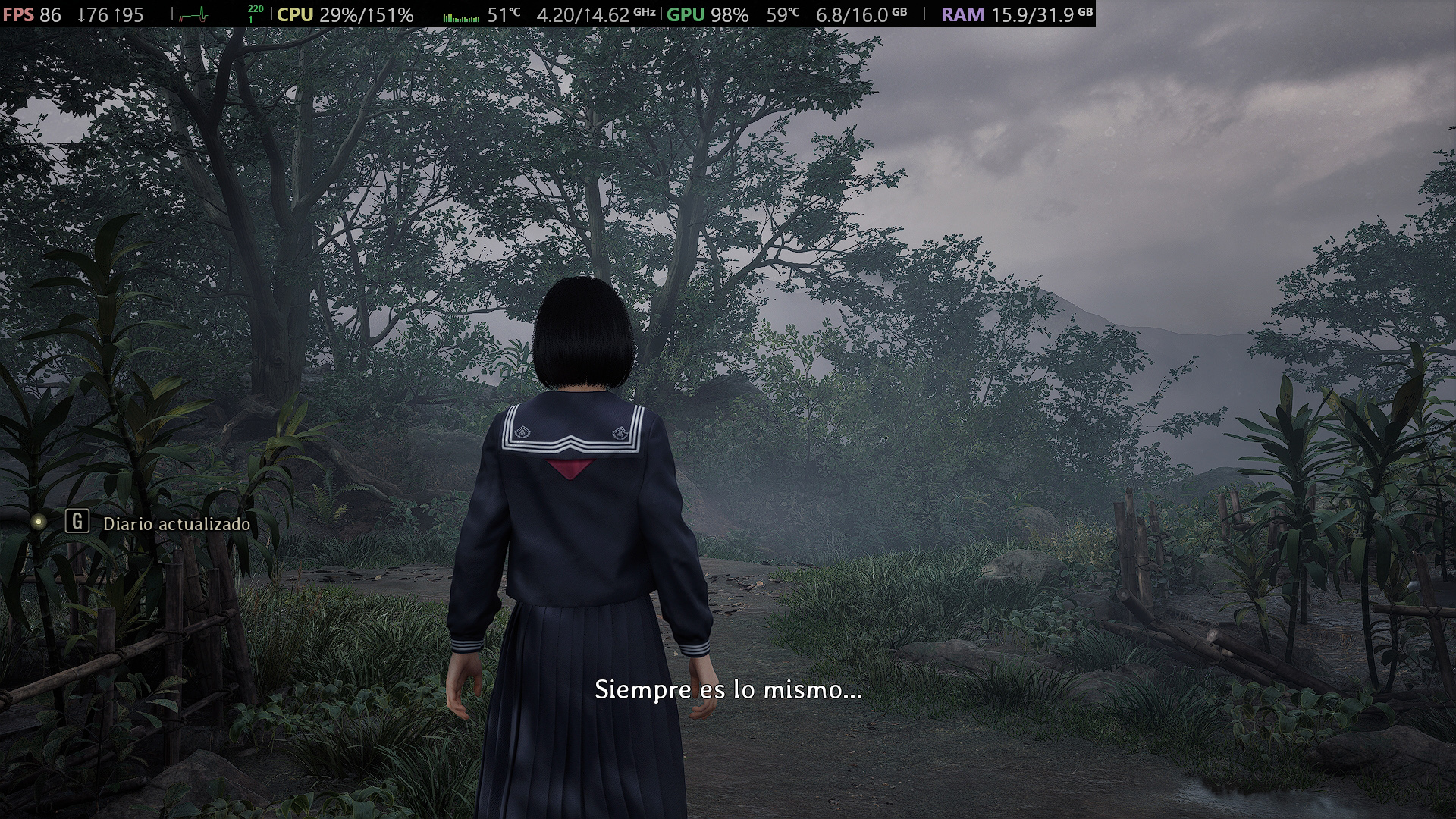
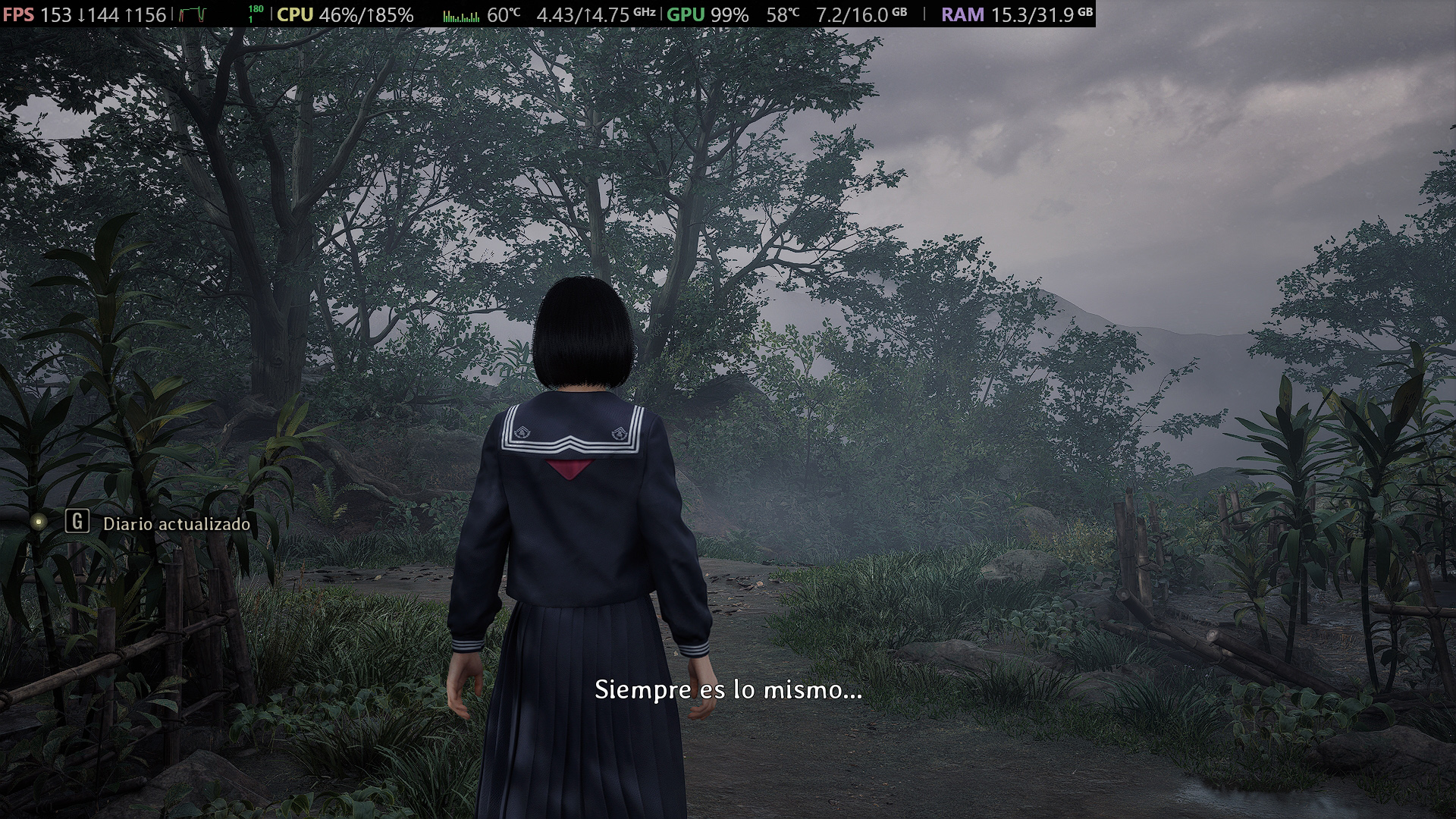
Comparison
Before


Ultra Lumen + TAA

After


Ultra Lumen + TAA, using Ultimate Engine Tweaks + Virtual Shadows disabled

Frame Generation


Ultra Lumen + TAA, using Ultimate Engine Tweaks + Virtual Shadows disabled, Frame Gen enabled via ini
DirectX 11
If you have a low end setup, you can try forcing DirectX 11.

In the game’s Steam properties, enter the following parameter:


-dx11

The only downside of this method is that Frame Generation via FSR—and probably all upscaling technologies—may not work properly under this architecture.

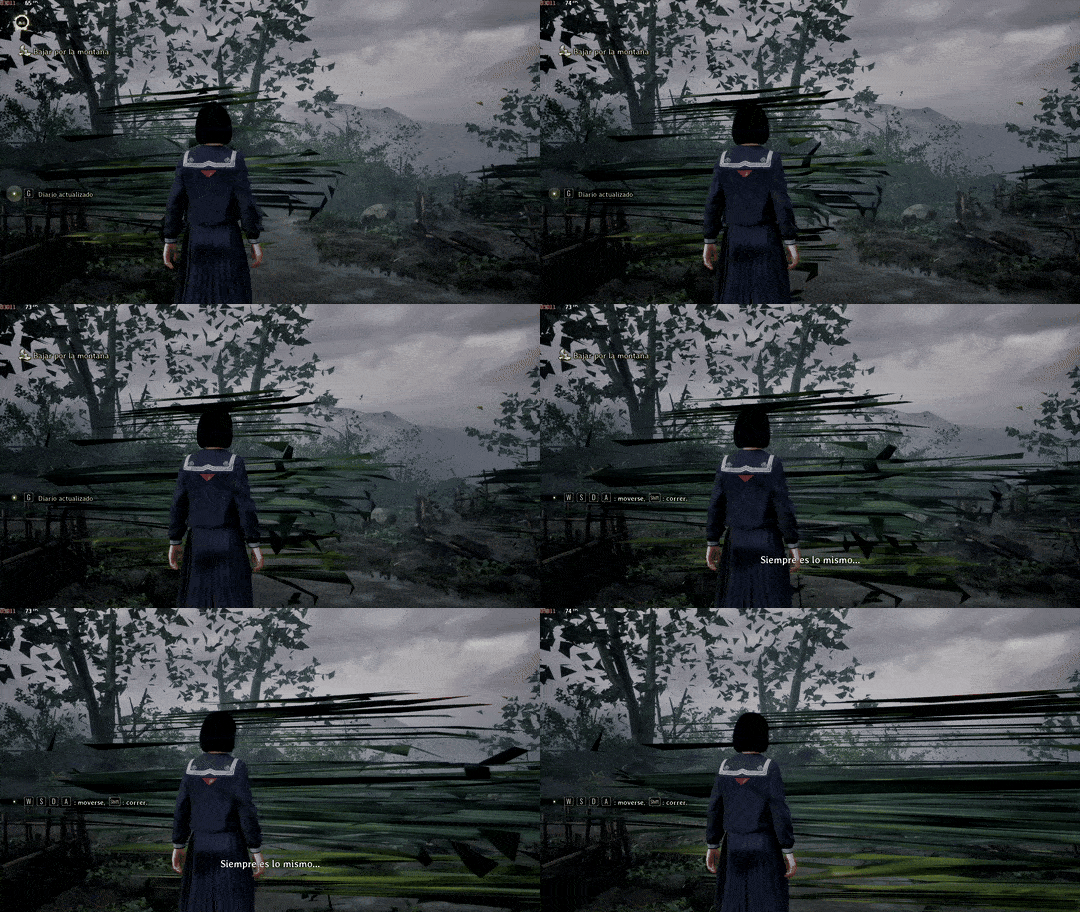
I recommend it as a last resort, since it can provide much higher performance and stability at the cost of a slight graphical downgrade and some funny glitches like the following one.


Wind simulation and foliage doesn't work properly in DirectX 11, so plant physics and probably other things don't work as they should.


You can use it alongside OptiFG or by spoofing DLSS with OptiScaler. More info below.
Enable Frame Generation via OptiScaler
Some users, myself included, may experience issues when using the default Frame Generation in Unreal Engine 5 due to its poor or nonexistent implementation in the game’s code. Among these problems, one of the most noticeable is that subtitles flicker during cutscenes.

This method is simple: just download the latest test build of OptiScaler from the official Discord server[discord.gg] and install it according to your preferences.

Very important: if your graphics card is AMD or Intel, avoid enabling the spoof option as it may cause visual glitches in global illumination in Unreal Engine 5, especially in games with fog like this one.
I recommend enabling spoof only if you want to use emulated DLSS or use Frame Generation in DirectX11.

Remember to enable the FSR frame generator via engine.ini before proceeding, since this tool overrides the engine's Frame Gen method.

Detailed instructions coming soon—you’ll know OptiScaler is correctly installed if you see the following splash in the bottom corner of your screen.


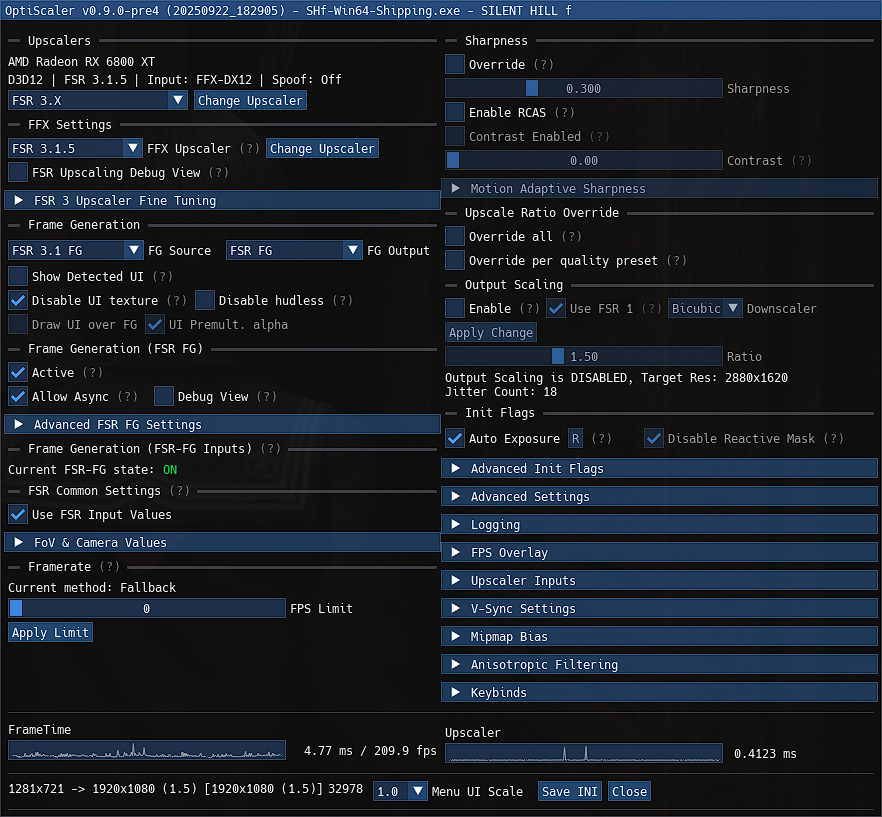
Once OptiScaler is running, make sure to select FSR 3.X in Upscaler and FSR 3.1.5 in FFX Settings (Or DLSS if you have an NVIDIA GPU).
Save the changes and, once you restart, select FSR 3.1 FG in Frame Generation and FG Source. (Again, you can choose DLSS if you want better quality on an NVIDIA GPU)

Save the changes again and select Active and Allow Async in the Frame Generation section.


Finally, save the changes and you’re done. Some of the most noticeable problems caused by frame generation will be resolved, though there are still a few left that we hope Konami will officially fix soon.


Fixing crashes and various issues by changing the FG method


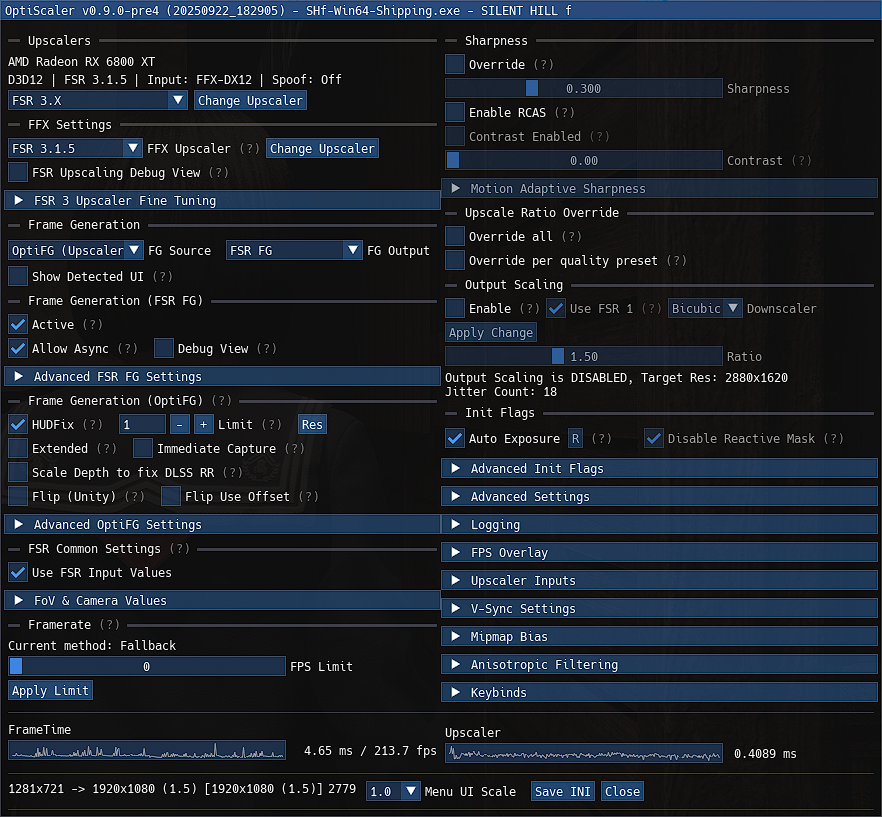
If you're experiencing crashes or issues related to FSR's Frame Generation and the above method doesn't fix the issues, you can choose OptiFG (Upscaler) and select HUDFIX in the scaler's advanced options.


The only issue with this method is that it can freeze the game when alt tabbing.

I recommend changing the display mode from full screen to borderless window in the game options. Alt tabbing issue can be fixed by forcing NVIDIA Reflex/AMD AntiLag 2.

Since NVIDIA Reflex isn't present in the game files at the moment, it can't be forced, even with OptiScaler. We'll just have to wait for a future update that will add native Frame Generation + Reflex and the ability to use forced AntiLag 2 thanks to OptiScaler.


Remember that you can re-enable the Steam overlay by modifying the OptiScaler.ini file and changing the following parameter:

DisableOverlays = true

Change the value to 'false' and save the file.
Mods I recommend for a better experience
SHfFix[www.nexusmods.com]
— Unlocks the default 30 FPS cap in cutscenes and adds some much-appreciated quality-of-life improvements, such as providing a fix for Ultrawide screens and skipping the long Konami intro.
Conclusion
While the native performance of this game is far better than previous Konami titles like Silent Hill 2 or Metal Gear Solid Delta, there’s always room for improvement to make better use of the hardware thanks to the modding community.

This guide will be updated in the coming days to add more methods for enabling Frame Generation and to update additional libraries that can improve overall performance.

That’s all for now—I hope this guide has been helpful.
38 Comments
dungohun06016 9 Oct @ 10:39am 
사일런트힐 f 2회자가않되요 애기웃음소리가않나오고요 문도안열리고요
Special Week ♡  [author] 26 Sep @ 12:17pm 
Jaja viste
Fartox 26 Sep @ 12:15pm 
ahhh jajaja al final eramos todos de argentina lol
Renka 26 Sep @ 12:10pm 
I'm ngl without these tweaks I had 17 fps now I have constant stable butter smooth 75 fps.
Aguante argentina loco
Special Week ♡  [author] 26 Sep @ 11:52am 
There is always someone who wants to get the most out of it. (?) Aguanten Argentina y Hatsune Miku
Fartox 26 Sep @ 11:51am 
this looks like too much work considering the game runs fine as is, but hey thanks for the in depth guide, I'll definitely keep it in mind for future ue5 games, much love from argentina
Special Week ♡  [author] 26 Sep @ 11:31am 
I forgot to add the universal optimization cvars for Unreal Engine 5 lmao. Thanks (?)
DiABLO 26 Sep @ 2:16am 
I have not had 1 single crash.. But there is no doubt that your CPU needs to be ROCK solid with UE5- trust me.. the shader decompress and compile are Intels worst enemy haha.. if you have the SLIGHTEST instability even though low CPU usage in the game- It will crash to desktop.
DiABLO 26 Sep @ 2:08am 
My config and tips below gave MASSIVE performance increase along with another 2x in FG. But this is while MAXING quality and clarity .. HUGE difference- butter smooth
DiABLO 26 Sep @ 2:06am 
Also, custom Engine.ini (USE IT!) remember to "read only" the file..

[SystemSettings]
r.DepthOfFieldQuality=0 ;Remove DOF
r.SceneColorFringeQuality=0 ;Remove Chromatic Aberration
r.Tonemapper.Sharpen=3 ;Sharpen Filter - Makes huge diff
r.Tonemapper.GrainQuantization=0 ;Remove Film Grain
r.Tonemapper.Quality=0 ;Remove Film Grain
r.DefaultFeature.AntiAliasing=0 ;forces a specific AA-type: 0=none
r.PostProcessAAQuality=0 ;forces max quality AntiAliasing
r.ScreenPercentage=100 ;internal rendering resolution.
r.LensFlareQuality=0 ;Removes lensflares
;r.VolumetricFog=0 ;Volumetric Fog
r.MaxAnisotropy=16 ;
r.BloomQuality=0 ;Bloom off