Barotrauma

Barotrauma

Not enough ratings
The TRULY SMART battery controller (in 21 components)
By RAY
This is a full walkthrough to build an all-round set-and-forget battery controller which will make the batteries ALWAYS do EXACTLY what you want them to do.

+ Smart: 4 different states of input and output
+ Soft start/stop charging which removes flickering
+ Removes overvoltage with high precision
+ Provides energy during reactor downtime and other incidents
+ Automatically charges or discharges towards a percentage of your choice during normal operation
+ Impressive: You can show this off to your friends


It is easy to underestimate the complexity of good battery controls, especially since reactor controllers are so easy and cheap to make.

There are very good reactor controller guides right here in the Steam workshop, however I could not find a guide which would provide battery controls to cover all my cases. So I made my own battery controller.

And since there is no guide... I decided to make my own as well. Hope it serves you well.
2
   
Award
Favorite
Favorited
Unfavorite
Requirements and fundamentals
Hello fellow engineers,

proudly I present to you a comprehensive, no holds barred, all cases considered, battery control which will work so well you will forget about it right afterwards. Hopefully :)

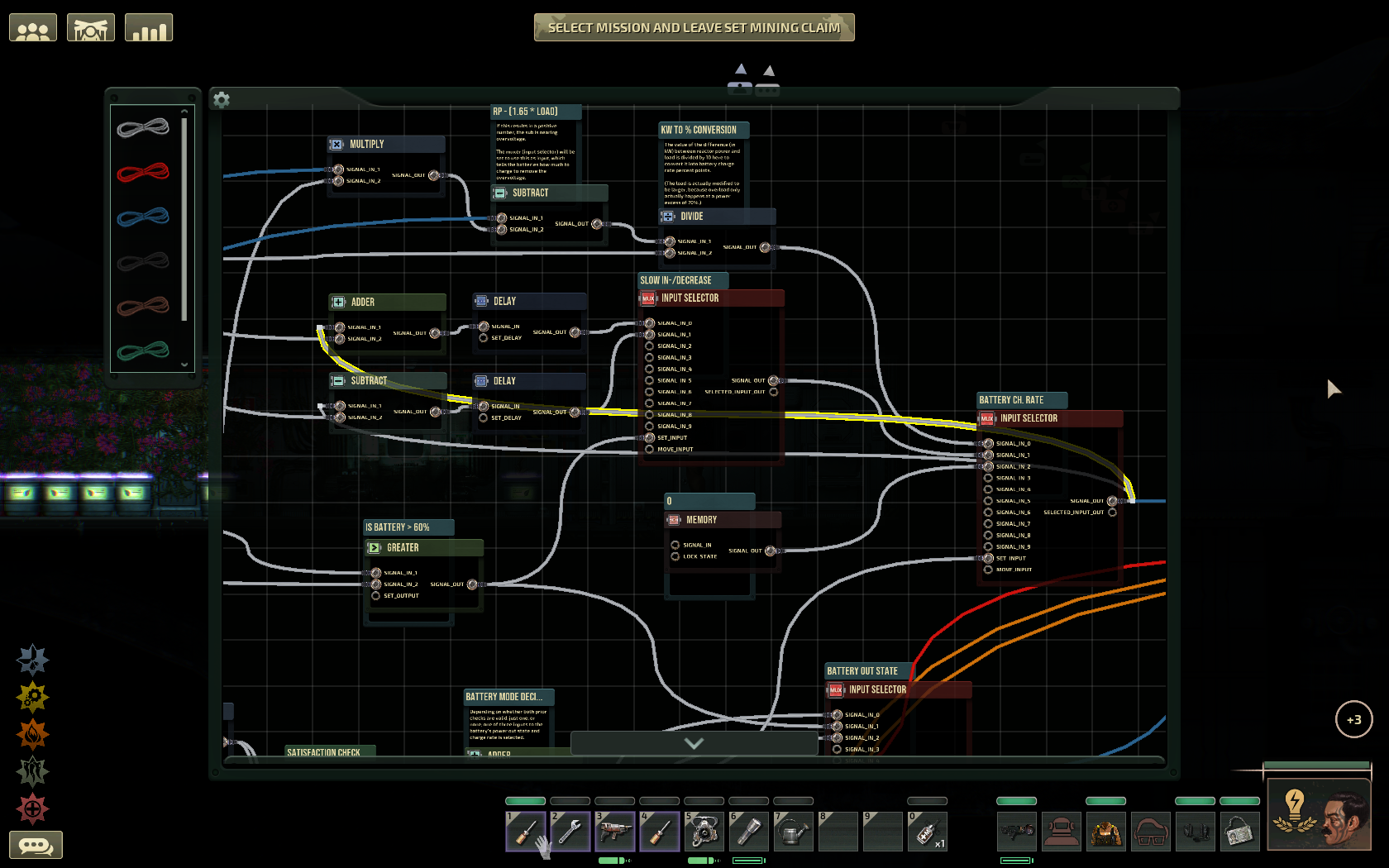
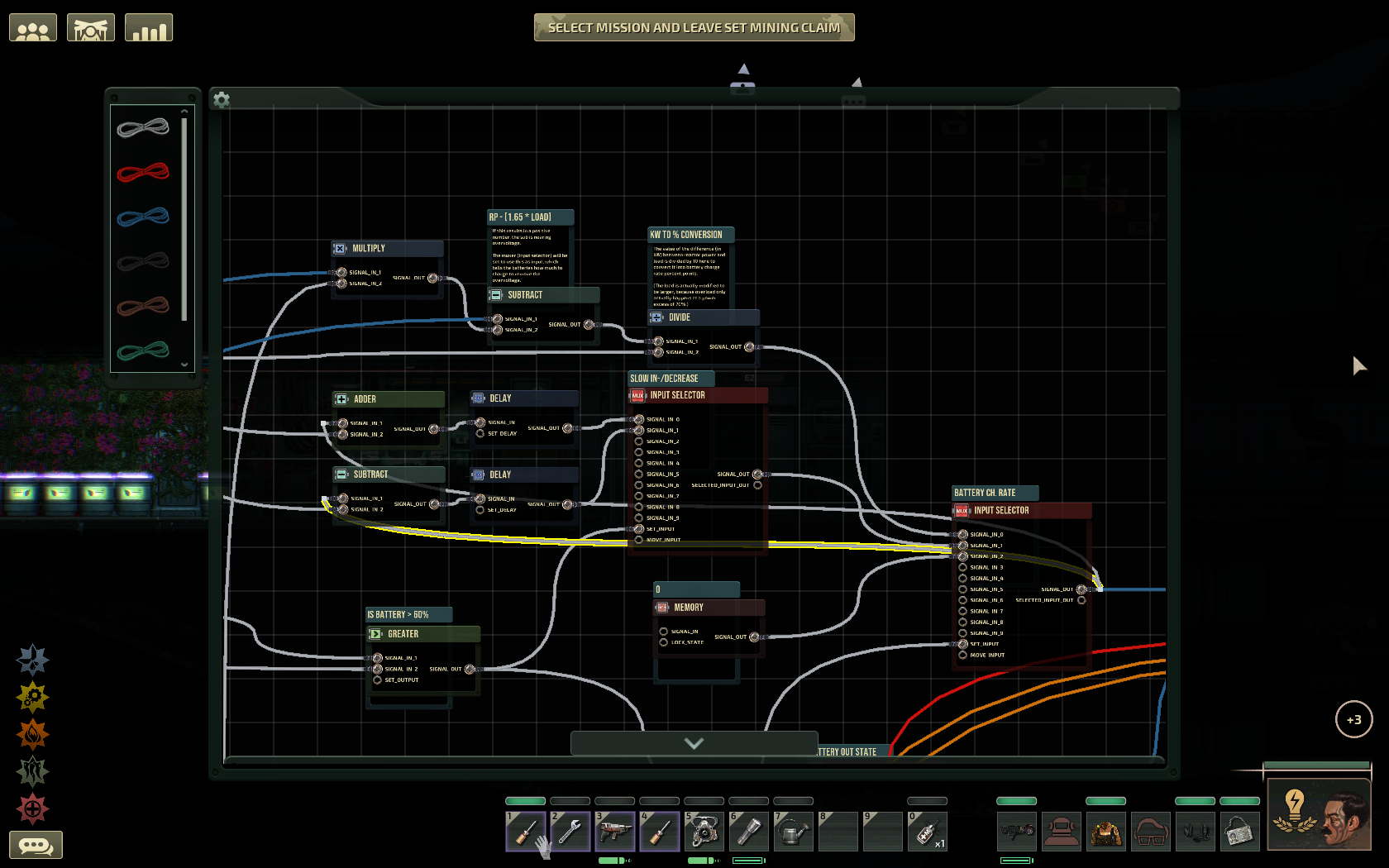
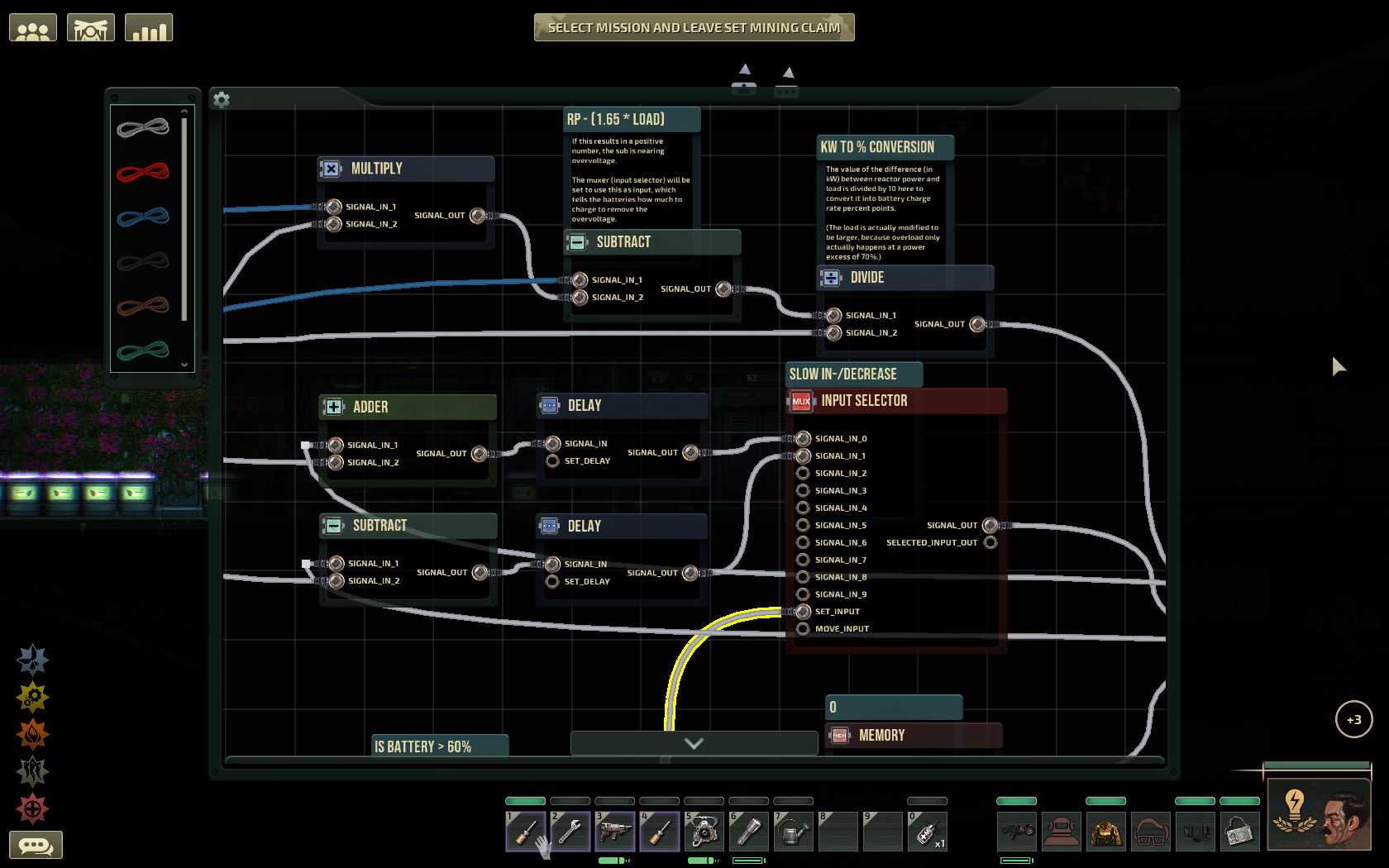
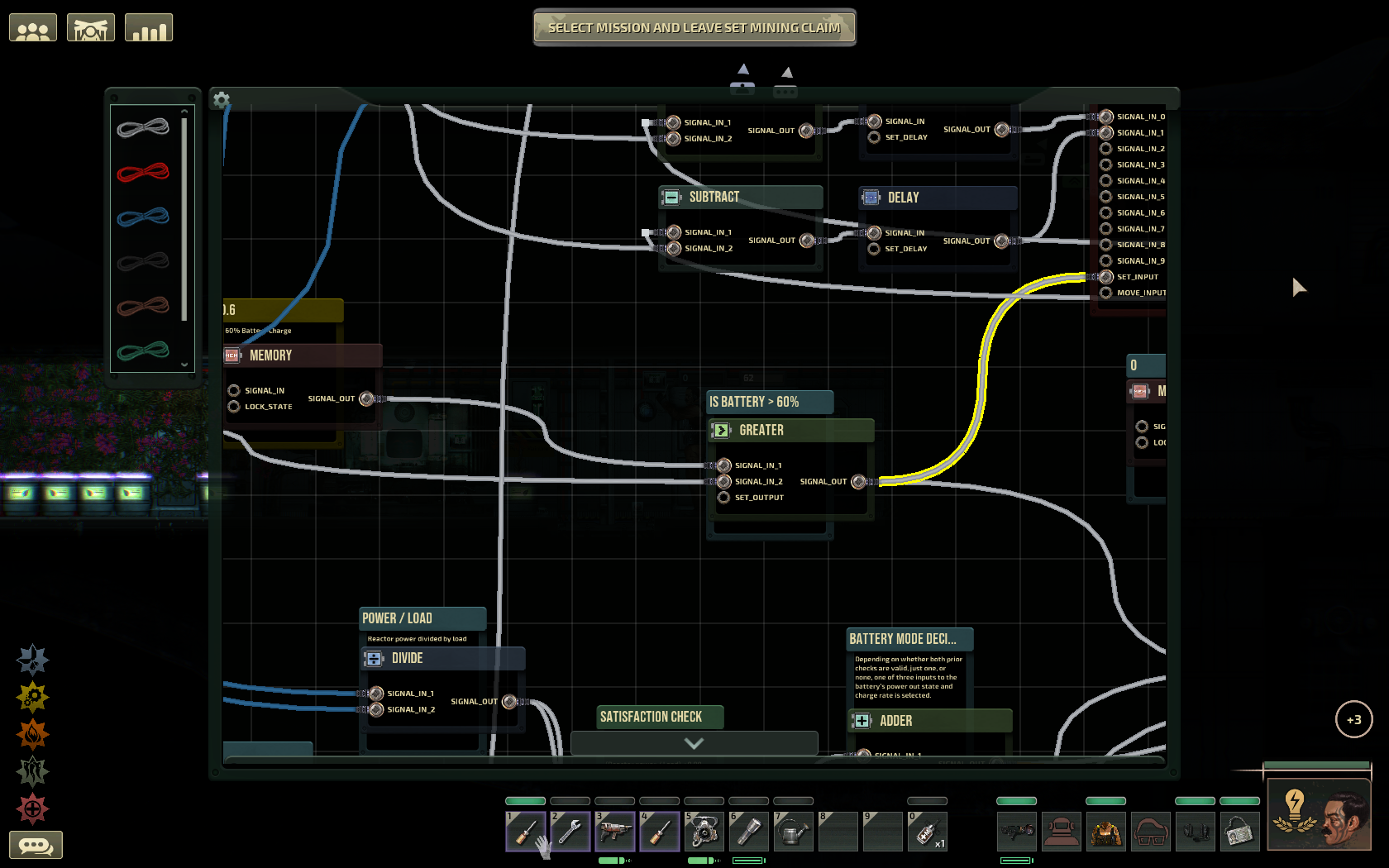
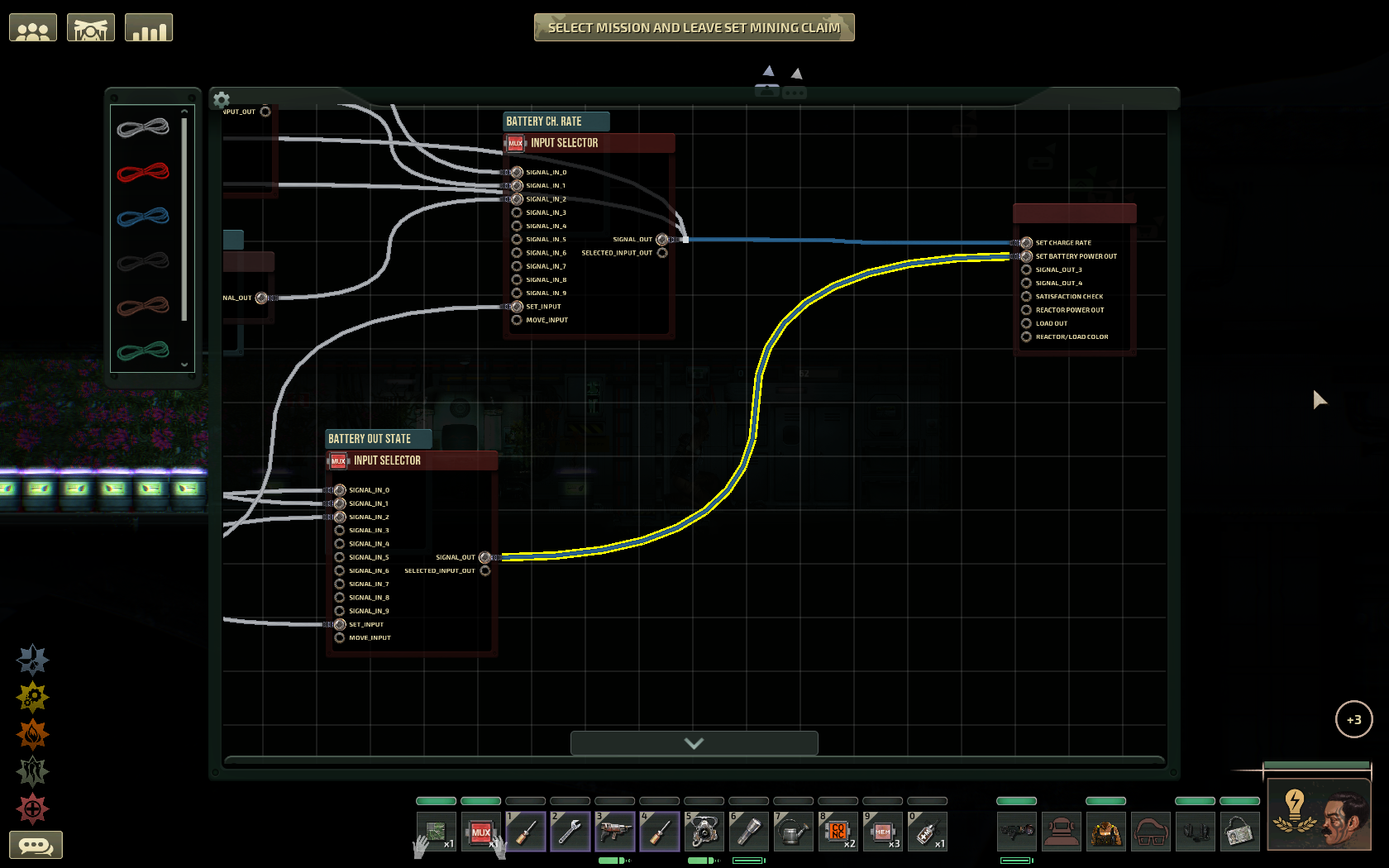
This is what the end product will look like. The picture is high-resolution, if you open it in another tab you can zoom in and read the labels.

This is the circuit WITHOUT the extra signaling, which consists exclusively of orange and red wires. This means you can ignore orange and red wires until the very end of the guide.

If you didn't produce a reactor controller yet and consider yourself a beginner, I recommend starting with one of those instead. They are simpler, cheaper and will probably have a greater impact on your quality of life in the sub.

I recommend the one you will find if you search for "Carnot reactor controller".

Requirements
20 or 21 components, depending on your submarine.

Components
  • 5 (or 6) Memory: if you have exactly 2 batteries on the sub, you need 5, otherwise 6.
  • 3 Input Selector
  • 3 Greater
  • 2 Adder
  • 2 Divide
  • 2 Delay
  • 2 Subtract
  • 1 Multiply

If you don't have a circuit box, then you will need a big amount of wires.

I heavily recommend using a cicuit box though.

Getting what you need
If you don't sacrifice extra time and marks for it, the earliest time in the campaign you will get the necessary amount of materials for this project is when you find an abandoned sub or destroy an enemy sub.

The trick is to grab a crate, a cargo scooter or a backpack, take a wrench, dive into the sub and detach (E) everything you can. Hold the (Alt) key to find things which are obstructed from view or in the dark.

Make sure to get text displays and terminals (tin), detectors and alarm buzzers (copper), and of course all the components you can find. If you have some time, you can destroy certain walls to reveal more hidden components, usually close to batteries or junction boxes.

Especially text displays and terminals are important. They may not stack, but are one of the few items you can (and want) to deconstruct for tin, which can become rare quite quickly.

Creating components
All components are made out of FPGA circuits in the fabricator.

Deconstructing components will yield FPGA circuits, making them 100% recyclable.

Also, if you are working in a circuit box and choose a component from the circuit box window, it will automatically use FPGA circuits from your inventory to create whatever component you might need.

This is one of the reasons why circuit boxes are so convenient.

Fundamentals
I will sometimes write a value in parentheses in this guide: "value". LEAVE OUT the parentheses when putting the value into the component. It should always look like these 4 examples:

value
1.65
0.9
0.90

A numerical value in a component has to be written without special characters and without whitespaces, only numbers and a single period inbetween if it is a decimal number.

Yes, decimal numbers will use a PERIOD "." and NOT a COMMA ",".


Next, obviously, you will need a screwdriver to wire everything together.

If you weren't aware of that, it is probably better you start with a reactor controller. It needs fewer components and is more beginner friendly to debug as well.


However, in case you are quite good at circuitry and logic, but new to the game, I will shortly explain the fundamentals.

Talent to get it CHEAP
The engineer has a talent called "Submarine of Things" in the general section (2nd row). It will half the cost of FPGA circuits and circuit boxes (almost).

Wiring in Barotrauma
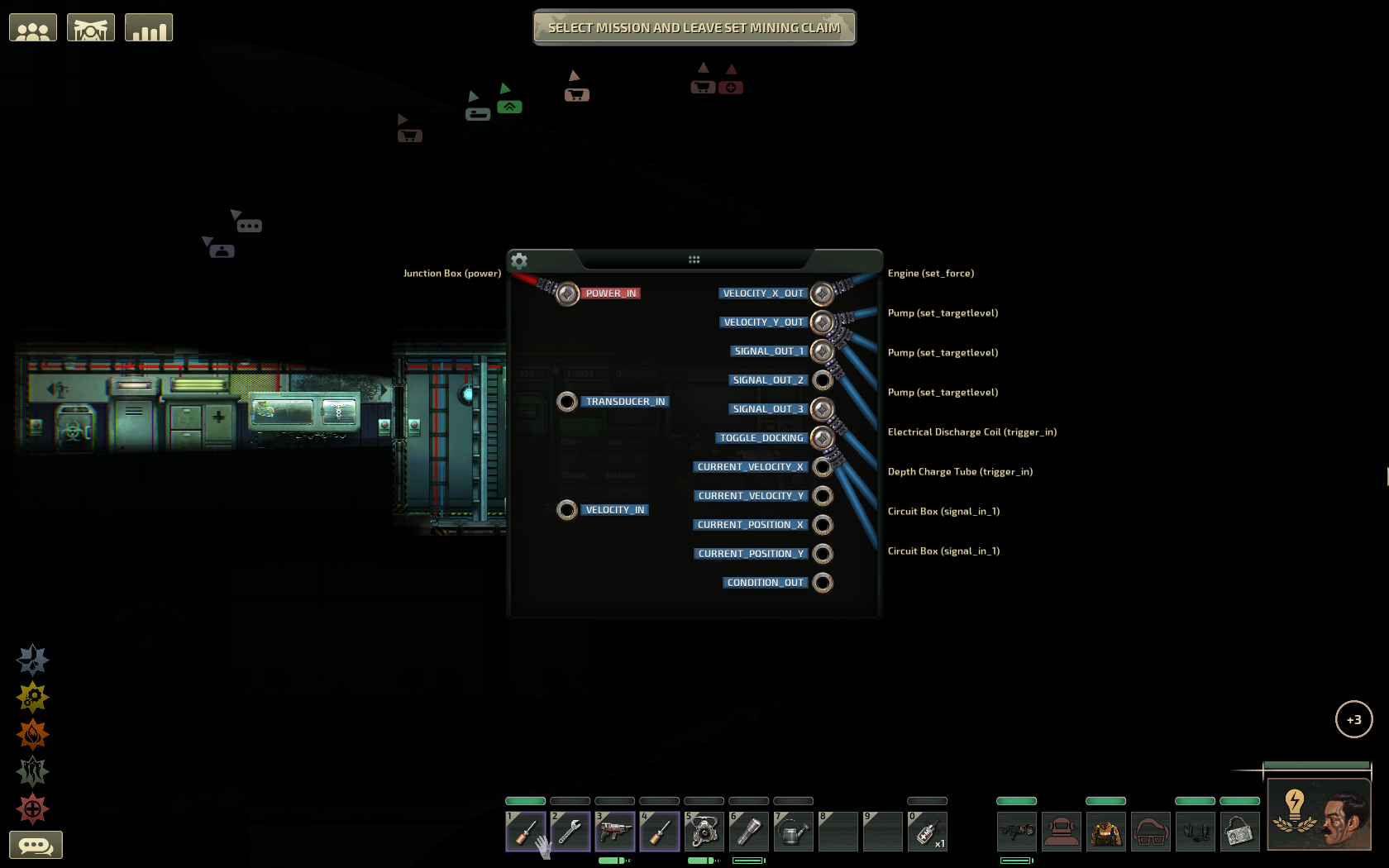
Equip a screwdriver, hovering over one of many different installations (e.g. reactor, junction box, sub battery) with your cursor and press (E). You will get a different window than with a left click, with a bunch of connection pins and cables: the Connection Panel.

The connection panel of the Orca 2's navigation terminal.

It tends to be quite intimidating to beginners, but also opens a world of possibilities.

Connecting two devices or components
To connect a cable, equip a screwdriver and a cable at the same time. Now open a connection panel and you will see a loose strand at the bottom of the panel to drag where you want it to be.

You are not done until you connect the other end, though!

When you connect the cable and close the panel, you will see a line connecting the device and your cursor. This is the wire which you are pulling between two spots. Press left click to "tack" the wire to a spot on the wall.

This allows you to choose the path the wire will take to make it look nice and tidy (or not and drive everyone crazy). Press right click to remove your last "tack", however if there is no tack left, you will leave wiring mode and the wire will be removed from its first connection as well.

Open the other device's connection panel and connect the cable there like in the first one to finish the wiring process.

Removing wires
You can move a cable with drag and drop and also remove it from any connection in general, which leads to it hanging around in the device's connection panel and making a buzzing sound every once in a while.

To remove a wire completely, you have to disconnect it on both ends, which means going to the other device or component on the other end of the cable and removing it from a connection there as well. It will be hanging there and now you can use drag and drop to pull the cable from the connection panel right into your inventory.

Detaching a device or component will also remove all cables, severing their other connection and make them drop on the spot where you stand at the moment.

Sooo... circuit boxes huh?
Absolutely do use a circuit box if you can! I used one for my build and it might be hard to follow if you decide to create the same setup with components on the wall, though it's definitely possible.

I have however seen jank happen with circuit boxes in multiplayer, making a reactor burn more than once. So if you get problems around that, you might have to actually take the circuit out into the open.

Connecting wires in the circuit box
It's very simple. On the left side, you can choose any wire color you like. Then, you just click and drag from one connector pin to the other. You already placed a component from the bottom slide-out panel in the circuit box, right? You will need those.

You get infinite wires to use inside a circuit box, you can put in labels and what not and the MP problem will probably be solved some way or another. It is generally much better for your sanity.

As stated above, working in the circuit box, you only need FPGA circuits, since they will automatically convert into whatever component you choose from the circuit box window.

Also, you can at any time create a label by using the right-click menu. They always remain in the background, so you can slide them behind components as descriptions. This is very useful, especially since you WILL forget what you did there.

You will find labels all over my circuit box and I recommend you copy the titles of the labels for easy overview and debugging later on.

First part of the circuit: Overvoltage value calculation
This will be a step-by-step guide to build the smart battery circuit inside a circuit box.

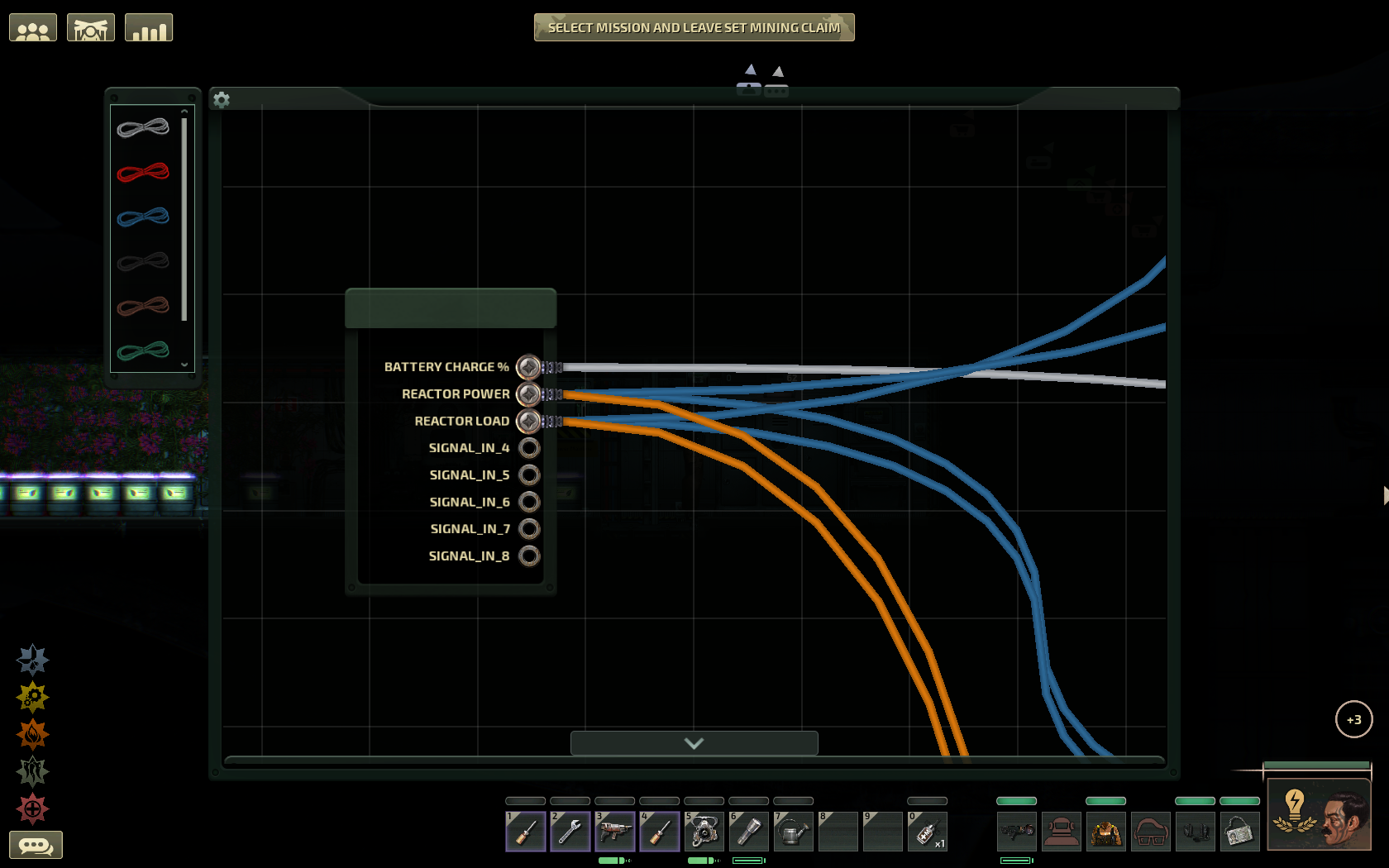
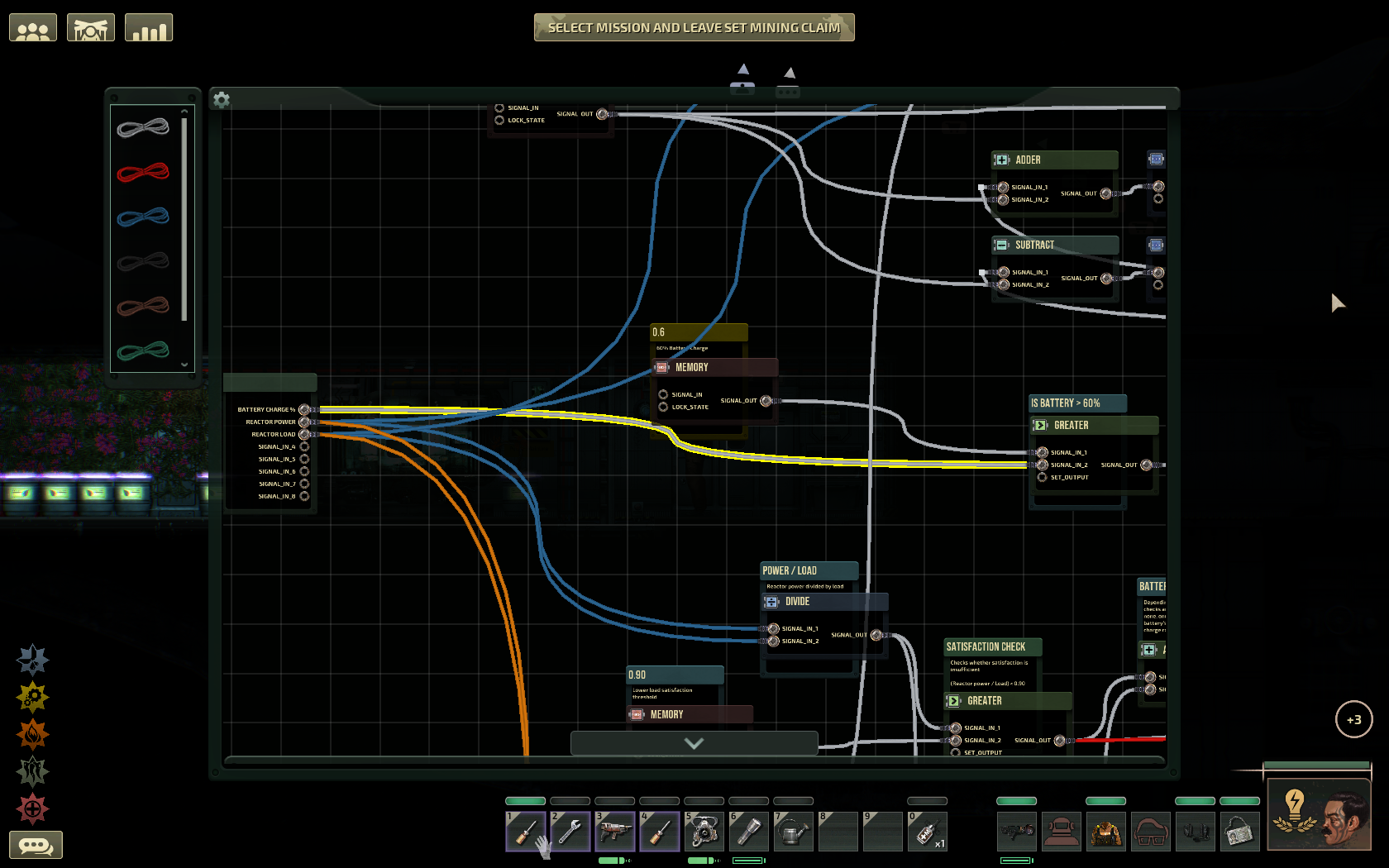
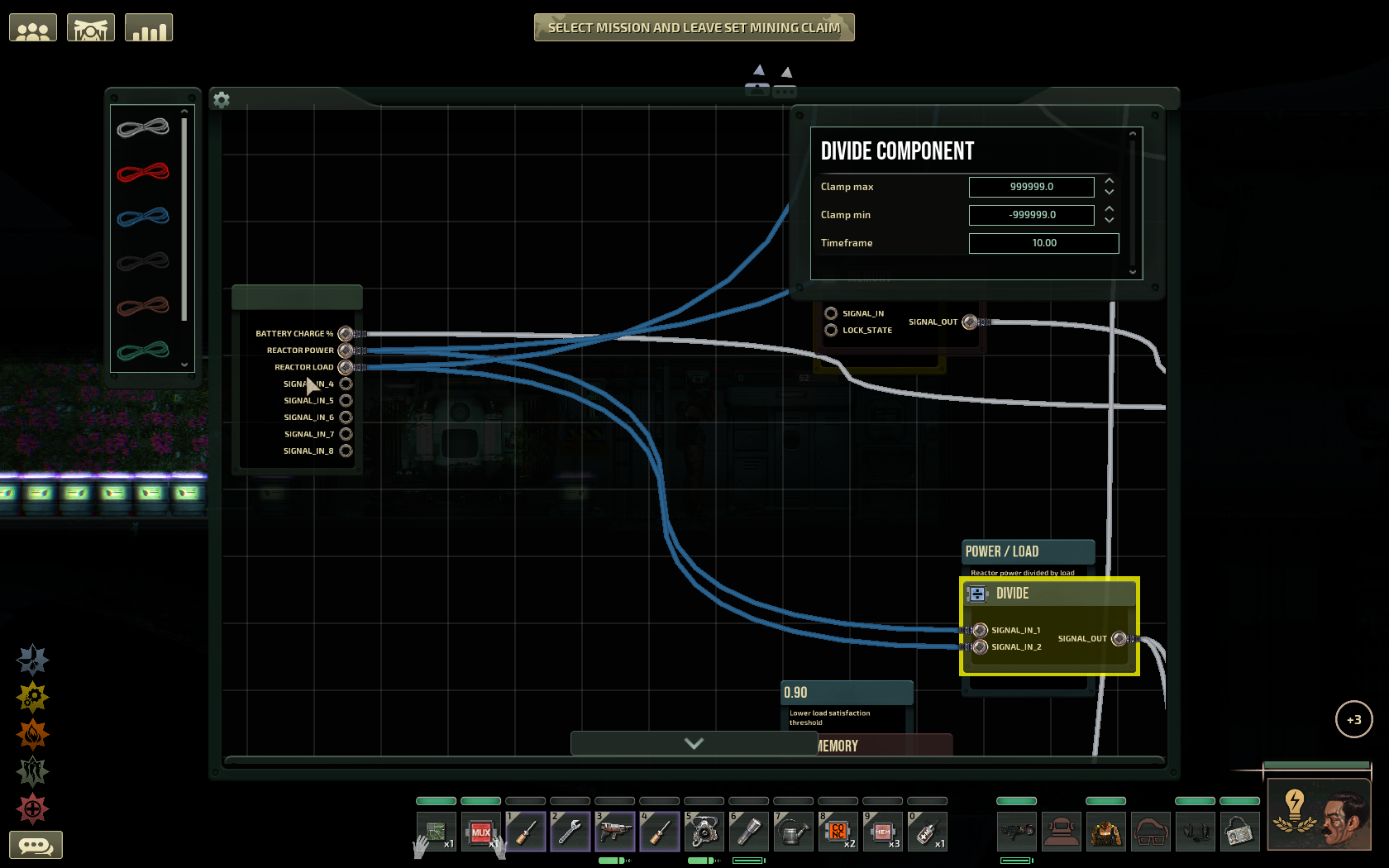
1. Input connections

Step 1
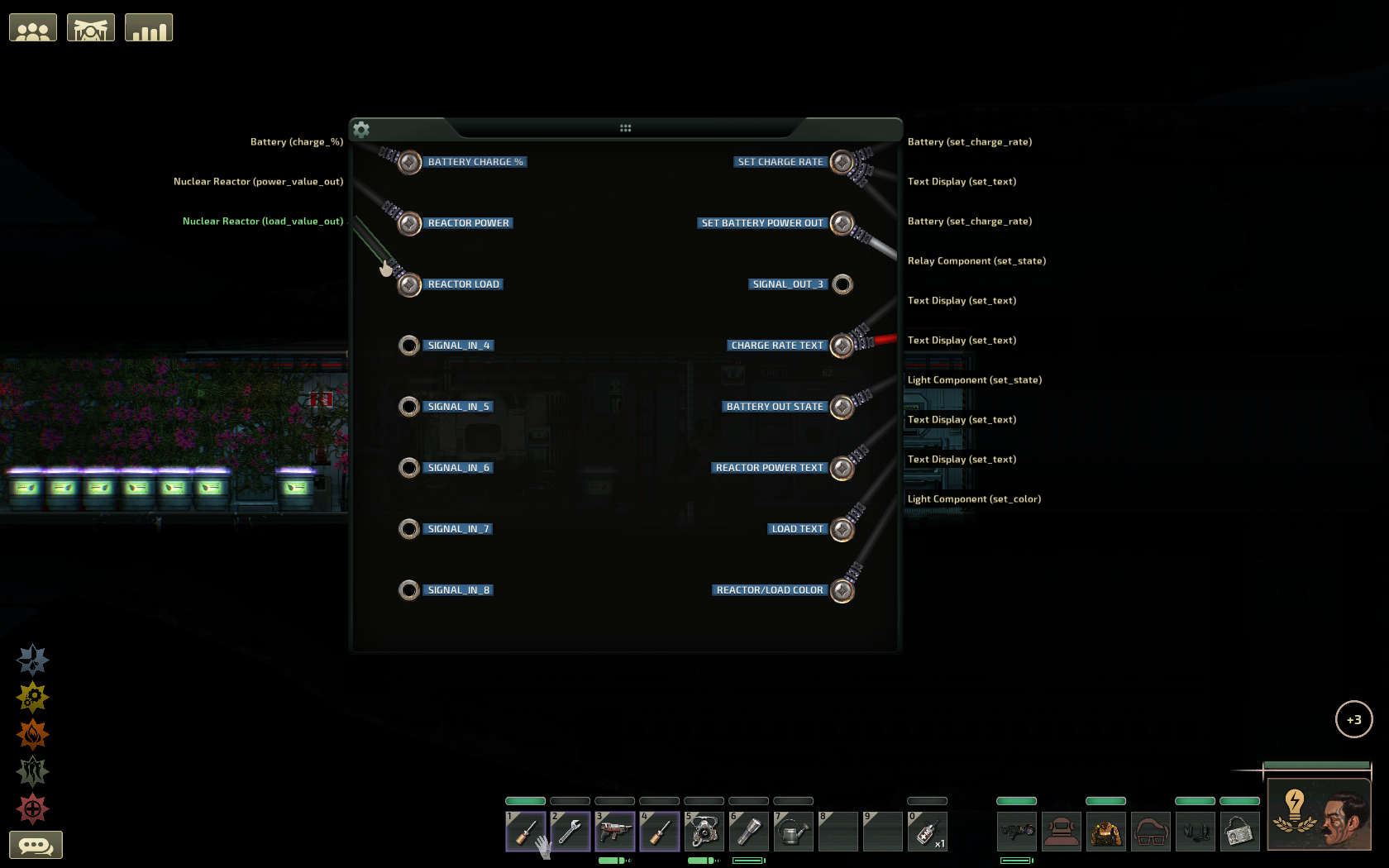
  • Rename the input connections of your circuit box as you see here.

    "Battery Charge %"
    "Reactor Power"
    "Reactor Load"

We won't use the other input connections.
Follow the blue wires upwards; ignore the other ones.

We start building the controller by calculating a simple value for use in one of the battery states, the overvoltage state.

Calculating the overvoltage value
Step 2
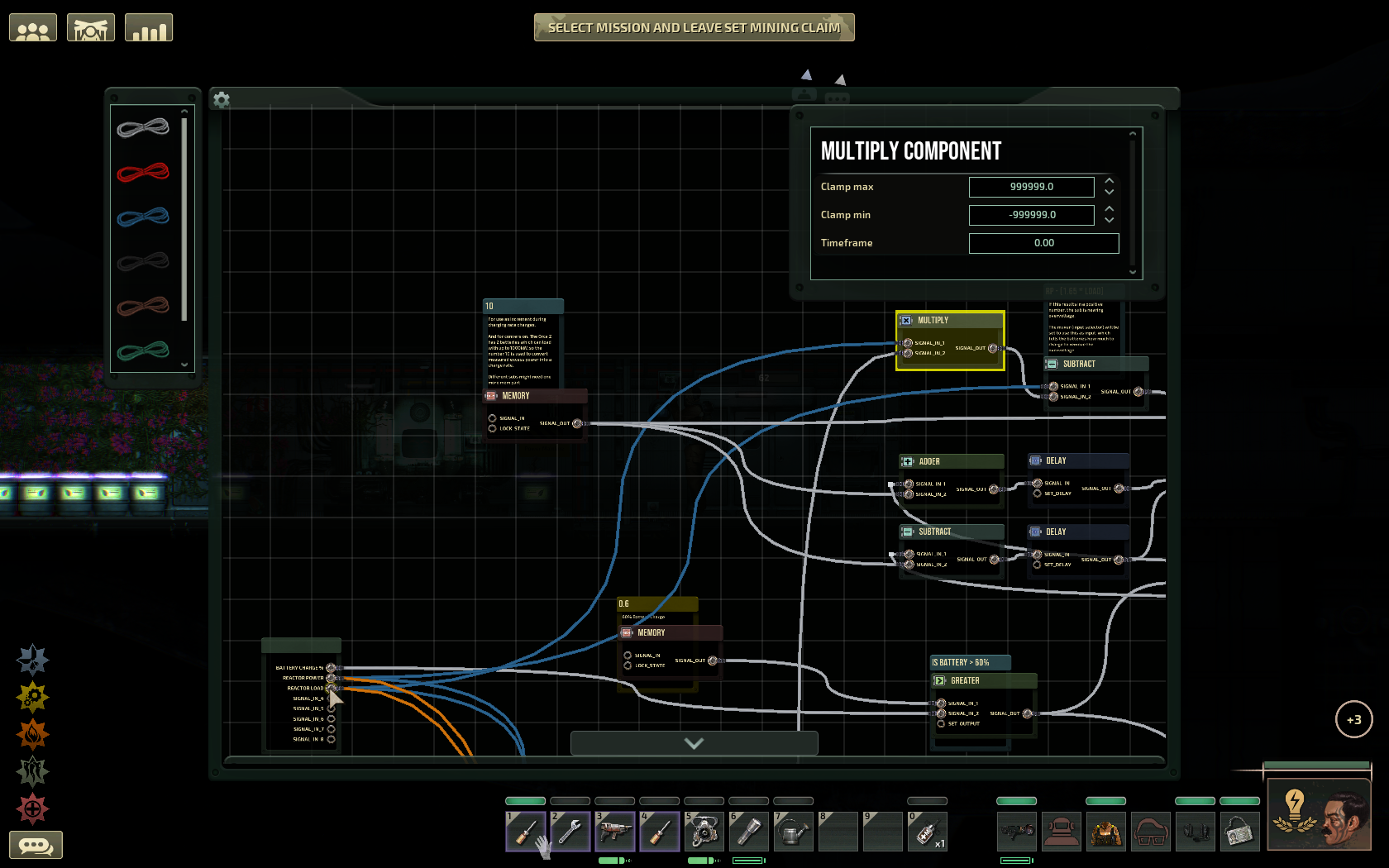
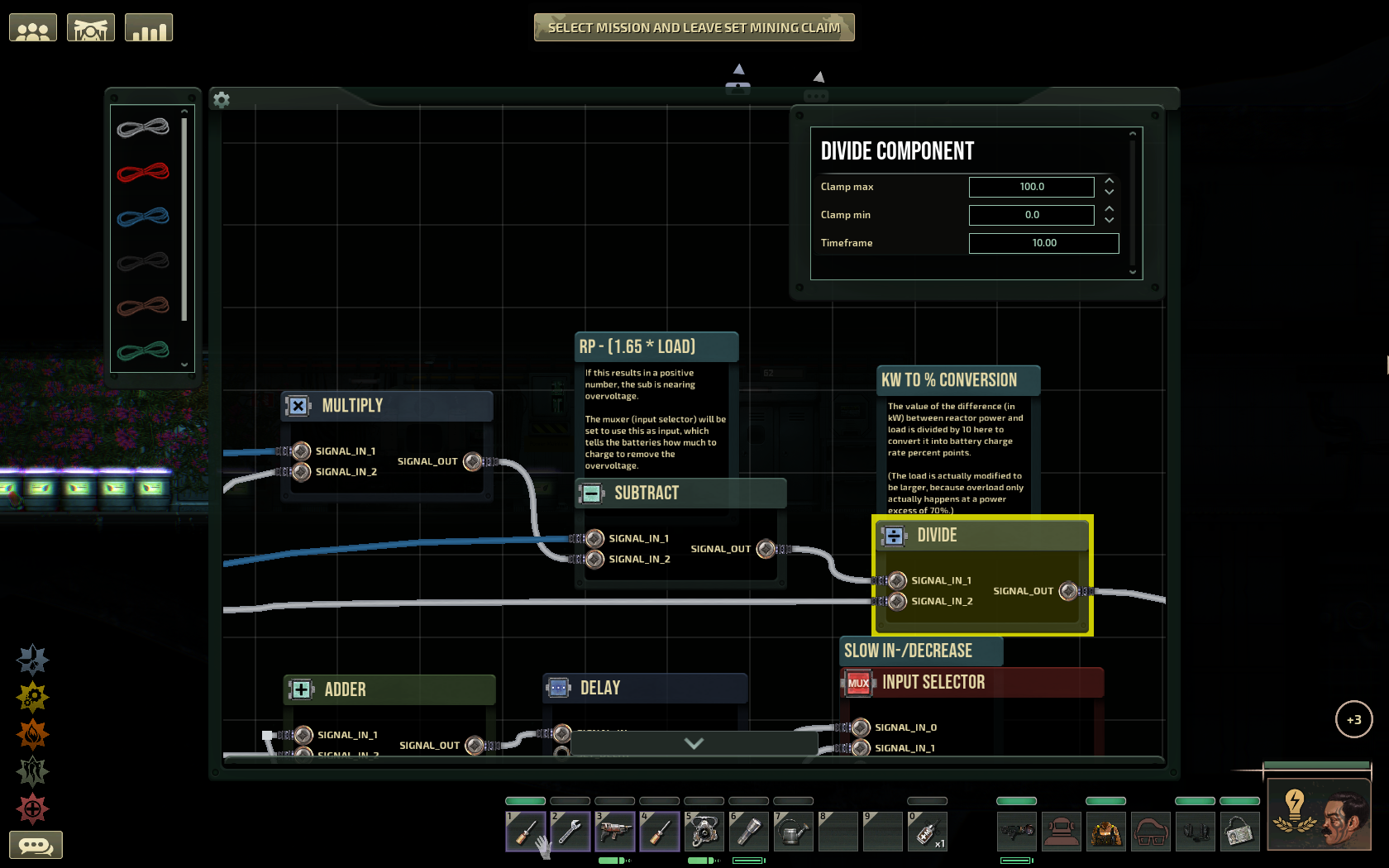
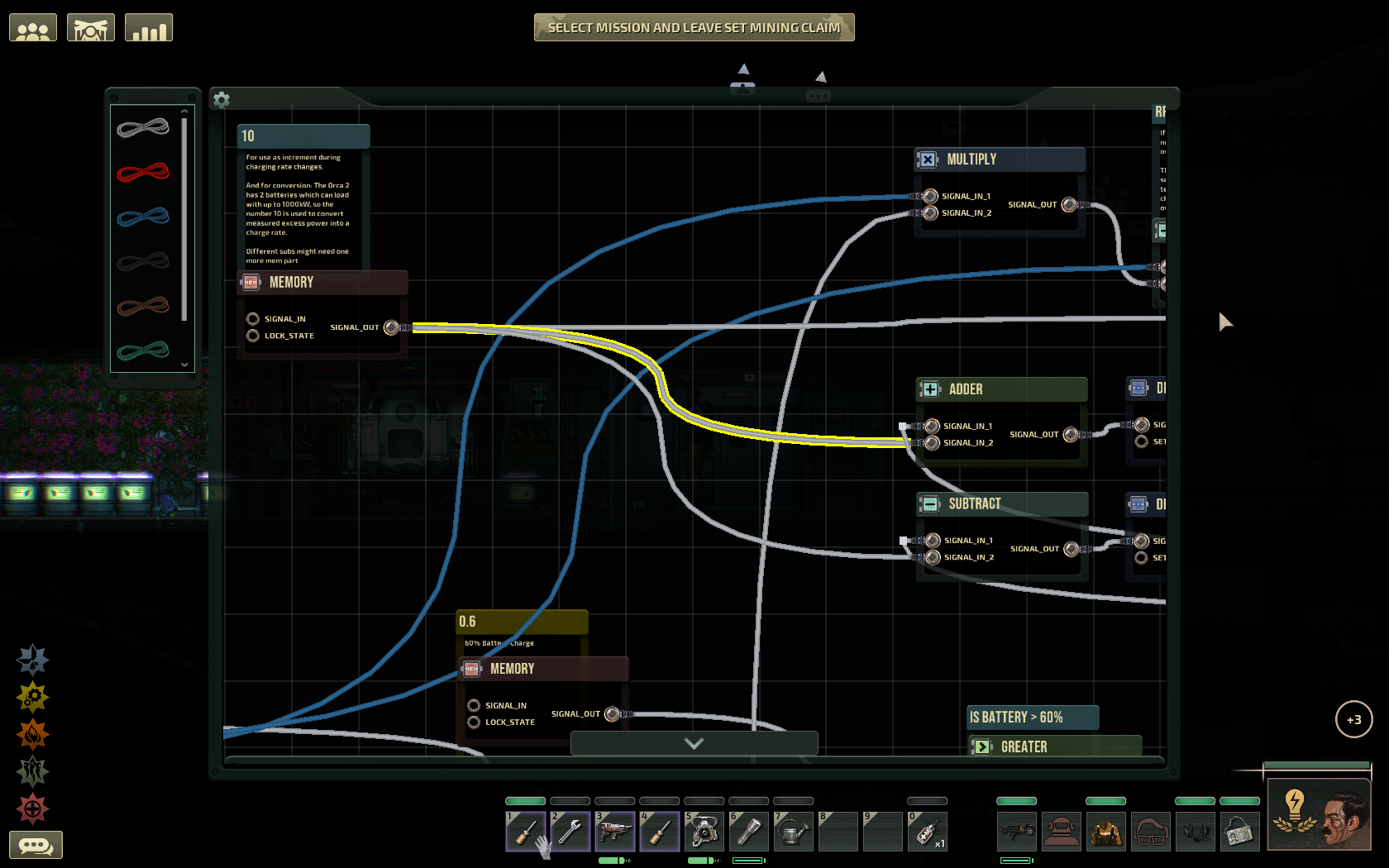
  • Connect the "Reactor Load" connector to a multiply component.

  • The output of the multiply will go into the second input of a subtract component right after.

  • The same subtract component will have as first input a wire directly from the "Reactor Power" connector.

Step 3
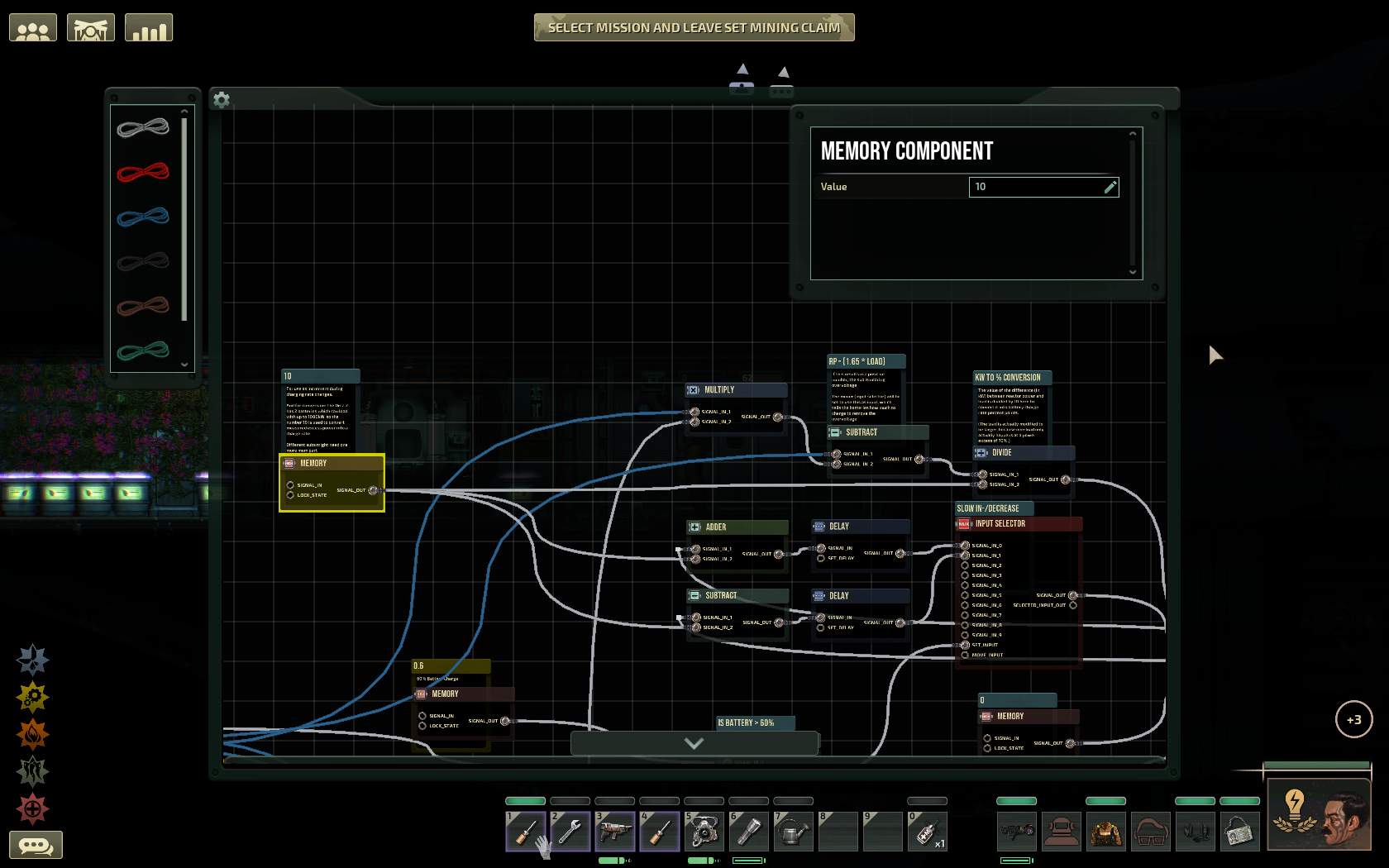
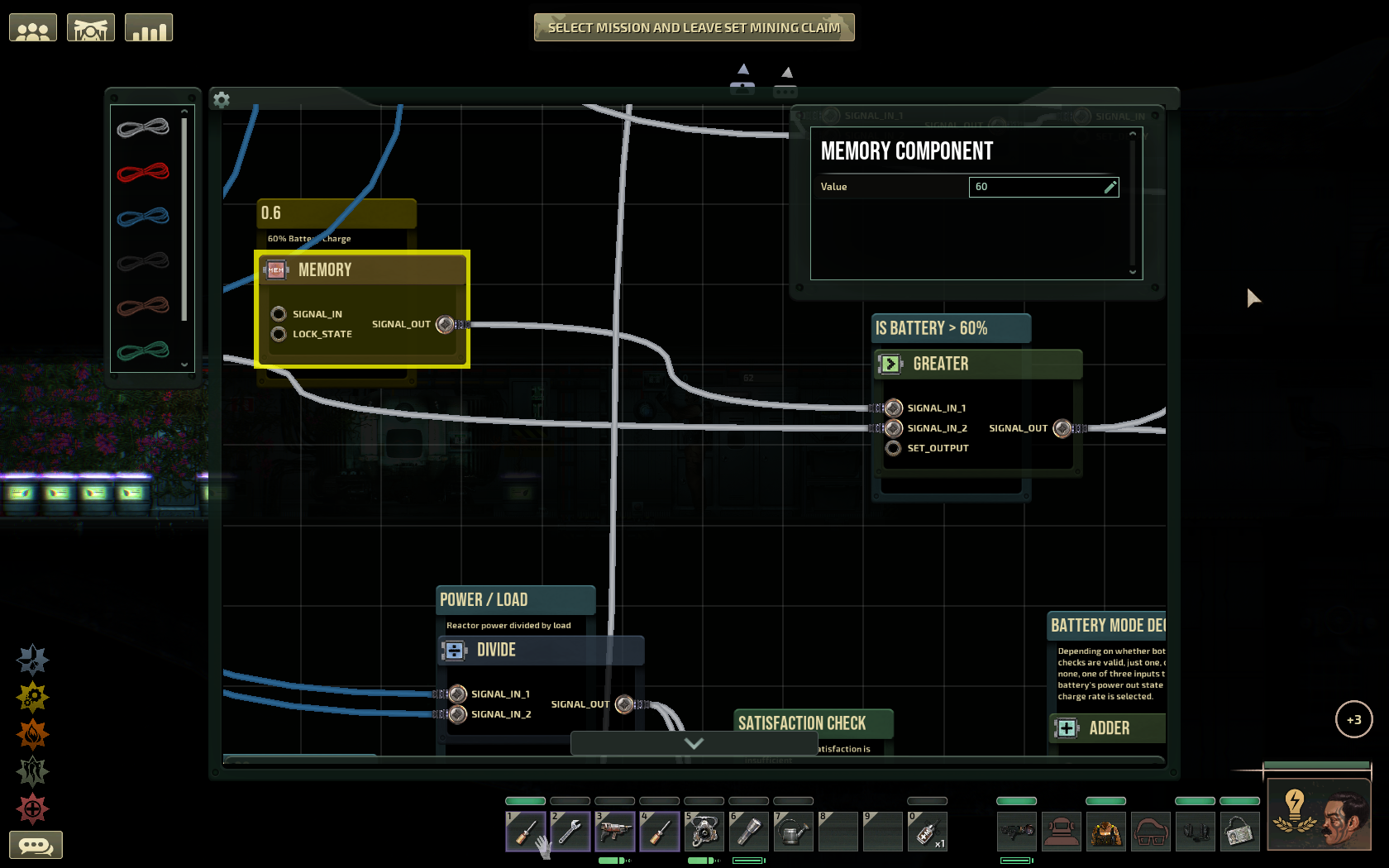
  • The second input to our multiply component will be a memory component with the value of "1.65" saved in it.

ATTENTION EUROPEANS!!!
We use commas to indicate the decimal part of a number in Europe, however, in Barotrauma you have to use periods (or else!!!).

ATTENTION TYPHON CREWS!!!
You have to use "1.45" here because your junction boxes cannot take as much overvoltage as in other submarines.

Your sub might be able to take overvoltage up to a factor of 2. I like to leave a safety margin due to update lag etc., so if that is your case I recommend using a value of 1.95.

For more info on sub-specific overvoltage values consult the "Junction Overload Voltage" in the official wiki (end of the page): https://barotraumagame.com/wiki/Nuclear_Reactor


Ignore the rest this memory component connects to, we will get to it in the next chapter.


Step 4
  • The subtract component's output now is connected to the new divide component's first input.
  • Clamp the divide component to 0 min and 100 max and increase the timeframe to 10. This should not be an issue, but it's good to be safe.

Step 5
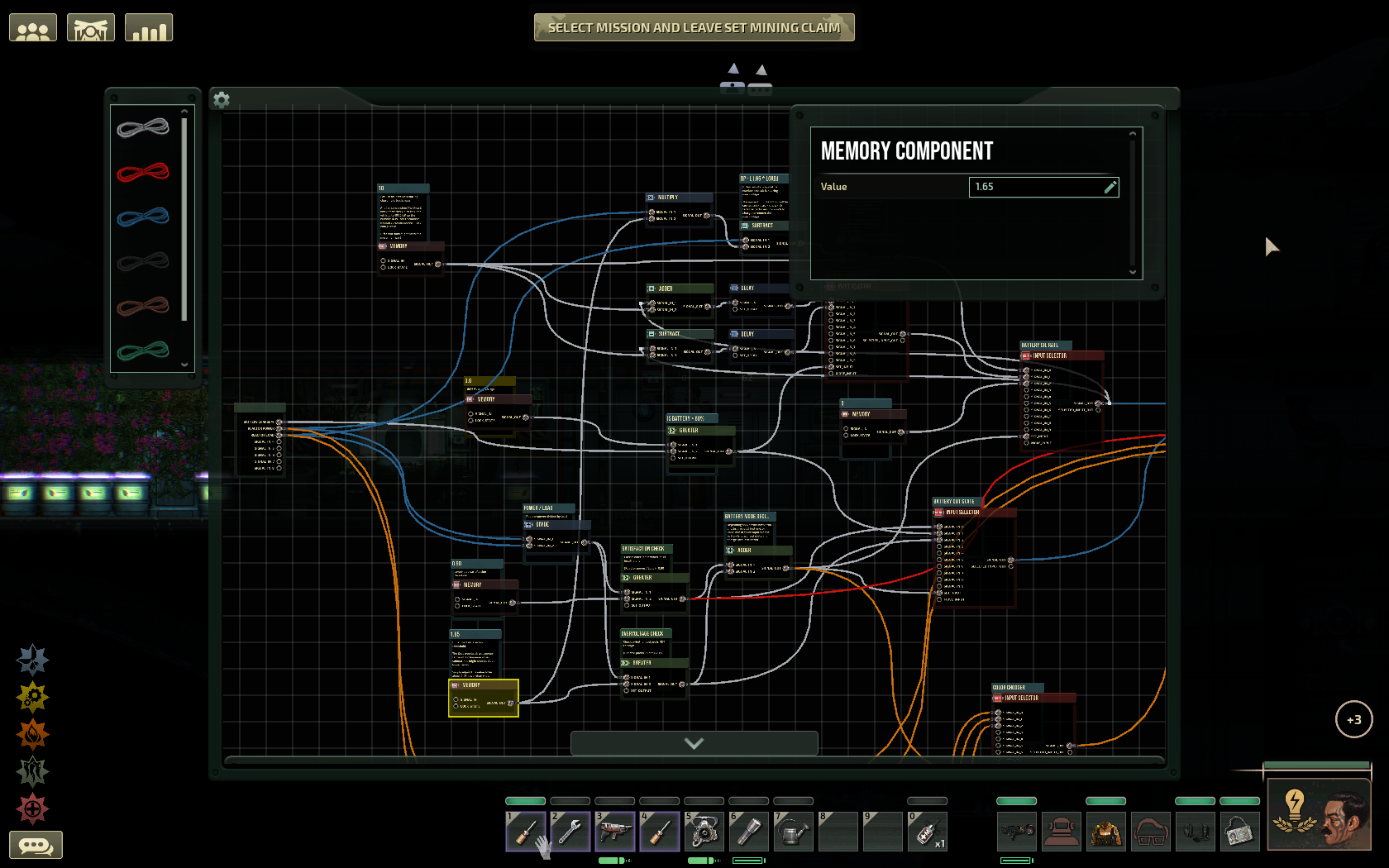
  • The divide component's second input connects to a new memory component's output.

Let's talk about that memory component, because it's important. (TLDR in the end)
In this circuit, it serves two independent purposes. This means if you don't have 2 batteries in the sub, you will need a second memory component with a different value.
  • The first purpose is to convert from kW into charge speed percentage points.
    (Percentage goes from 0 to 1, while percentage points go from 0 to 100.)
    A battery charges with a maximum of 500 kW. Thus, two batteries will charge with up to 1000 kW.

    That is why with two batteries, you want to convert from 1000 kW to 100 percentage points by dividing by the value 10. If you have 3 batteries, you need the value to be 15, If you have one, the value needs to be 5 etc.

    IN SHORT, the value of the memory component will always be the amount of batteries on the sub multiplied by 5.

  • The second purpose is to provide the soft start/stop charging mechanism with an increment value. I chose the value of 10 more or less arbitrarily - it fit my case well because 1) it was already available from the other use case, 2) it is small enough to not make a big dent in the reactor's load and 3) big enough to have the batteries change state in a timely manner.

    IF you have more than 2 batteries in your sub, you might need to actually lower the value for this second use case, since your batteries charging will pose a greater load on the reactor.

    The relation is inversely proportional, which means if you have double the batteries (4), you should use half the increment size (5).
    This is a conservative approach, assuming you have more batteries while the reactor and general load stay the same.
    If you know what you are doing and your submarine is overall larger with a larger reactor AND larger resting load, you can leave the increment size the same.
    If you get flickering, keep in mind you might want to tweak this value down.

TLDR: This memory component's value is actually (number of batteries on your sub) * 5. So if you have more or fewer than 2 batteries on the sub, you have to calculate that yourself.

Now, let's move on with the wiring.

Step 6
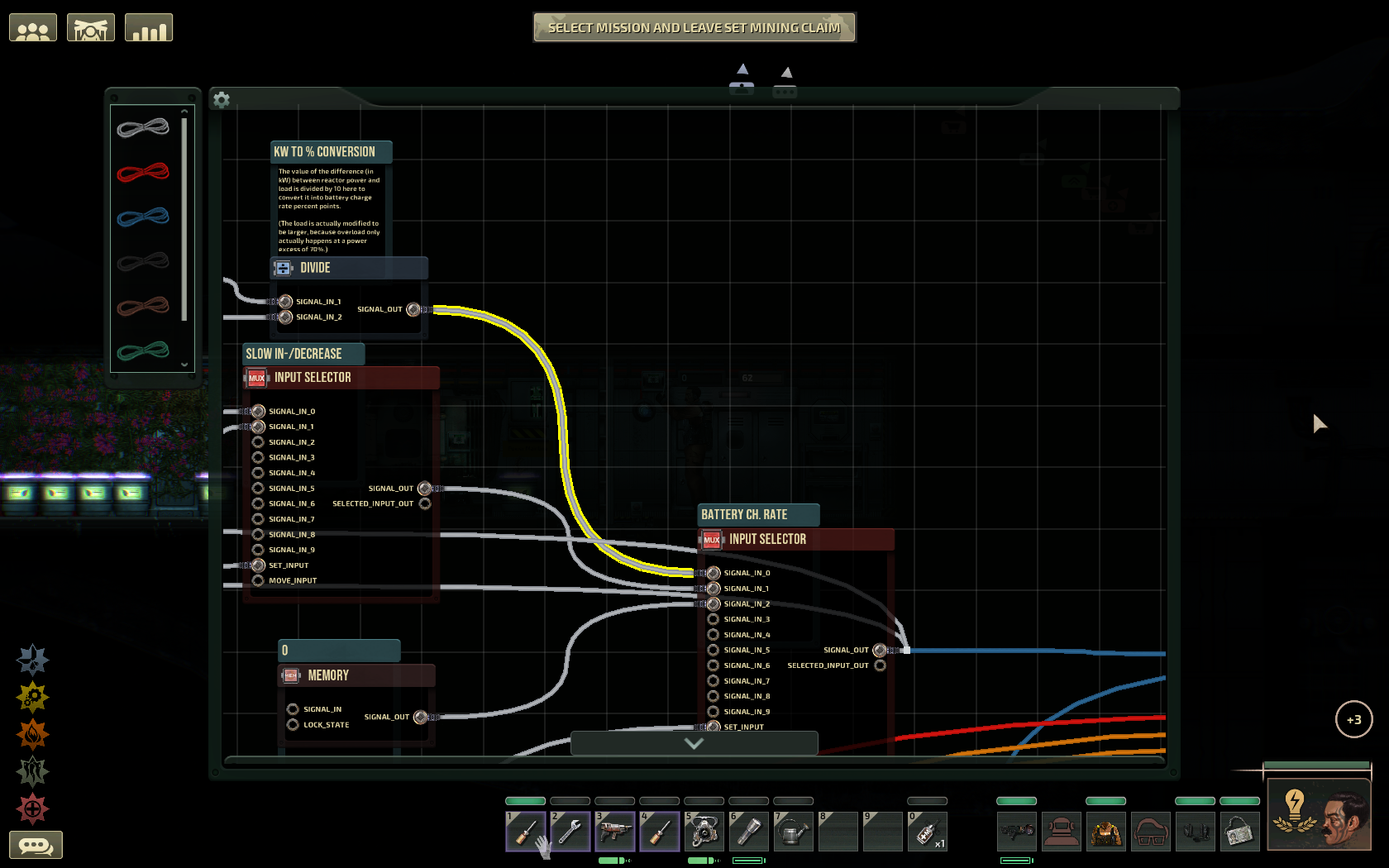
  • Connect your beautiful functional divide component's output to an input selector's first input (number 0 is the first one, that's how it goes).

Step 7
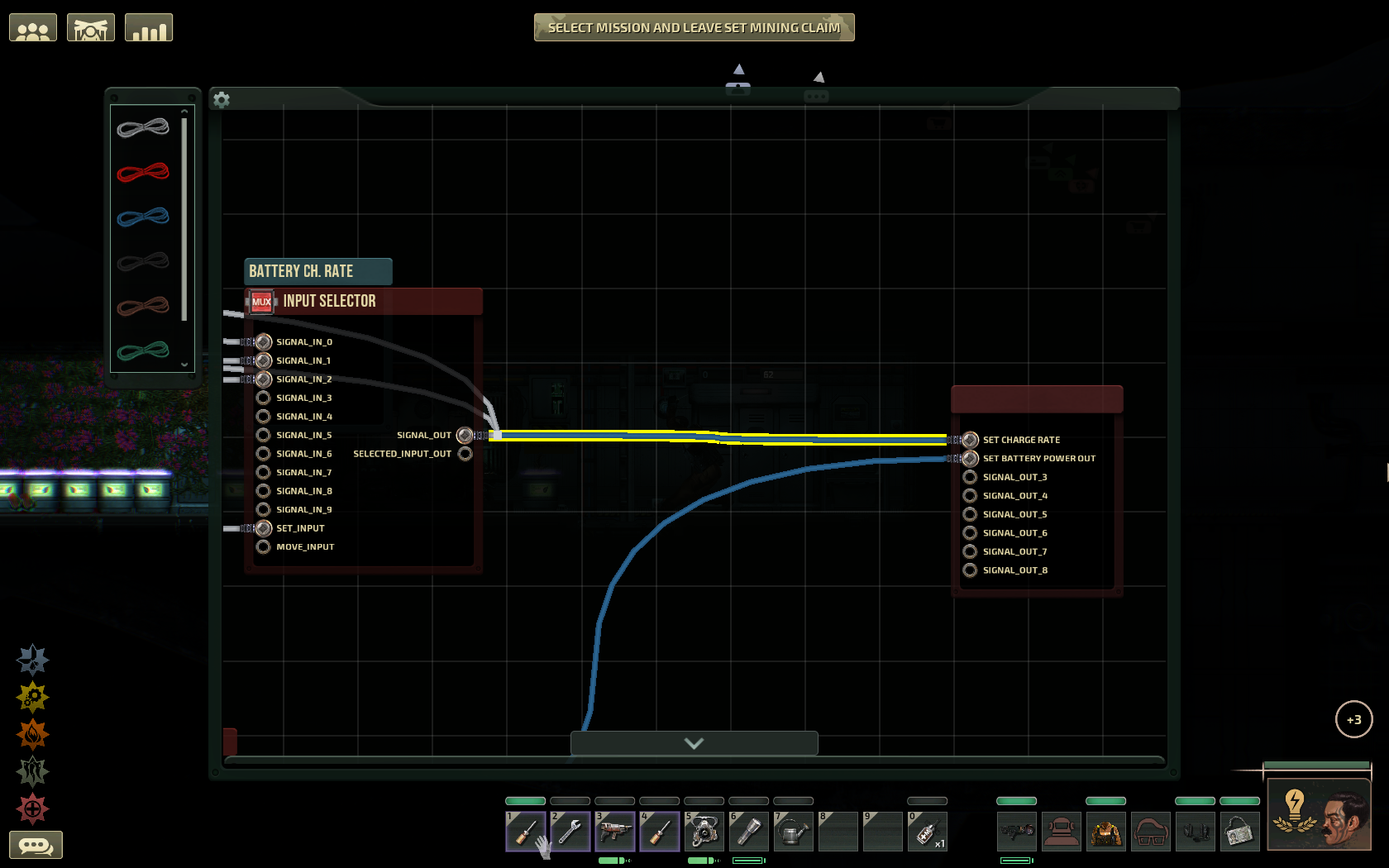
  • Connect the input selector's output to your circuit box's first output connector: Set Charge Rate.

This is it for the first part! We are far from done, but we have done a solid chunk. Next, we will work backwards from that same input selector.

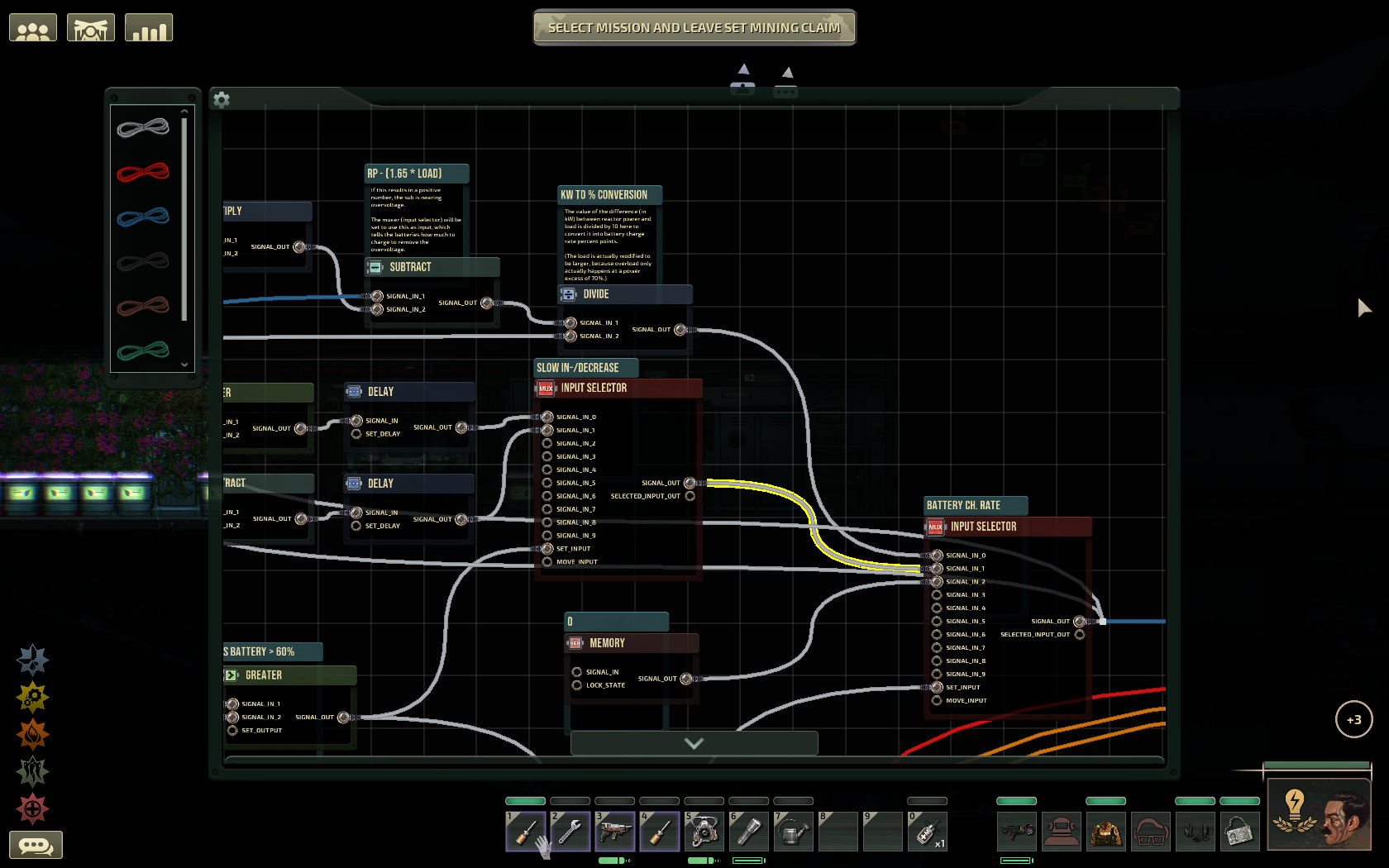
This input selector, I called it "Battery Charge Rate", chooses one of three possible inputs depending on circumstances and then sends that out the circuit box directly to the sub's batteries to tell them how much to charge (value ranging from 0 to 100).

We just created a circuit to calculate the charge rate value in the case of an overvoltage:
For example, if the sub was going full throttle for a while but suddenly the captain turns off the engine. This would free up a lot of reactor output. If the reactor is on automatic control, it will take a few seconds to reduce reactor output, during which the junction boxes might take significant damage. This can make or break a crew's victory in tight battles.

The circuit would tell the input selector to choose this input, which is constantly calculated from how many kW the reactor output is above the junction boxes' overvoltage tolerance, which is eventually converted into charge rate percentage points.

This of course mitigates most damage to junction boxes from such occurrences, which is great!
In the next part, let's complete the second input (Signal_in_1) of the "Battery Charge Rate" input selector.

Second part of the circuit: Soft start/stop function
We are going backwards for now, because it makes what we make easier to understand.

We just made the "Battery Charge Rate" input selector which makes the final decision for what the batteries' charge rate will be.
It is still missing two inputs, one of which is the focus of this chapter.

Step 1
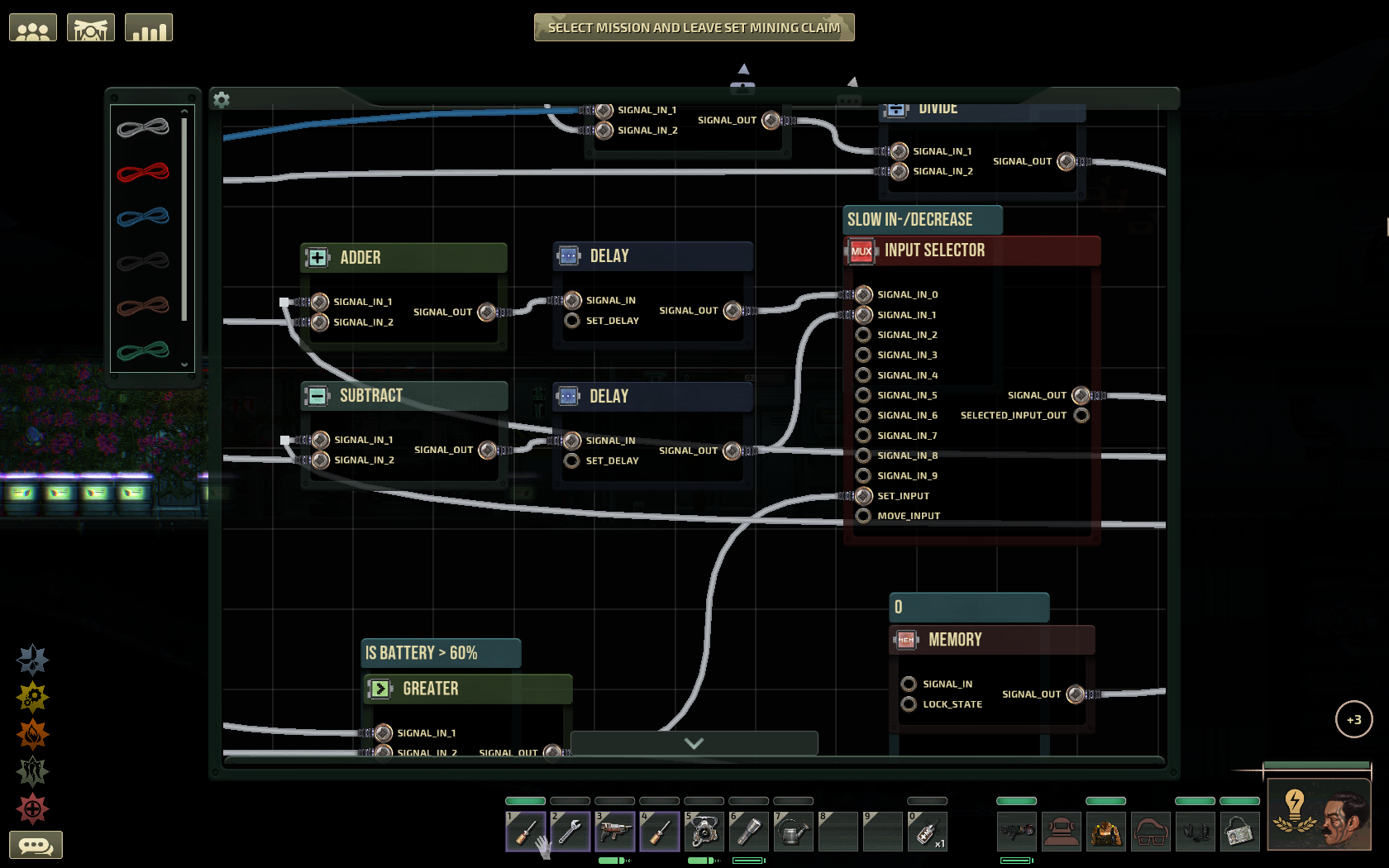
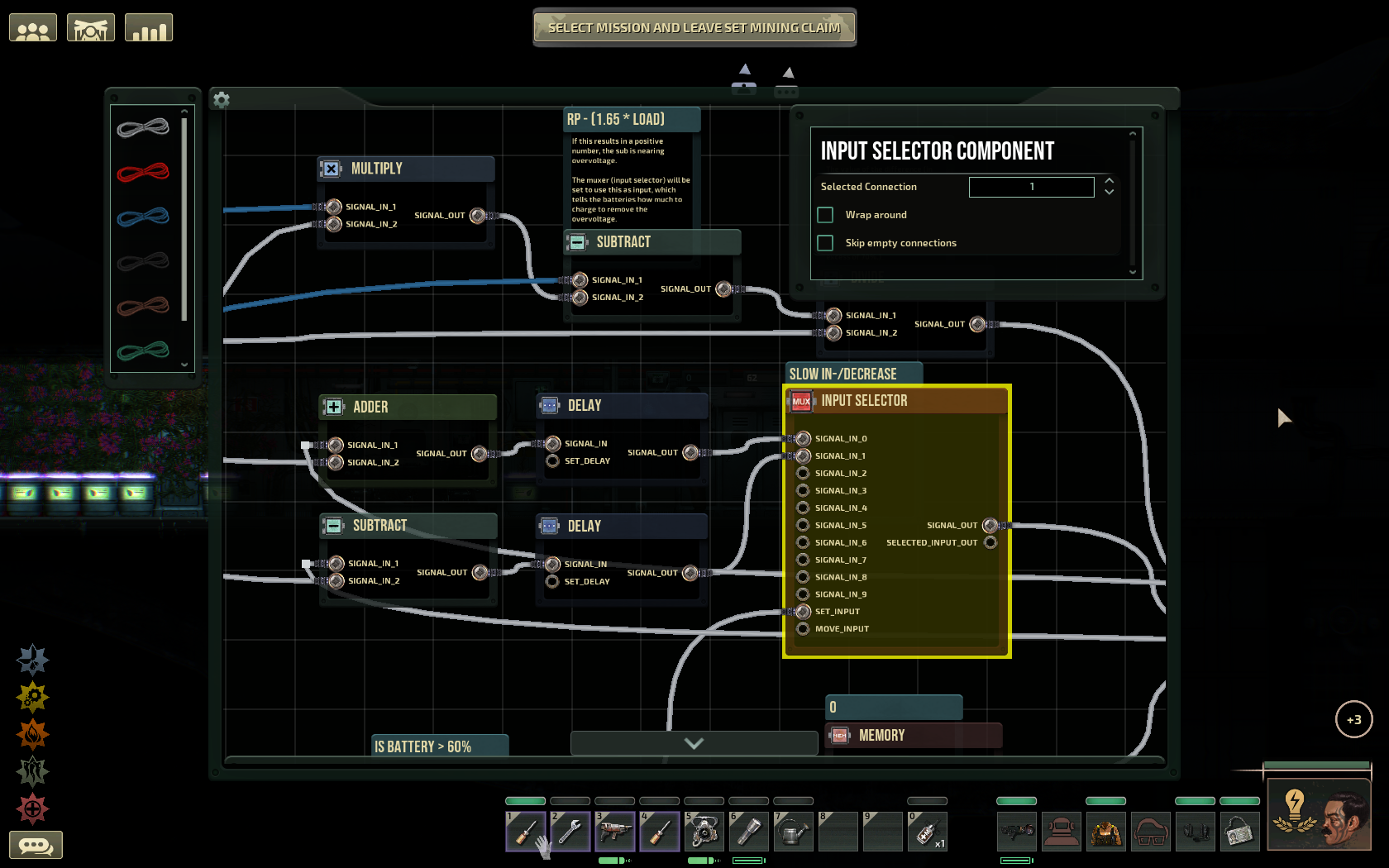
  • Make another input selector in front of the old one. Connect its output to "Signal_in_1" of the old one.

Step 2
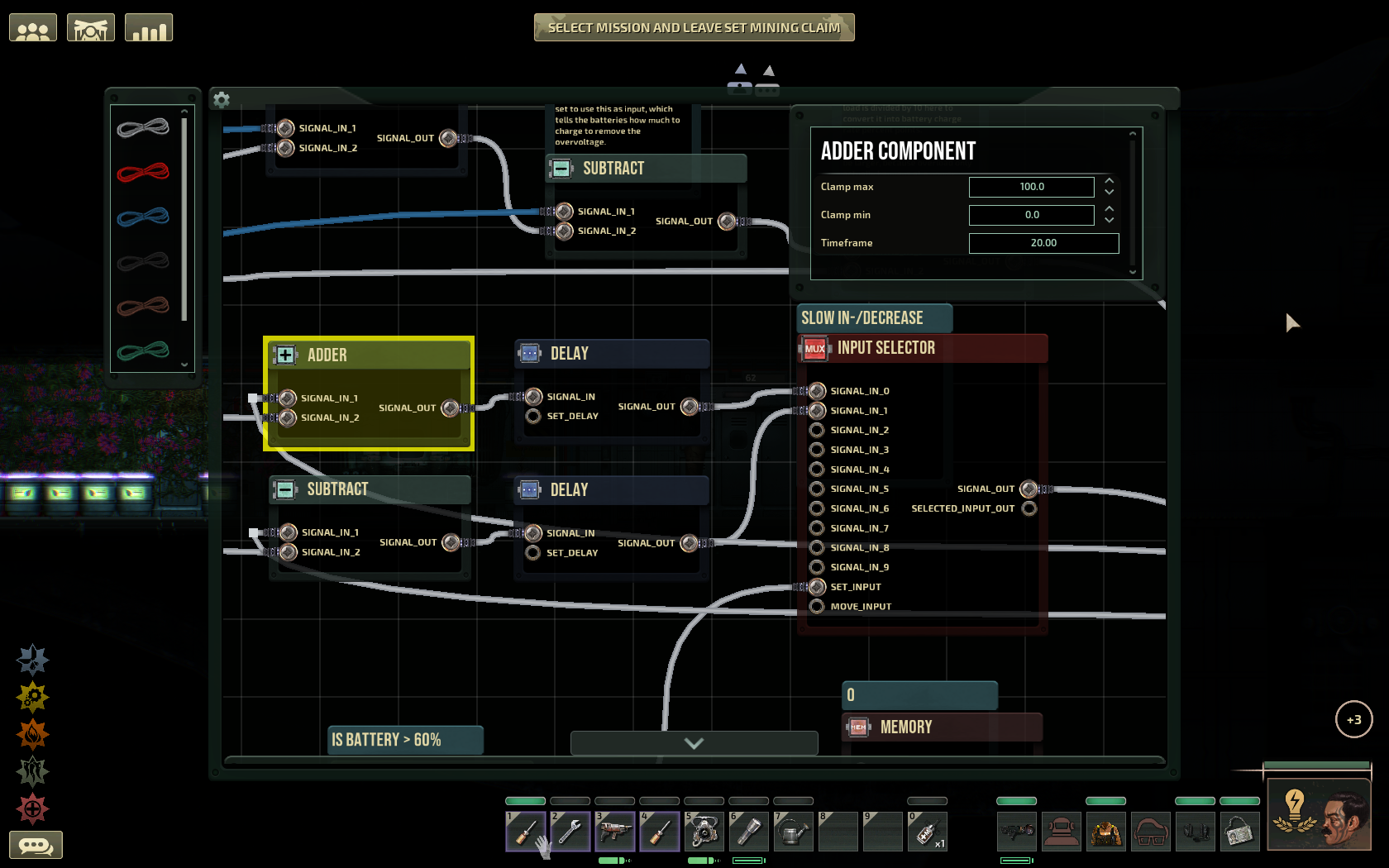
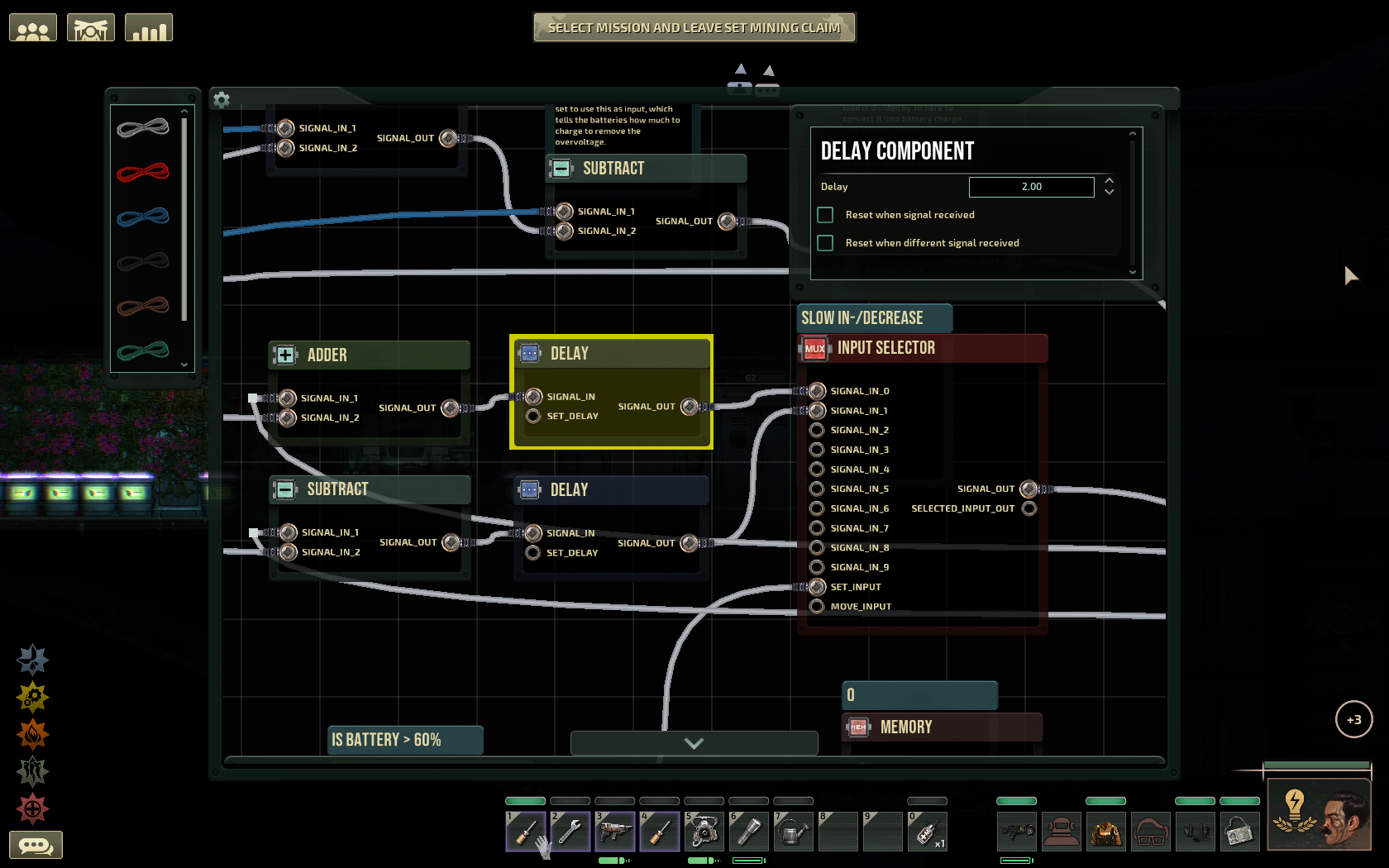
  • 2.1 Connect the outputs of two delay components to the first two inputs of our new input selector.
  • 2.2 Connect an adder component's output to the Signal_in of the delay component which is connected to the first input of the input selector.
  • 2.3 Connect a subtract component to the second delay component.

Step 3
  • Now connect the old input selector's output to the adder and the subtract components' first inputs.

Step 4
  • Then connect our old memory component with the value "10" to the second inputs of the adder and subtract components.

    If you don't have exactly 2 batteries on your sub, this is where you create an additional memory component and use this formula for its value: (Value) = 20 / (number of batteries on sub).
    For details consider the paragraph about this memory component in the previous chapter.

Step 5
  • It is important to edit the details of those components. Set the clamp min to 0 and the clamp max to 100 for adder as well as subtract component.
  • Set the timeframe for both to 20.

Step 6
  • Set the delay of both delay components to 2. No marks in the checkboxes.

Step 7
  • Just checking the input selector. Selected connection is usually 1, though it doesn't matter, because it will be determined by Set_Input later. Make sure the checkboxes are empty.

Some among you might be thinking:
"Maybe if I chain the adder and subtract components AFTER the delay components, I can use one single delay component for both and save some materials.".
I tried that and for some reason it didn't work. It seemed like the values weren't being sent to the components properly or weren't being updated. If however you find a way to do it, feel free to leave a comment about it!


This is it! You created a slow start/stop charging function for your soon-to-be all-round battery controller :)

Next step is management. You heard right, we are moving to the part of the controller which makes the decisions around here...


Third part of the circuit: The battery state decider
We are moving away from arithmetics towards logic now.

Step 1
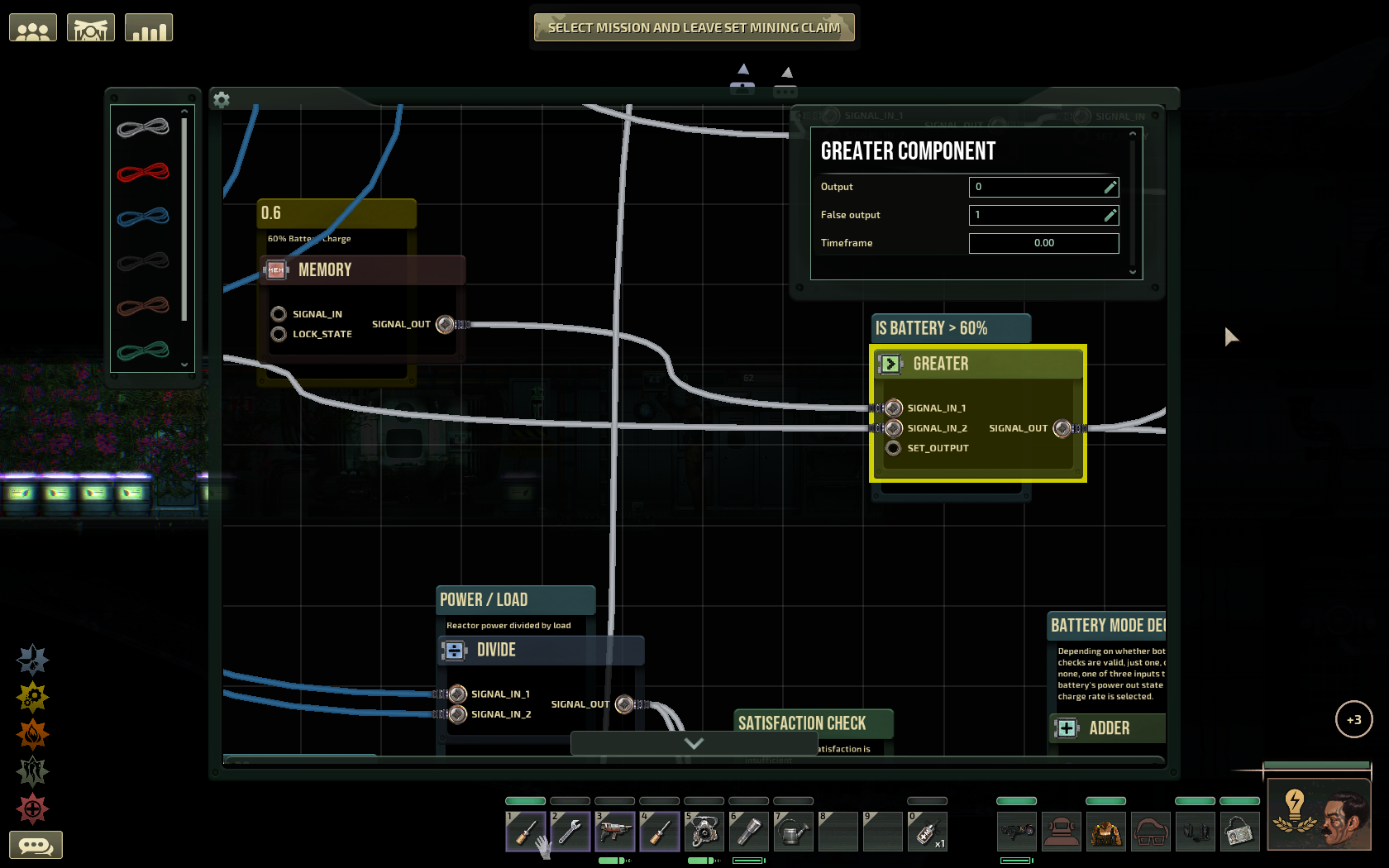
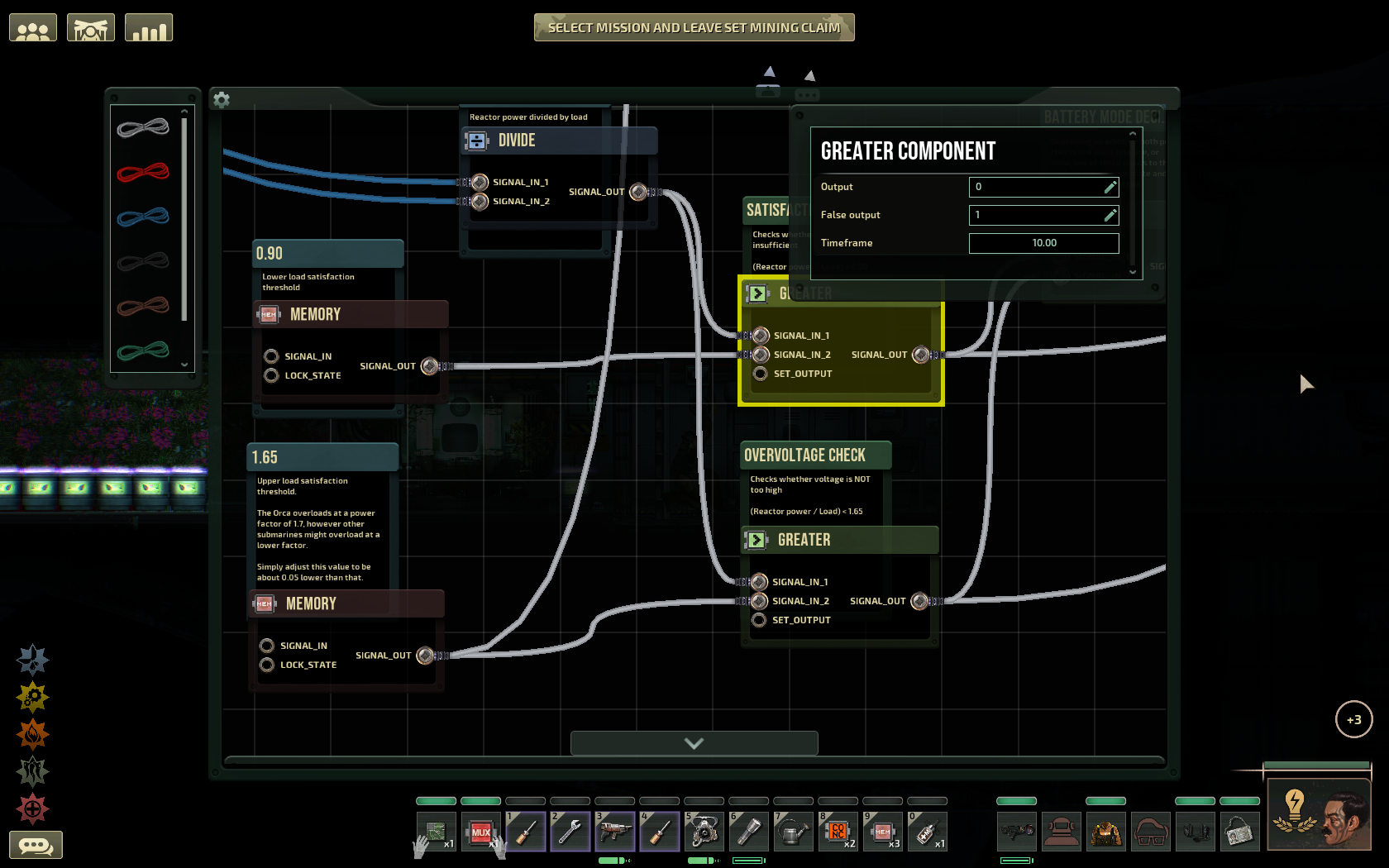
  • Let's start by creating the first greater component. Connect its output to the "Set_input" input of our new input selector.

Step 2
  • Now connect the greater component's first input to a memory component's output with the value of "0.6".

    Feel free to use a different value if you prefer to have a bigger reserve in your batteries (e.g. 0.8), or if you prefer to have more space left for overvoltages (e.g. 0.4).

Step 3
  • Connect the second input of the greater component to the circuit box's input connector pin which we named "Battery Charge %" earlier.

Step 4
  • All greater components are inverted in this build: You have to set output to "0" and false output to "1".
  • Looking back, it is probably a good idea to set timeframe to 2 or something. I didn't have issues with it though.
Now our soft start/stop charging circuit will know whether to slowly increase or slowly decrease the charging rate, depending on whether the batteries have already reached the target charge.

Step 5
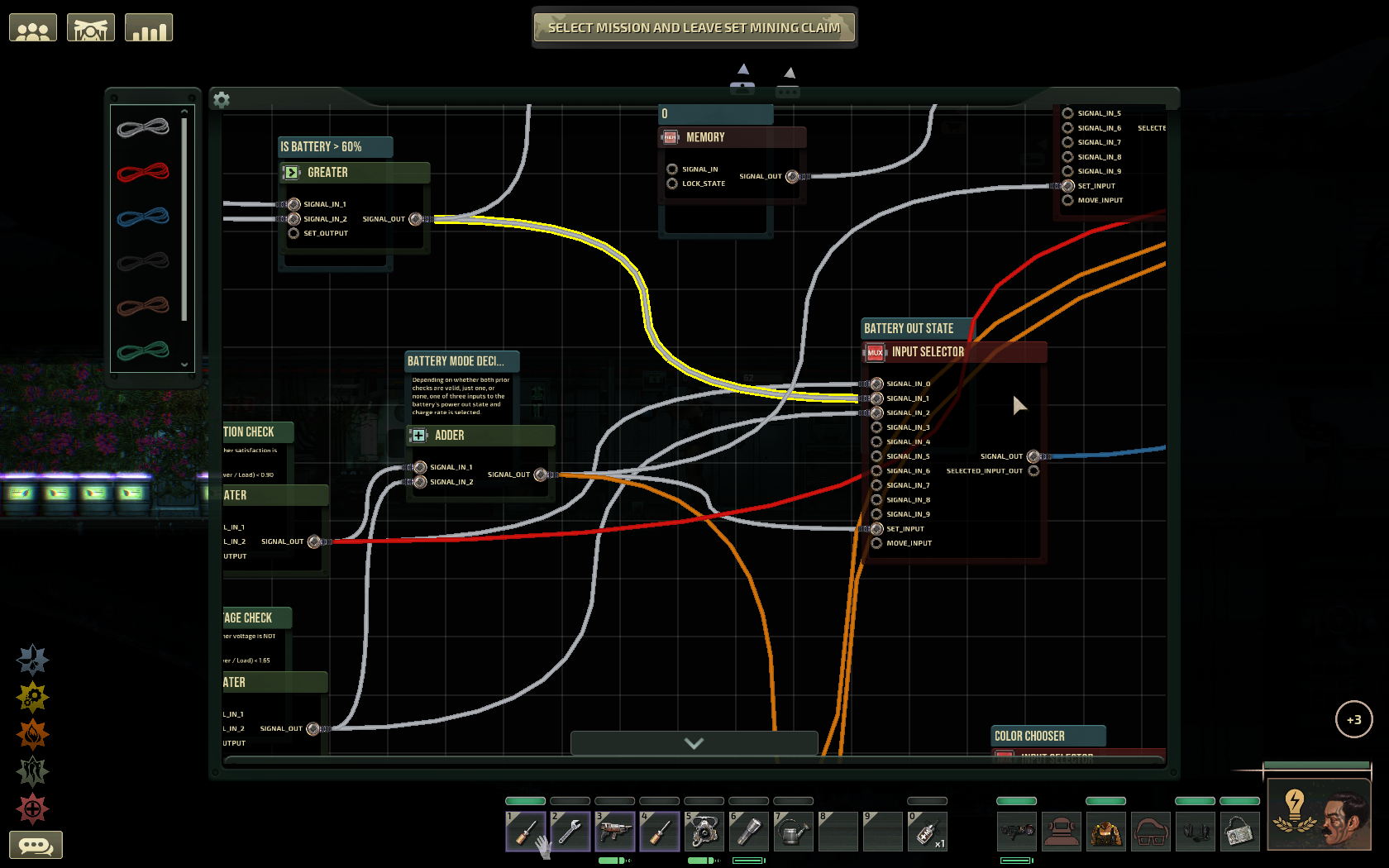
  • Now, create a new input selector component and connect the greater component's output to its second input (Signal_In_1).
This way, the greater component will also decide whether the batteries will output power or not, but only if the reactor's power-to-load-ratio is not too high or low.

Step 6
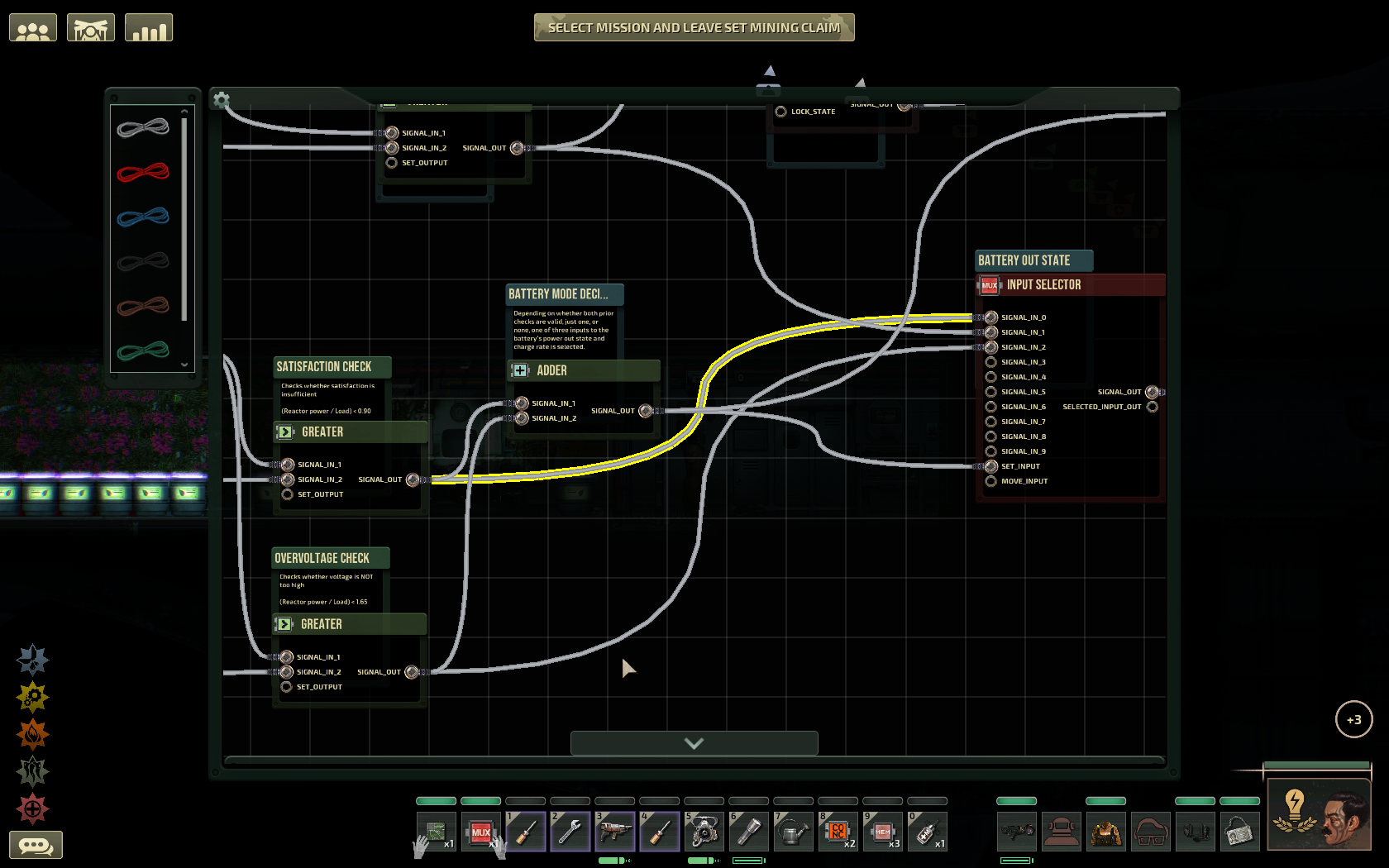
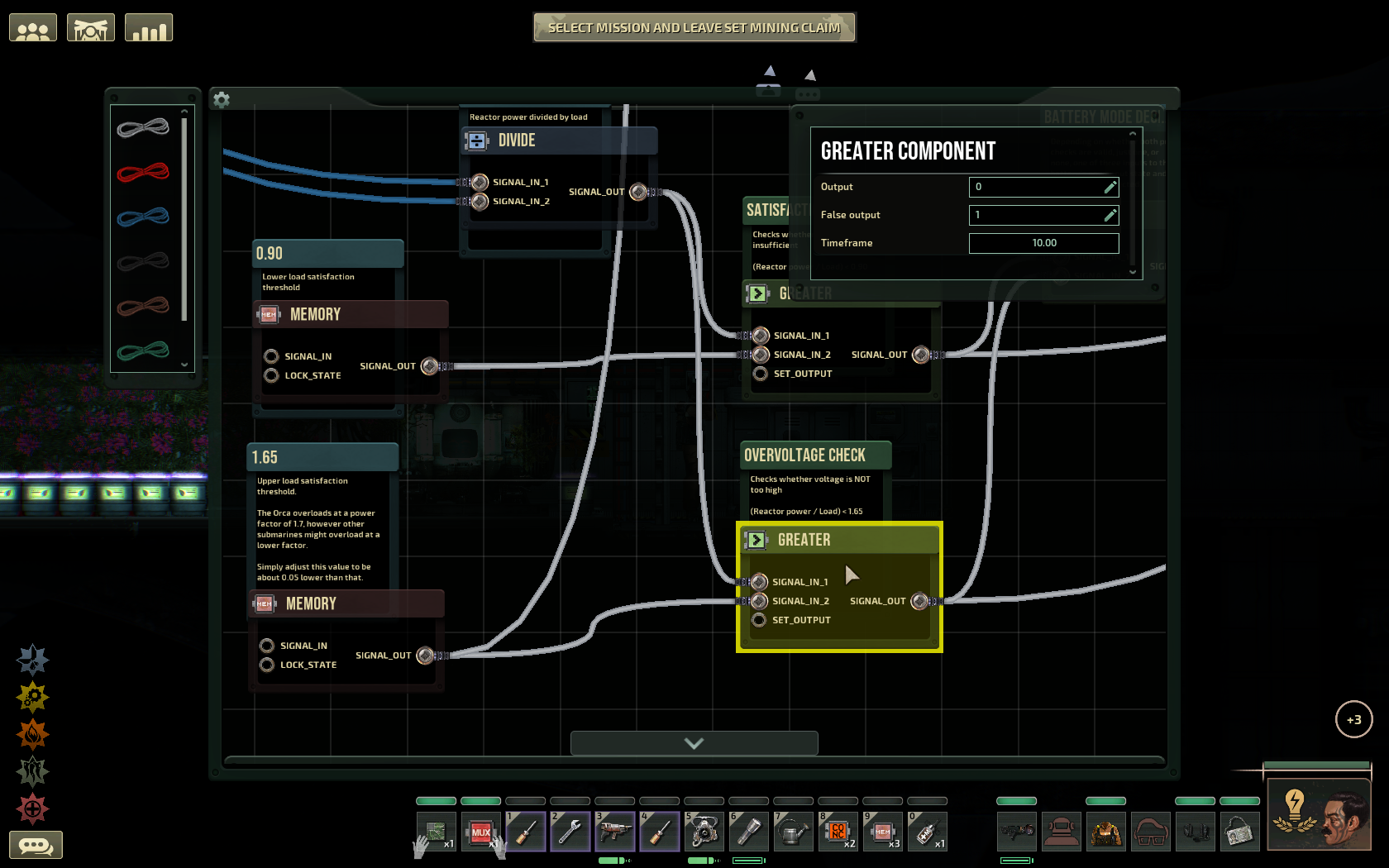
  • 6.1 Make a second greater component below the first one. Connect its output to the new input selector's first input (Signal_In_0).
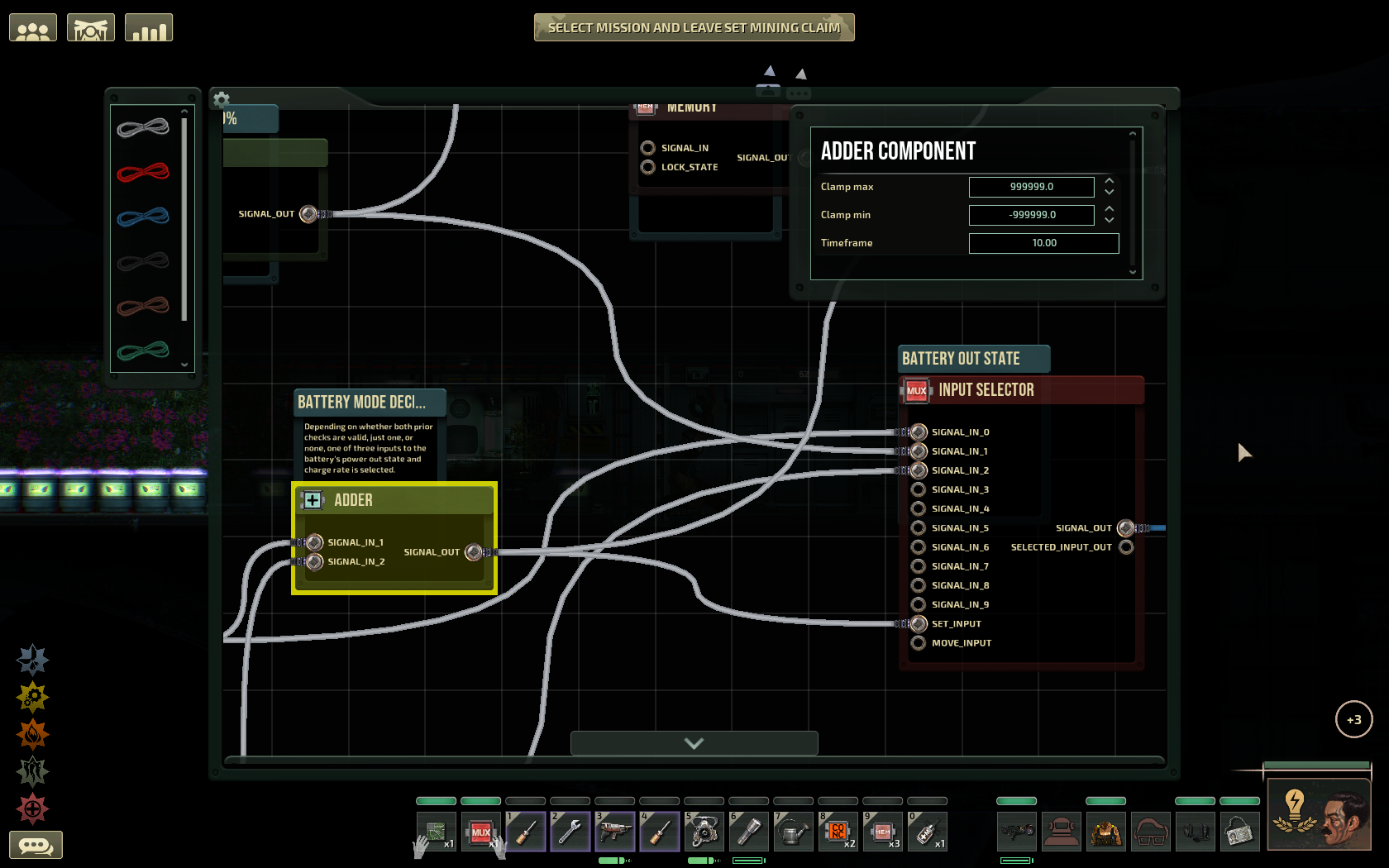
  • 6.2 Make an adder component and connect the new greater component's output to the new adder's input.
  • 6.3 Make a third greater component below the second one. Connect its output to the adder's other input and to the new input selector's third input (Signal_In_2).

Step 7

We make the inputs for the two new greater components.

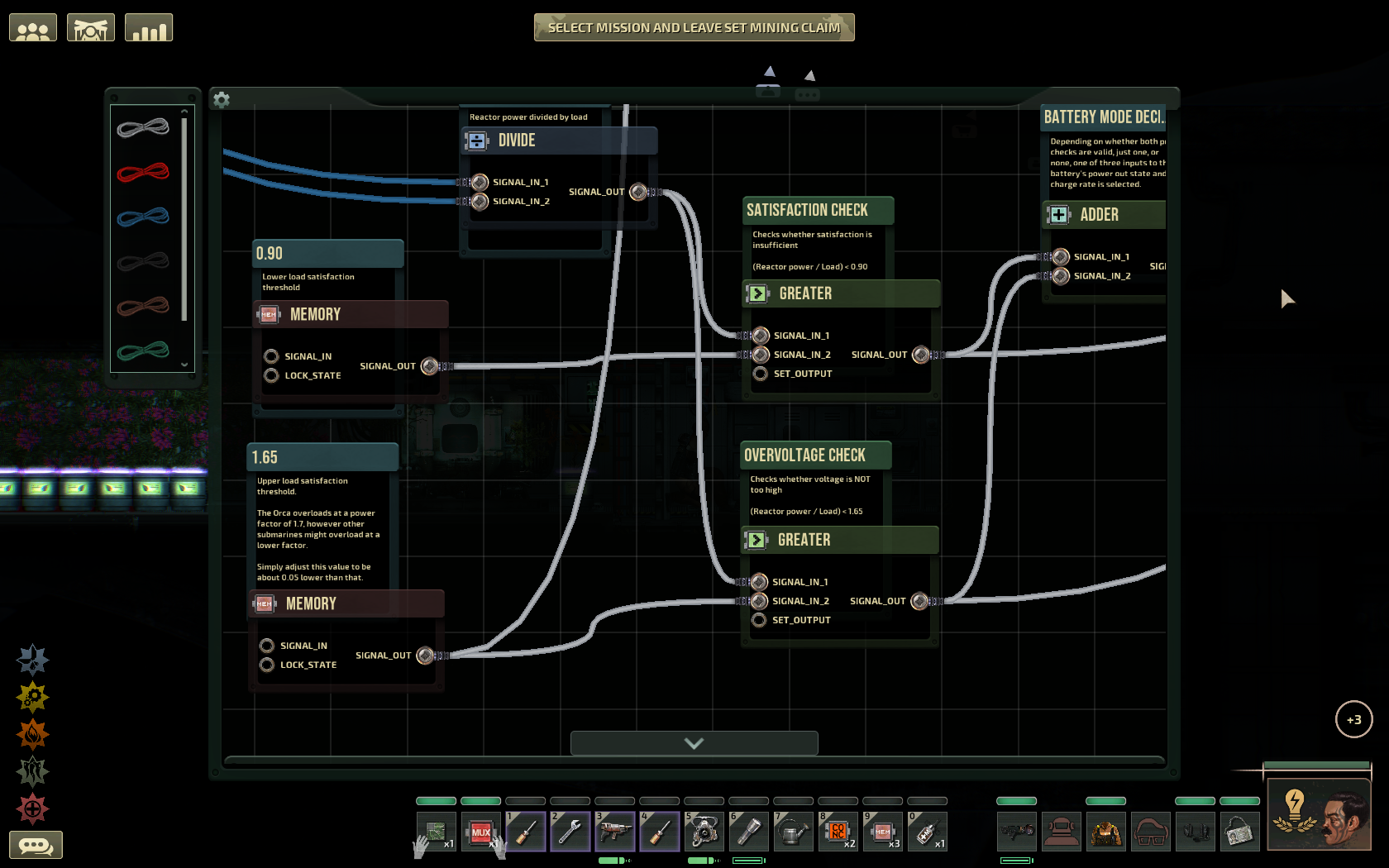
Both their first inputs will be connected to a divide component which simply divides reactor power by reactor load. This is the best way to gauge the state of the electrical power supply.

The greater components will be checking two important thresholds this ratio can cross:
0.9, which indicates whether there is enough electricity or not, and
1.65, which indicates whether there is too much electricity or not.

The result of the two comparisons goes into the adder component, which thus can output either 0, 1 or 2, effectively providing a decision for the input selectors to choose the appropriate battery state.

One of the associated memory components was already made during the first part of the circuit, because it is used in a calculation there.

  • 7.1 Create a second memory component next to the one with the value "1.65" (OR "1,45" for Typhons).
  • 7.2 Put in the value "0.9".
    ATTENTION: If you are in a Typhon, you are using "1.45" here instead of "1.65".
  • 7.3 Connect the memory and greater components:
    0.9 output ---> second greater component's 2nd input
    1.65 output ---> third greater component's 2nd input
  • 7.4 Create a divide component and connect its output to the first inputs of the greater components.
    We will connect its inputs later.

Step 8
  • Just as with the other greater components, turn around the the output states: "Output" should be "0" and "False output" should be "1".
  • Set timeframe of both components to "10".

Step 9
  • Set the timeframe of the adder component to 10.
    You can clamp it to 0 and 2 (clamp max 2, clamp min 0), though I haven't noticed a difference.
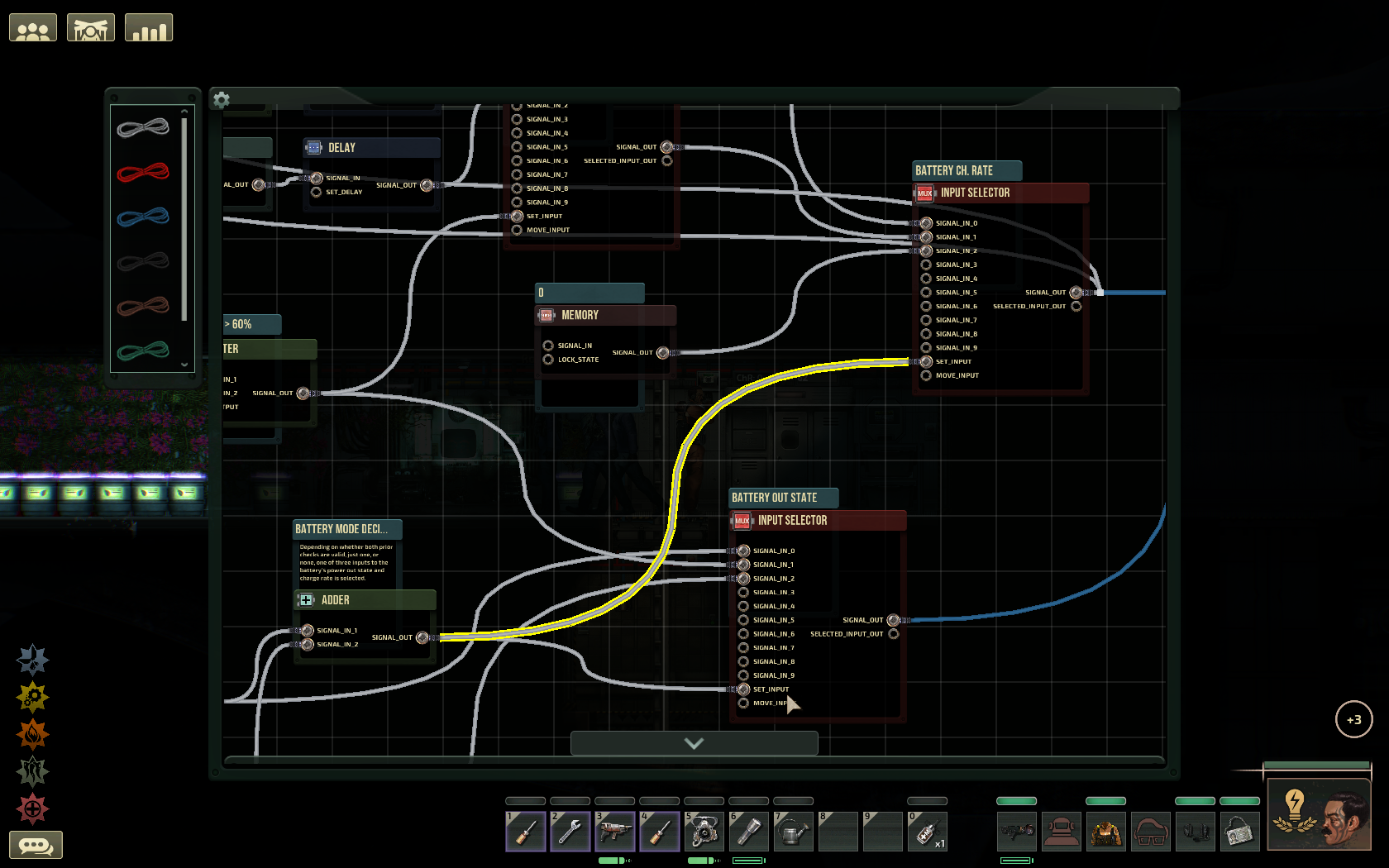
  • Connect the adder's output to the "Set_input" of the two remaining input selectors: The first one (controlling battery charge rate) and the third one (controlling the battery output state).

Step 10
  • Connect that one missing input selector's output (Signal_out) to the circuit box output connector named "Set Battery Power Out".

Step 11
  • Connect that divide component from earlier to the circuit box input connectors:
    "Reactor Power" ---> "Signal_in_1"
    "Reactor Load" ---> "Signal_in_2"
  • Set the divide component's timeframe to 10.

Almost done!

In the last chapter, the circuit box will be wired to the reactor and batteries to get it to work.

Connecting the controller to reactor and batteries
Step 1
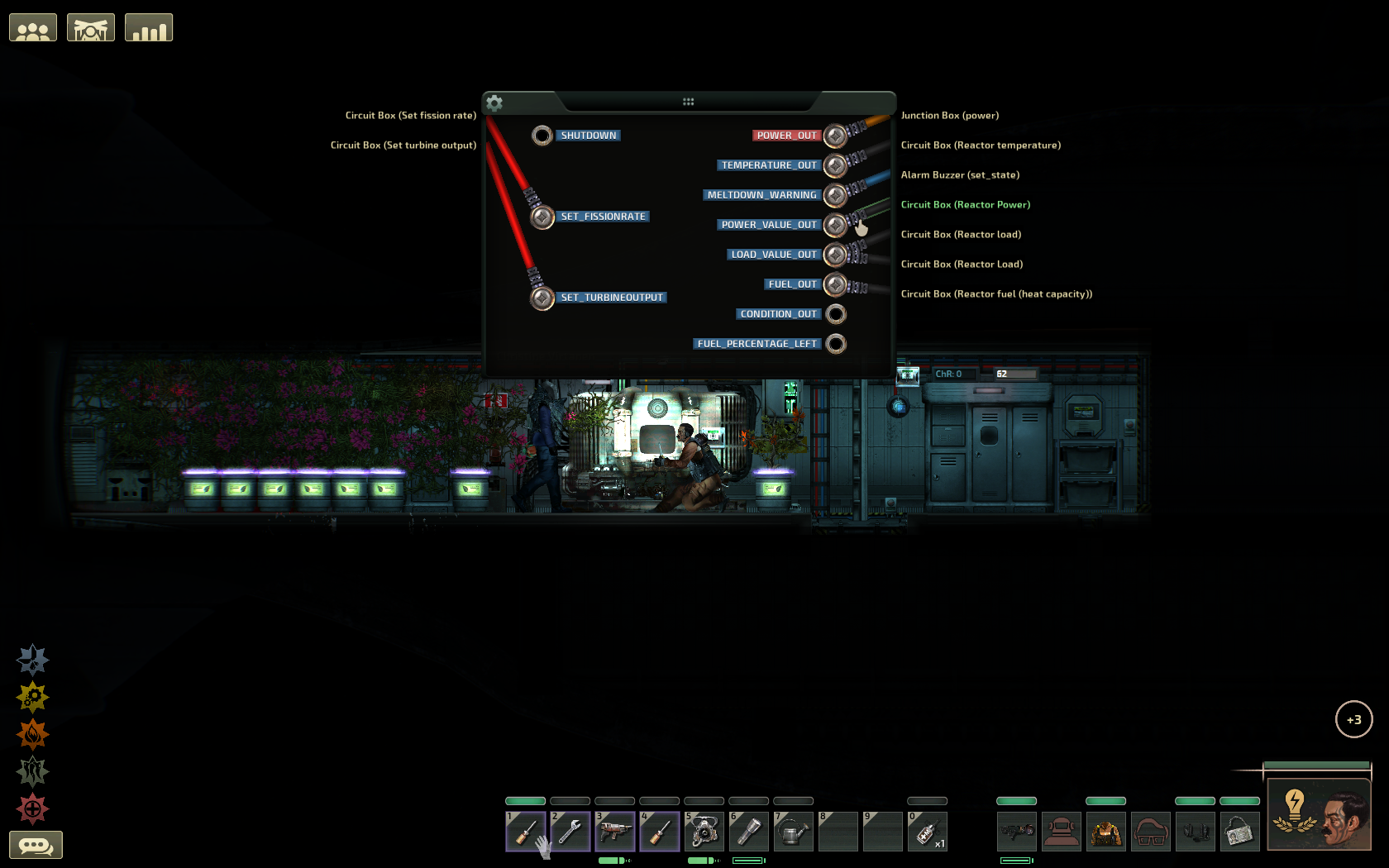
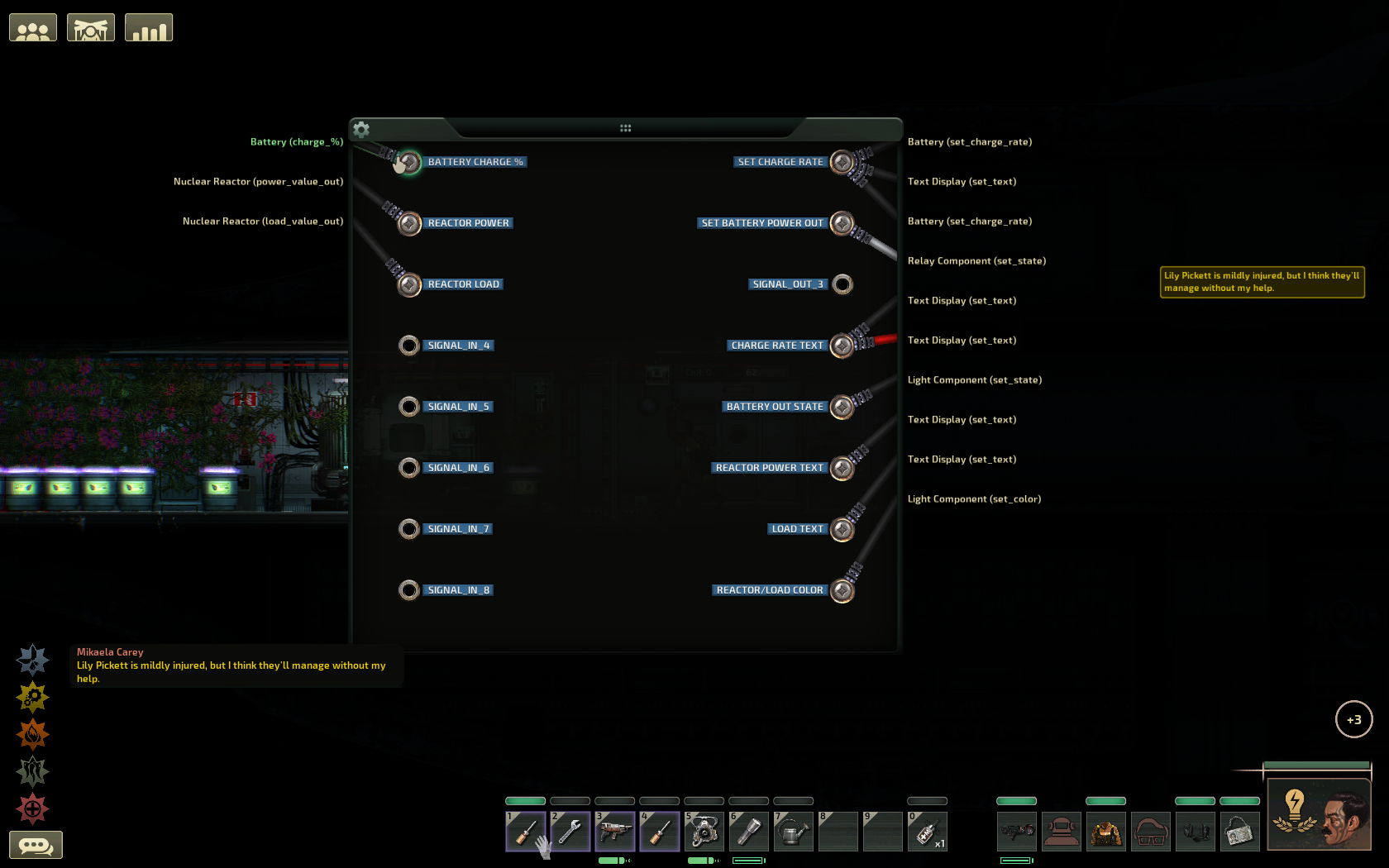
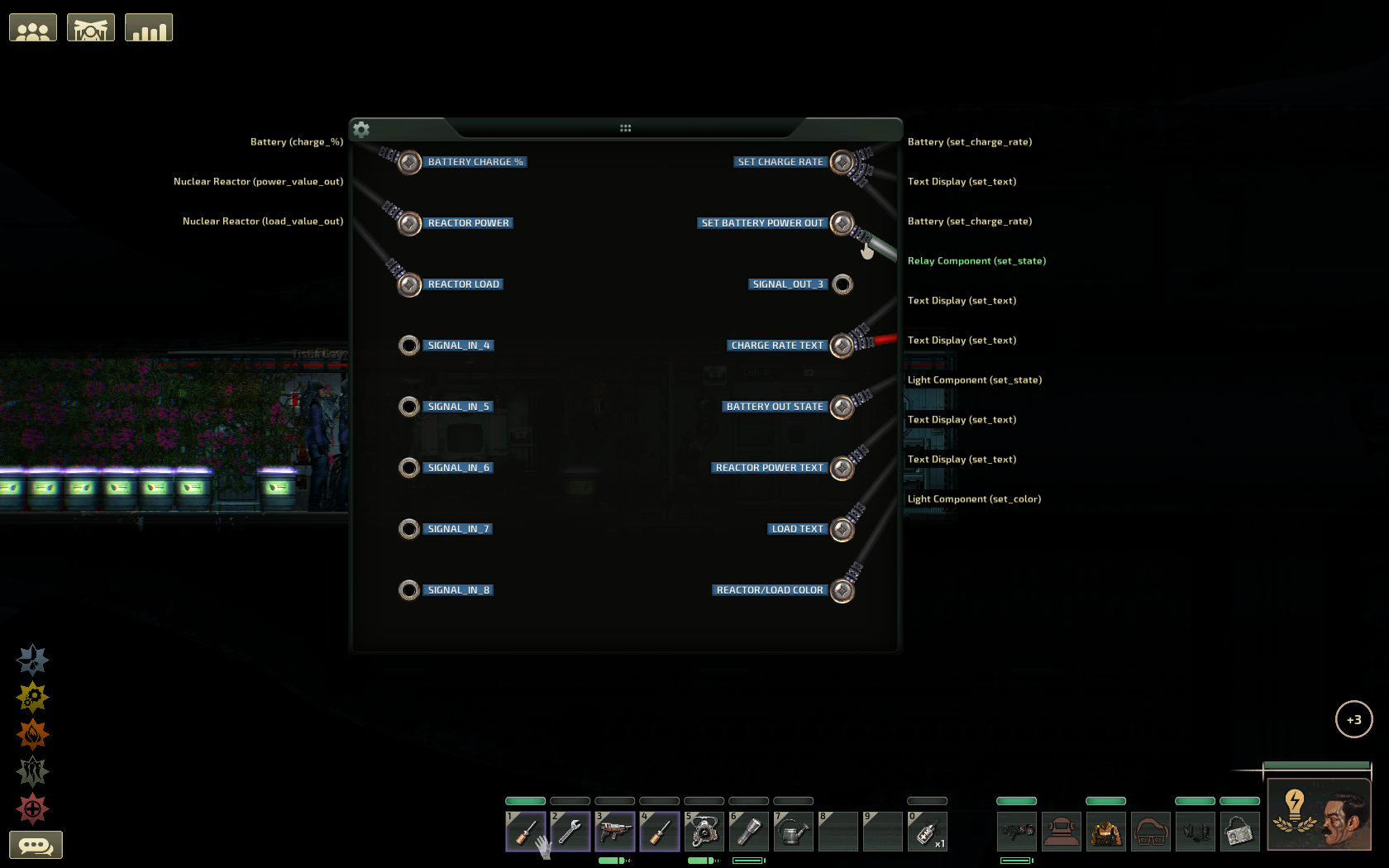
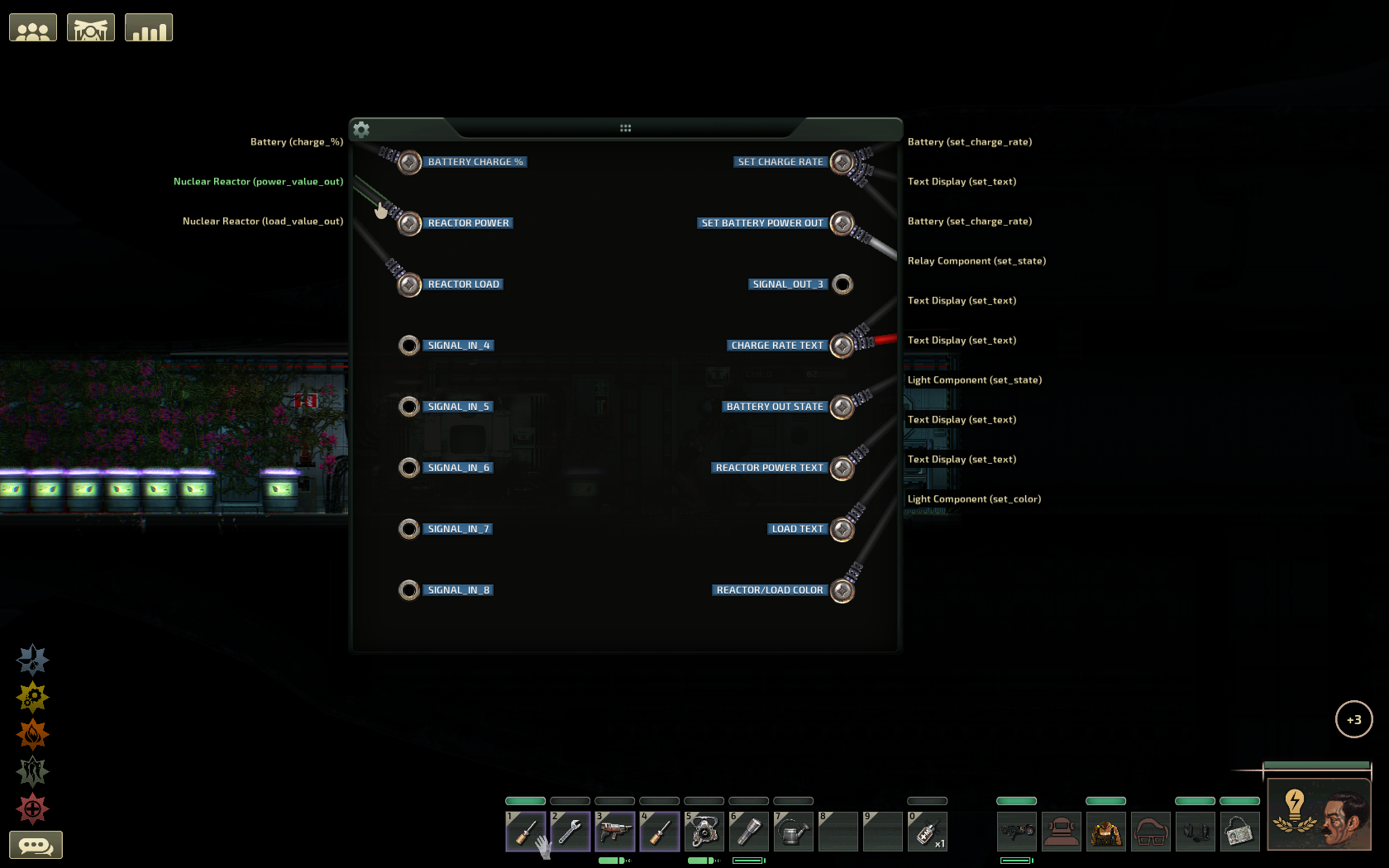
  • Connect the reactor's "Power_value_out" to the circuit box's "Reactor Power".

Step 2
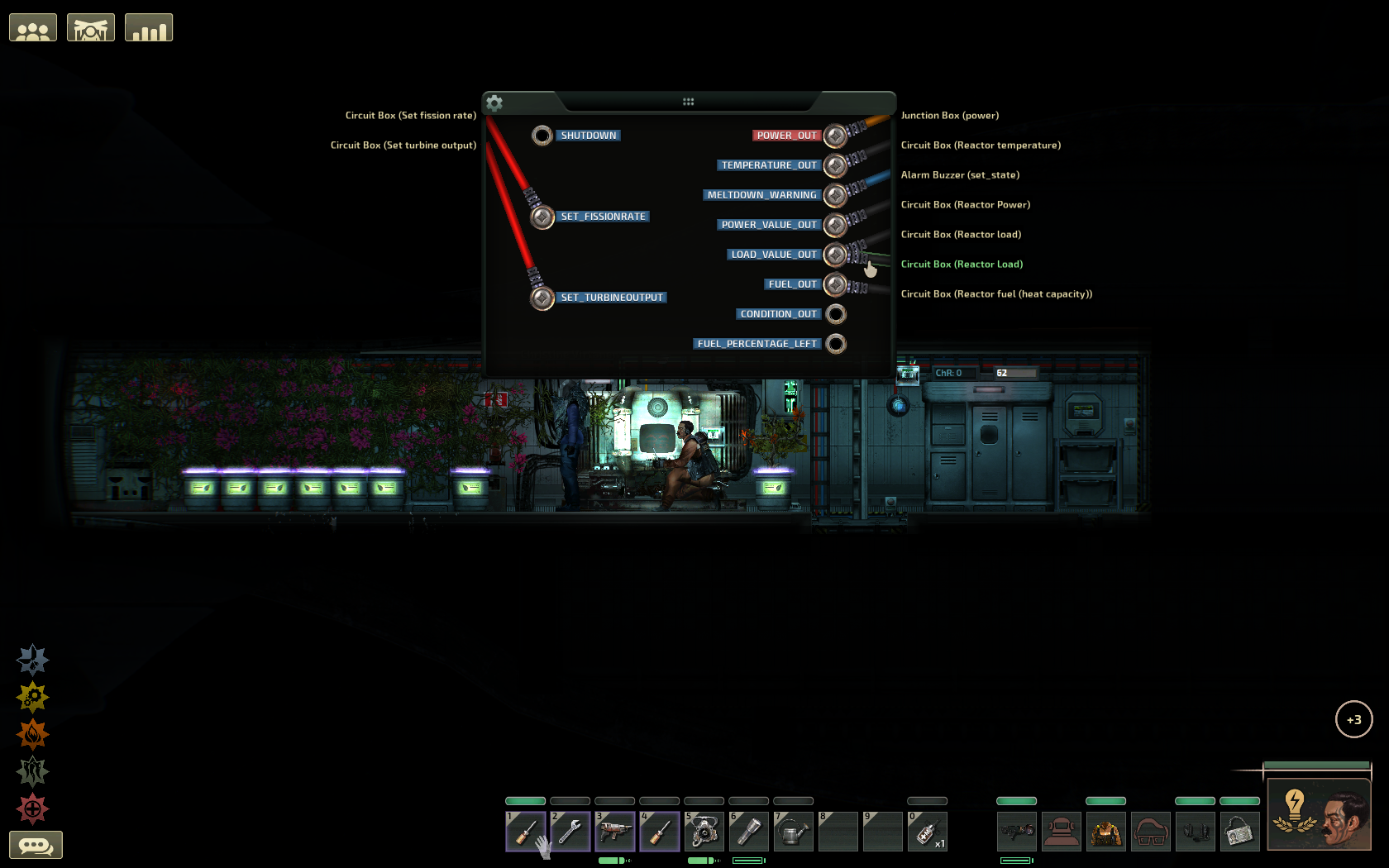
  • Connect the reactor's "Load_value_out" to the circuit box's "Reactor Load".

Step 3
  • Connect one of your batteries' "Charge_%" to the circuit box's "Battery Charge %". Only in this case, one battery is enough.

Step 4
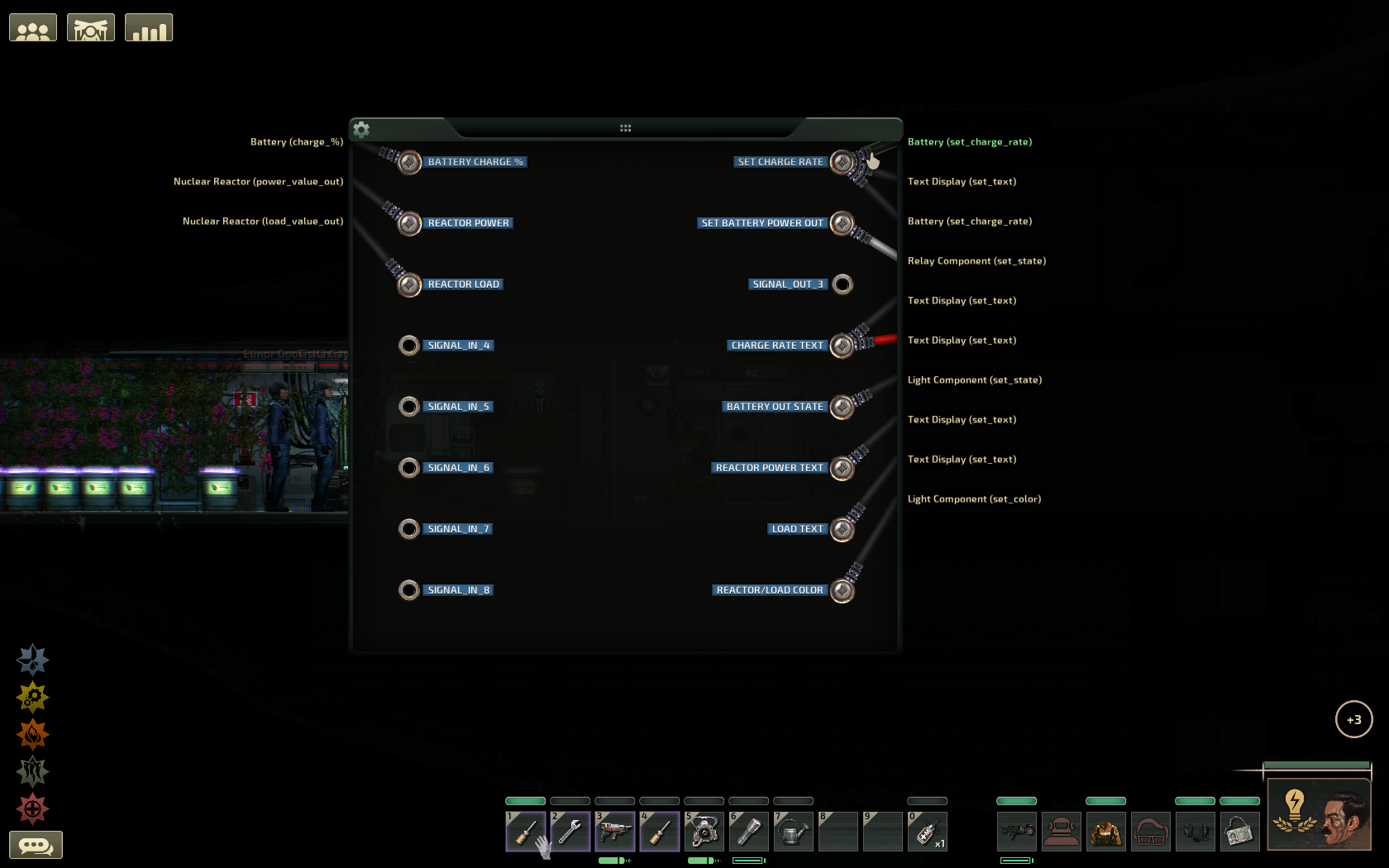
  • Connect the circuit box's "Set Charge Rate" to all batteries' "Set_Charge_Rate". Do this for all batteries.
Step 5
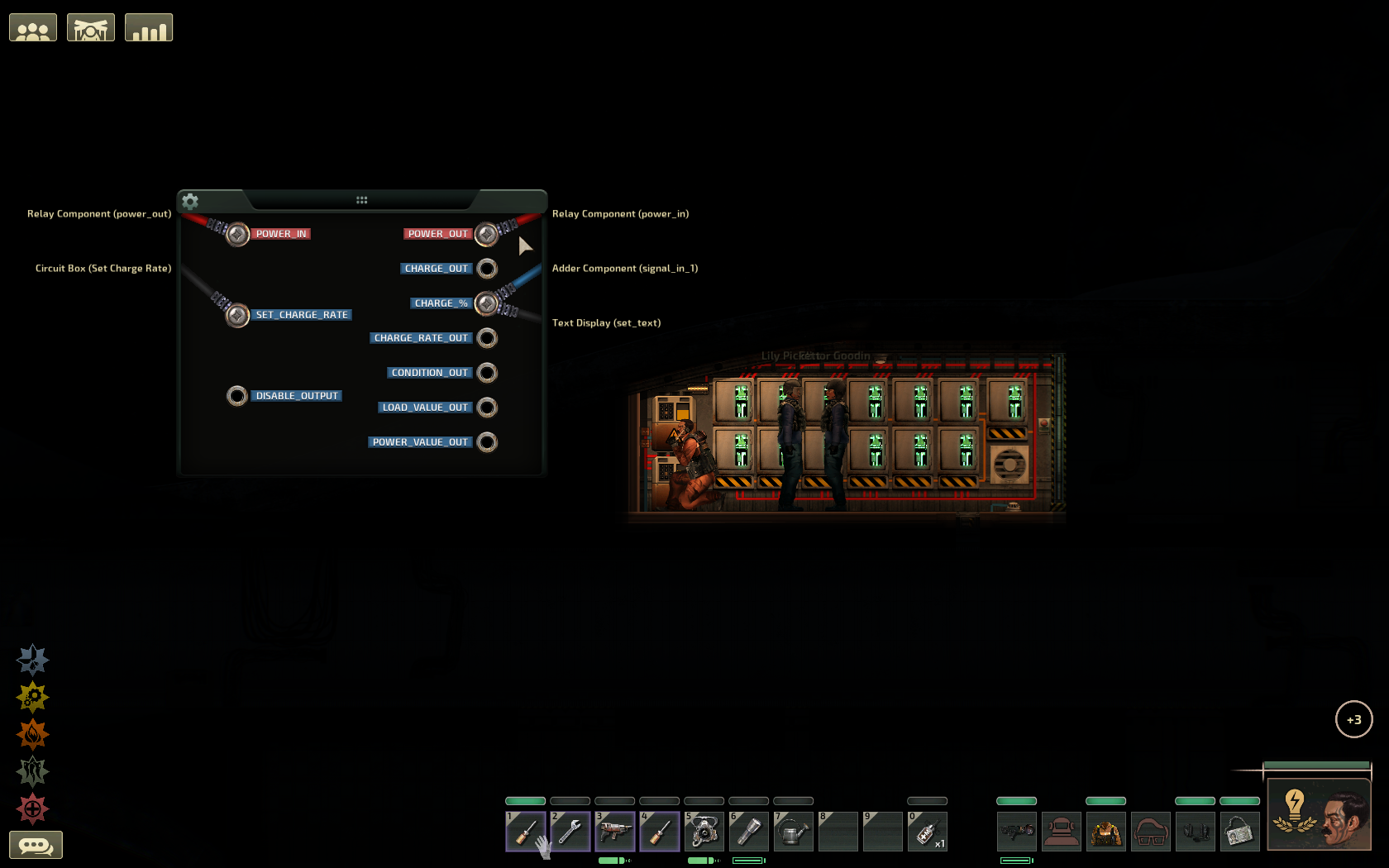
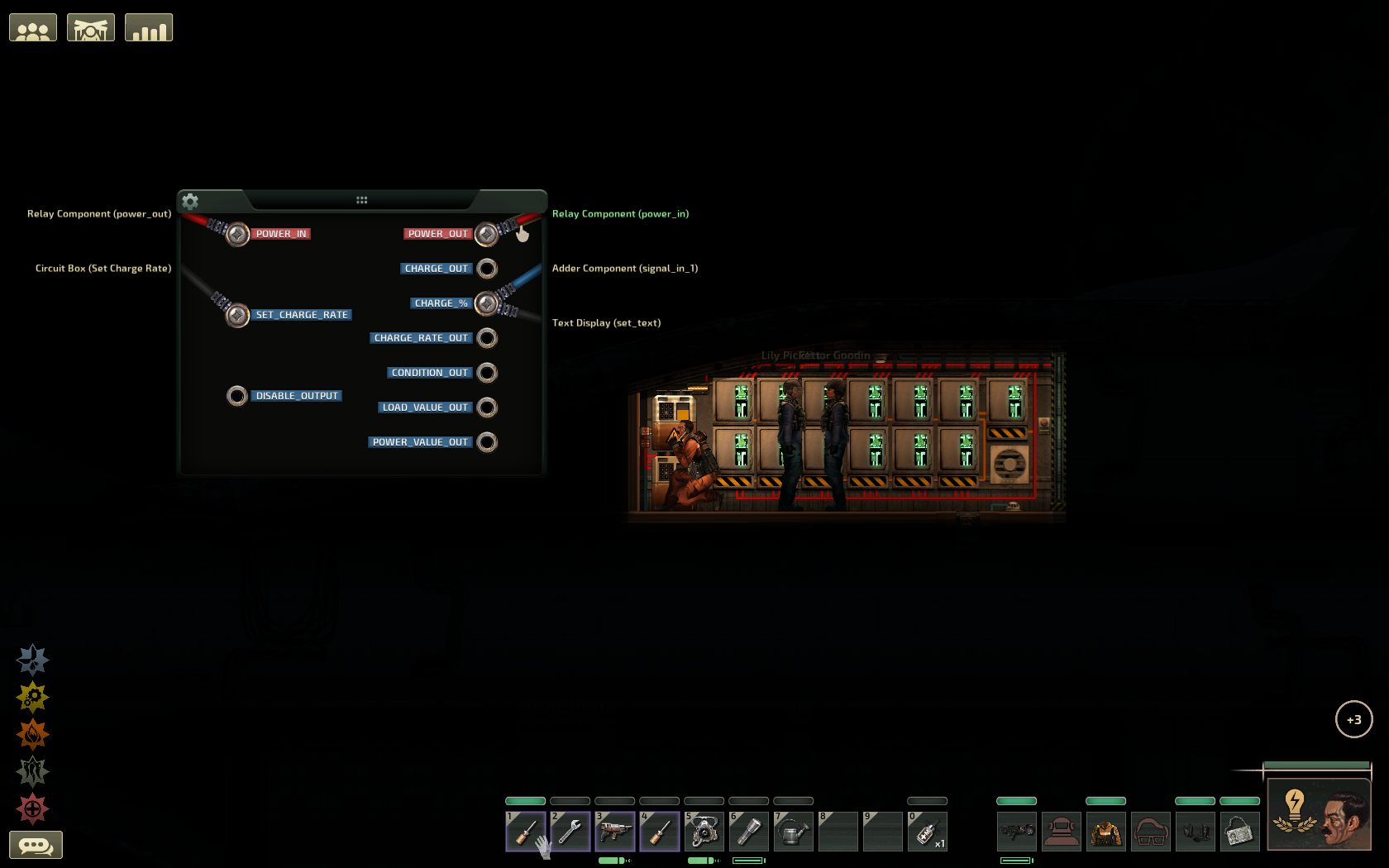
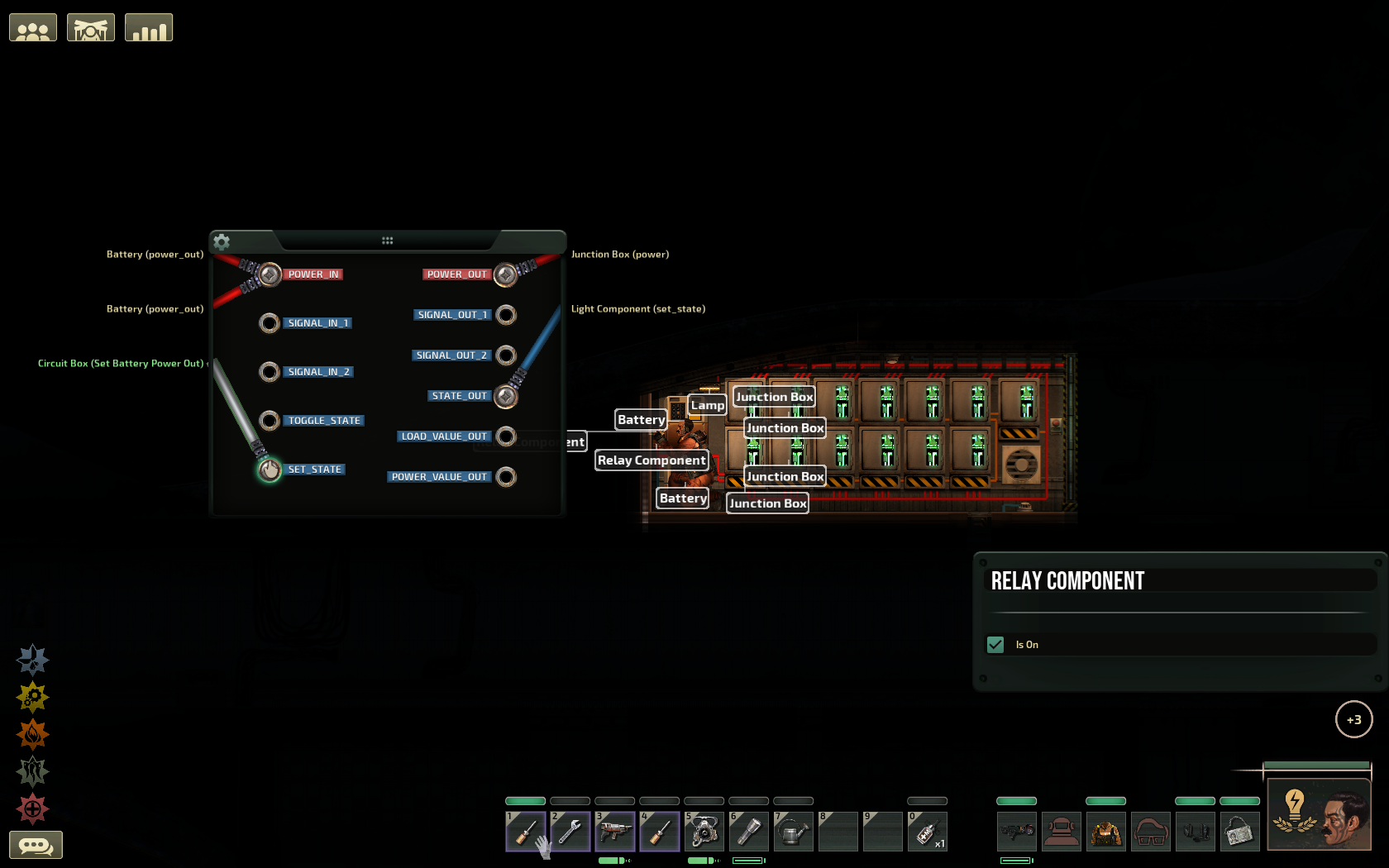
  • Look for the relay component which connects the batteries' output to the junction boxes.
  • If you open a battery's connection panel and hover over the red wire connected to the "Power_Out" pin, the wire and its connected relay component will light up in your environment.
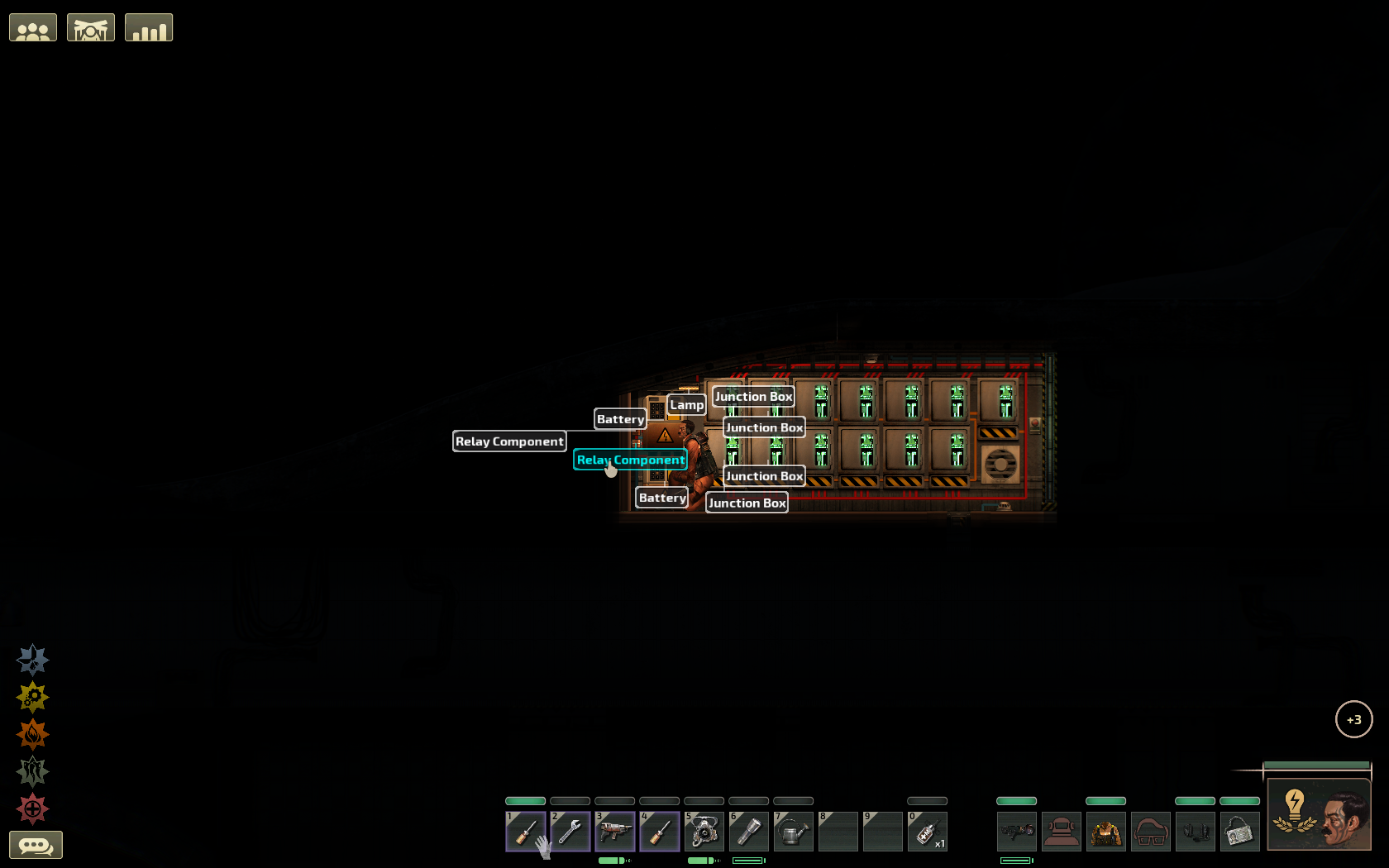
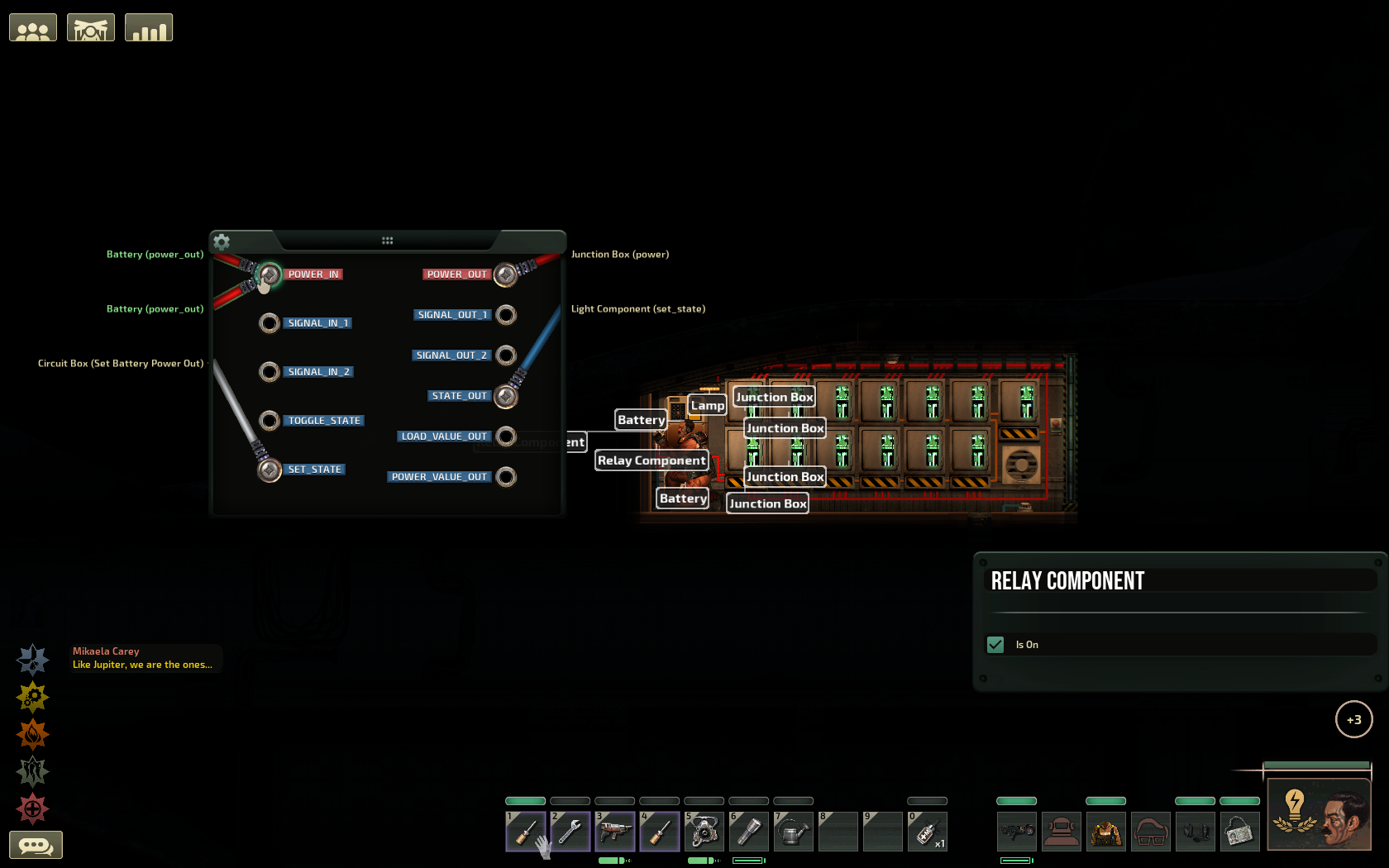
Step 5: Identifying the right relay component
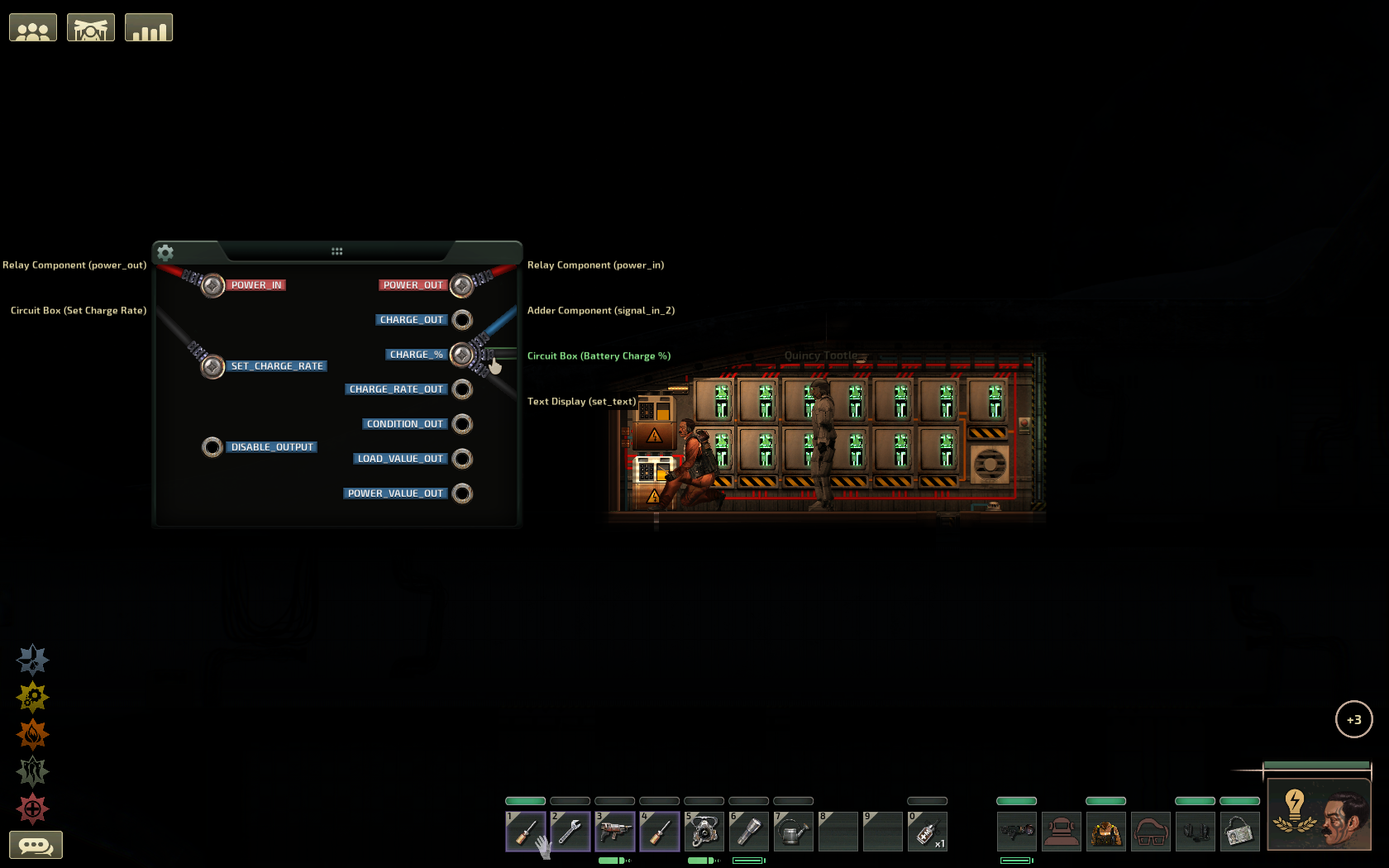
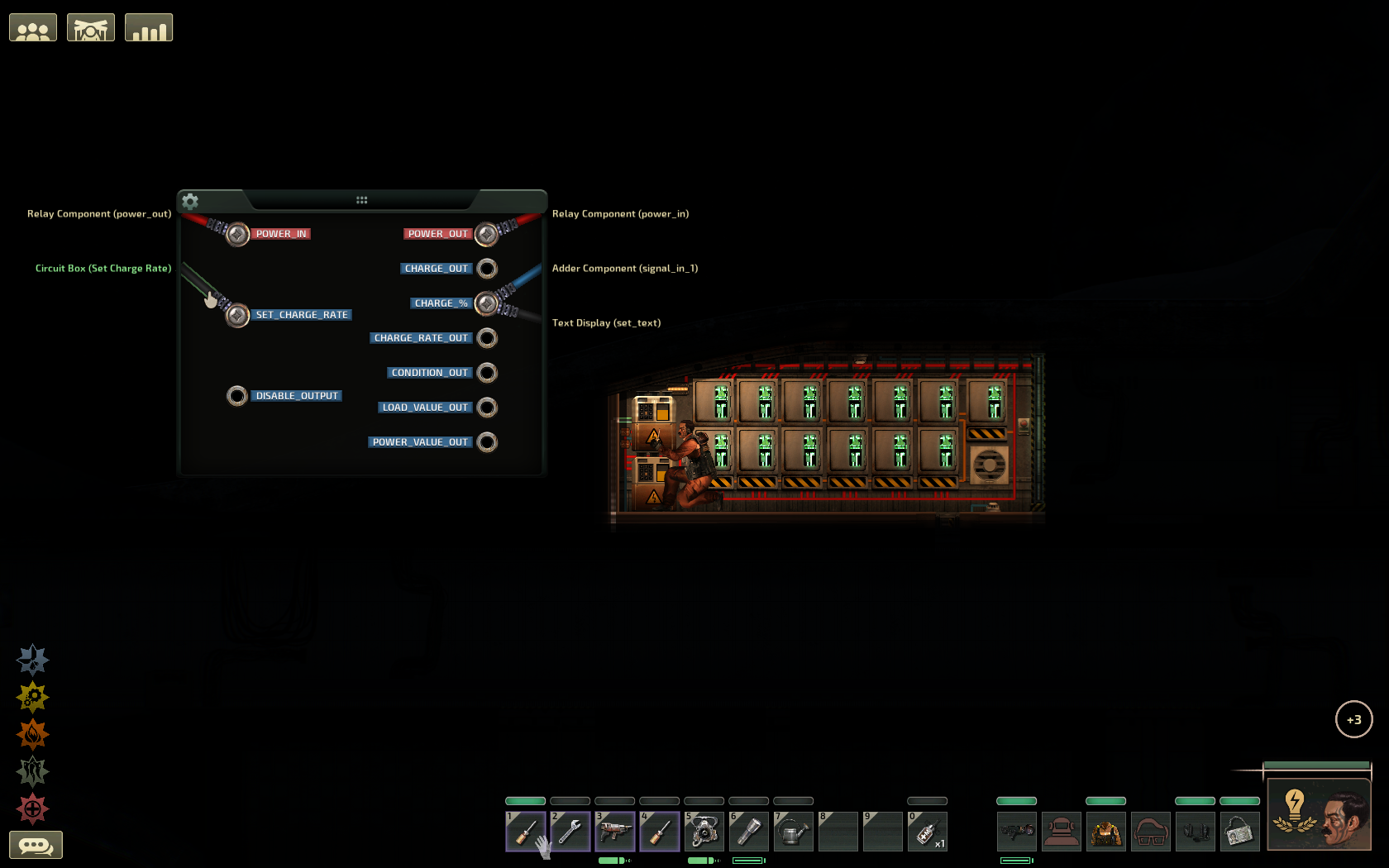
  • You know it's the right component if it has red wires labelled as "Battery (power_out)" connected to the "Power_In" pin, like in the image (left picture). There might be a separate relay component with the connections reversed, don't mistake the two.
  • Holding the "Alt" button can make it easier to find hard to see components (right picture).

Step 5: Finishing
  • Finally, connect the circuit box's "Set Battery Output" to the relay component's "Set_State".
In the improbable case that your batteries are directly connected to junction boxes, you are out of luck.
Just kidding. You can create relay components yourself and set them up between the batteries and the junction boxes to which their output was connected.
You could also use a not component to invert the "Battery State Output" of the circuit box and then connect that directly to the input of the batteries called "Disable_Output". However, in my testing this seemed unreliable.


Extra: Indicator light and text displays (11 components)
Maybe I will do this in the future if anybody is interested.

Thanks for reading, I look forward to your feedback :)
1 Comments
kinderandry 7 Dec @ 4:05am 
Thanks, this is awesome guide!
Will the circuit work with the reactor's circuit controls? Or it does not interfere in any way?