Anarchy Arcade

Anarchy Arcade

44 ratings
The Idiots Guide to Anarchy Arcade pt.1
By Xaphian
This guide will cover the basics of using Anarchy Arcade to create a working arcade desktop. We will explore spawning objects and shortcuts into your personal arcade environment, and how to use them effectively. We will also cover using the various menus in easy mode.
   
Award
Favorite
Favorited
Unfavorite
Useful Information
Some very helpful tips that will ease your frustration:

1. Be Patient. I don't know how many people I've seen try to do something, and give up because of impatience.

2. Remember any login on any shortcut IS REAL. This isn't liken to GTA where you enter fake bank account information. Be mindful about that if you stream anything, or something similar.

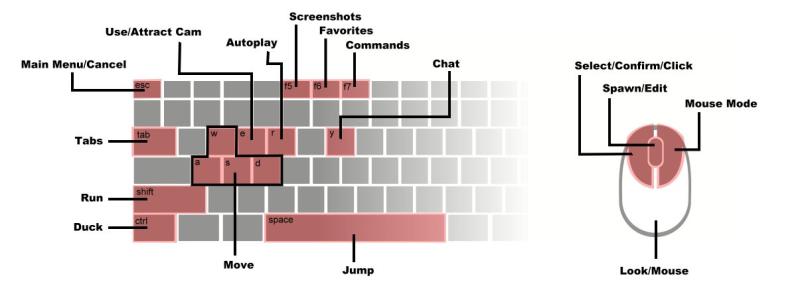
3. When looking at something, press "r" to automatically select it and play it.

4. Press "y" in game to open chat

5. Join the Official Anarchy Arcade discord for help, or to hang out with other metaverse goers.

6.basic keybinds


7. Learn the basics first, and don't try to jump in the deep end right away. The possibilities later on are endless, but let us get you there first!

8. Anarchy Arcade isn't about action. It doesn't have rpg elements, no guns or stoyline. It's about launching the games you want to play that DO have those.

9. If you want your steam library to be in AA, you need to go to settings - import - steam games.

10. Have fun! Party on, dudes!

Main Menu
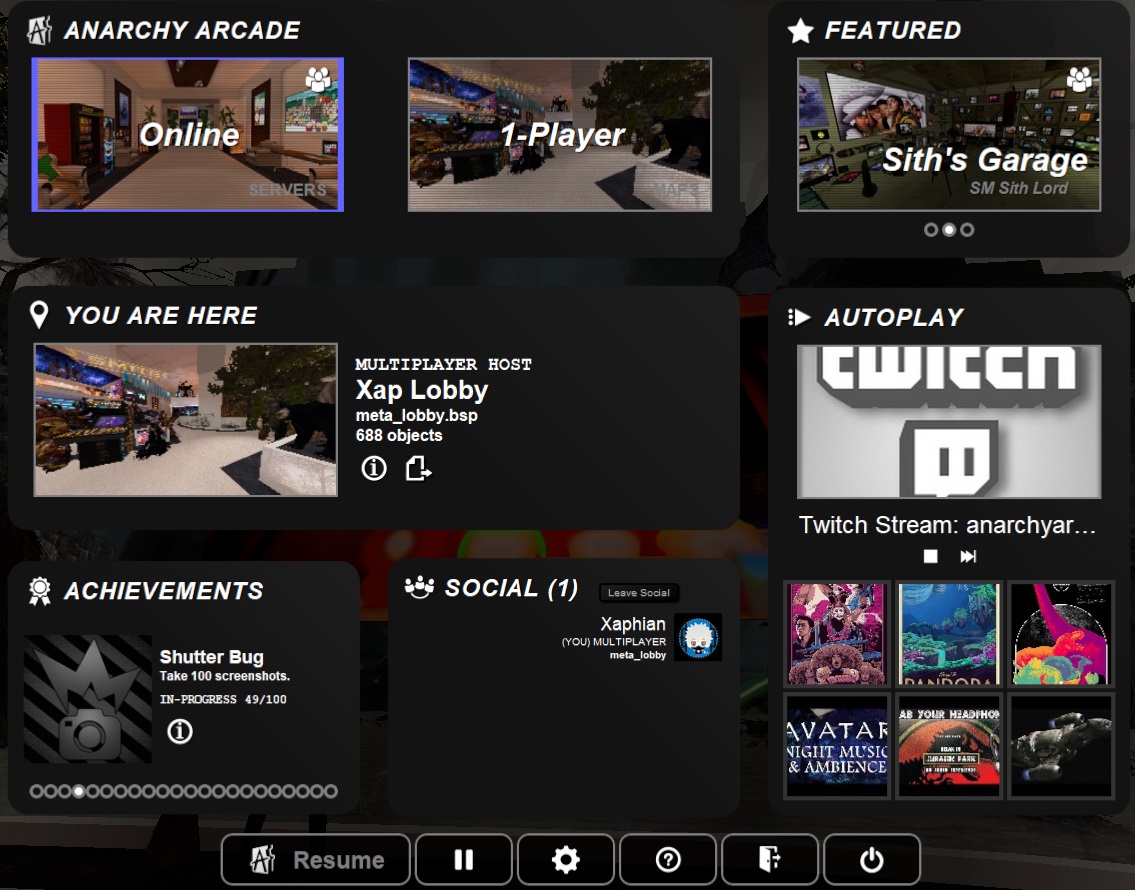
In this section, we will cover the main menu.


If you load up Anarchy Arcade and you do not see this,be patient, and it should load. If it does not, I encourage you to join the discord server and request assistance (and possibly help by reporting a bug).

Across the top, you have "Online, "1-Player", and "Featured." These will be what you use most on this menu, even after you have loaded into an arcade.

Next, where it says "You are here" displays your current map, arcade name, whether your in single or multi player, how many objects there are, as well as options to export the data to use elsewhere, and to change the name of your arcade.

Under that, we have achievements......I think that's self-explanatory

To the right of that, we have the social tab. Here you can join the social lobby, and chat with other Anarchy Arcade users. So far, this has been a great place to get help in-game, as a lot of us long-time users are there at one point or another.

To the right of that, we have the autoplay section. Here you will see what items are around you currently that will be played if you are using the autoplay feature. This is useful if you want to see what's coming next, or what is currently playing. You can also stop, play, and skip songs and videos.

Across the bottom, we have "resume" which will close the menu, "pause" to manually pause Anarchy Arcade, an options menu, the help tab, and lastly, the shut down button. (esc also works to open/close the menu)
Online
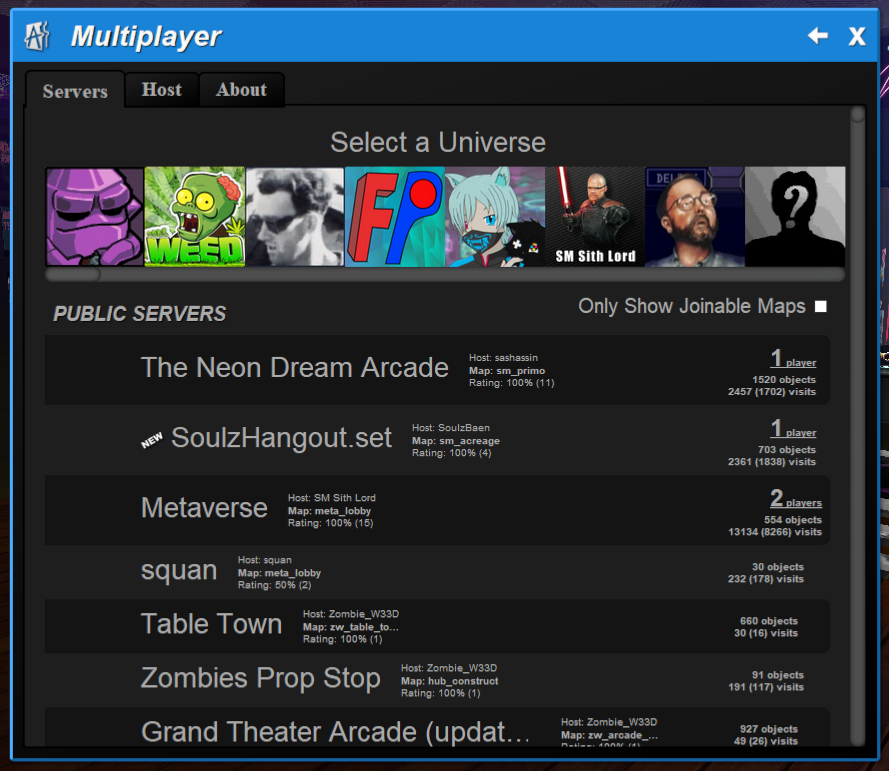
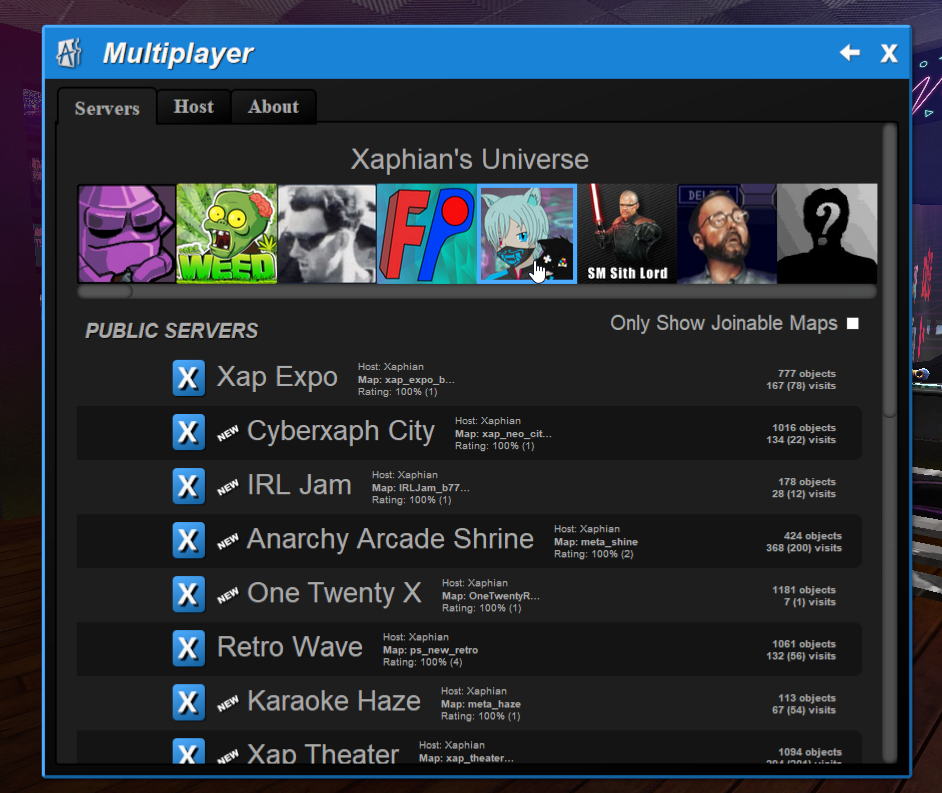
You guessed it! Anarchy Arcade has multiplayer support. If you simply click Online, you will be brought to the Lobby map created by SM Sith Lord (the creator of Anarchy Arcade) as a guest. If you click "servers" you will be greeted with this:


This is a list of all servers online right now, as well as information about them. It shows you which map they are built upon (this is important as of now, because you need to have that map installed to go there), who created it, if anyone is there, and how many objects there are. remember: the more object the longer the load time will be.

The images across the top are users that have arcades online that you can visit. You can either scroll through the list, or click on one of the player icons (which are their respective Steam player Icons) which will filter to only that users arcades (example shown below of it filtered to only my arcades.)


It is highly recommended you read "about" as it gives you loads of information about hosting, and what you can expect in a multiplayer environment.

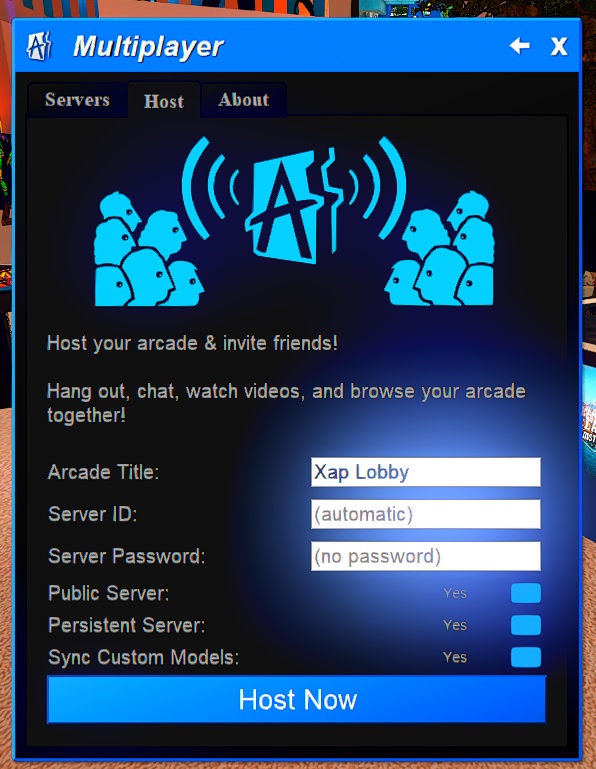
"Host" is where you will go to host your current map.

Here you change the name of your map and add an id or password if you would like to. Below that are options to make it a public server, make it persistent, and sync models. remember: if you make it persistent, it will be there even while you are offline.
A note about hosting, if later you re-host the same arcade instance, it will overwrite the original. This is useful if you have made changes to your arcade, and want your mp map to stay updated.

"connected" show you information about the server you are currently connected to. This is also where you can give a rating, as well as sign their guest book, and leave messages about how awesome their arcade is.

Any changes made by anyone OTHER than the host will not be saved onto the server. only the creator is able to make changes. If you join a hosted arcade and place an item down, only you will see these items as AArcade will make a separate instance of the map for you that you can access later in single player.

A little advanced information here, but good to know. Any objects that link top something on your computer cannot be accessed by another person. There is no peer to peer. If you want someone else to see an image or video, it HAS to be uploaded to the internet, or linked directly from a site.
1-Player
Back at the main menu, if you click "1-player" it will load the last map visited. If this cannot be reached for some reason, you will load into the lobby.

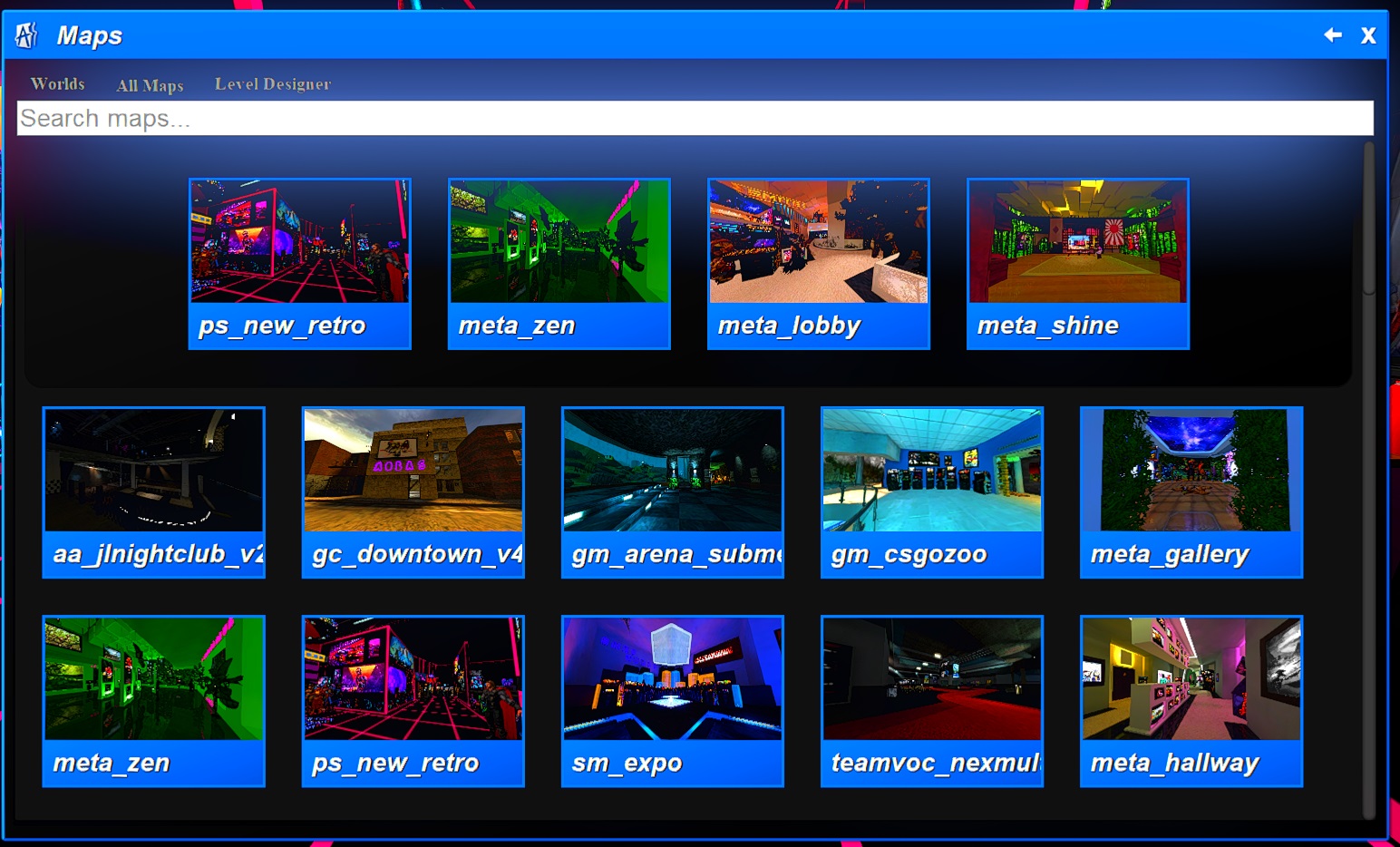
If you click the "maps" button, it will open up to show you all the maps that are currently available for you to create arcades on. There are maps built in to Anarchy Arcade, but also if you have other source engine games installed, those maps usually populate as well. (Getting more maps will be covered in pt.2 of this guide)


The top row of your maps displays the last 4 maps you visited, so easy access to your favorite arcades. the rest are listed alphabetically. (note that they will have a default AA image for all of them you have not gone to and created a screenshot for.)

clicking on a map will start loading a new arcade if you have not been to it yet, or it will load the last arcade you went to on the map if you have been there. This is super useful if you have multiple arcades on the same map.

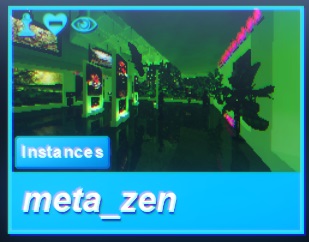
When you hover over a map, you will see this:


the chess piece allows you to spawn that image/arcade as an object you can put into an arcade for easy access. The heart allows you to favorite a map, and the eye will hide a map if its one you don't want in your list.

If you click "Instances" you can choose which arcade you would like to visit on that map. This allows you to have multiple arcades on a map (as stated above).

Once again Be Patient as it loads into your arcade
Featured
The 'Featured" tab cycles through maps from a list curated by SM Sith Lord (AA creator.) It cycles between 3 and changes daily. It's a great place for beginners to get ideas for their own arcades, as well as gathering models for use later. the "S' "M" "L" or "XL" in the top left corner is letting you know how many objects there are to load, not really how big the map is. An XL map may have up towards 1k models and take quite a while to load and/or download all of these model.

It also has the name of the map as well as the arcade creator.
F4 - Tasks tab
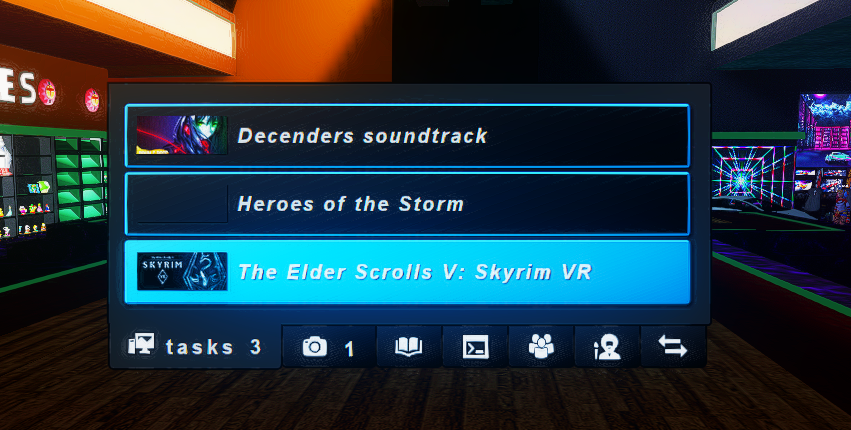
In this menu (you can get here by pressing F4) you will see all the tasks currently playing. On some occasions, you might have a few at a time. This tab will be good for stopping one task, while keeping others going.


Anarchy Arcade will always display the first items picked on a mirrored screen, so if you are wanting something else displayed on the screen, you can use this menu to click on what you would like to see on these screens.
F5 - Screenshots tab
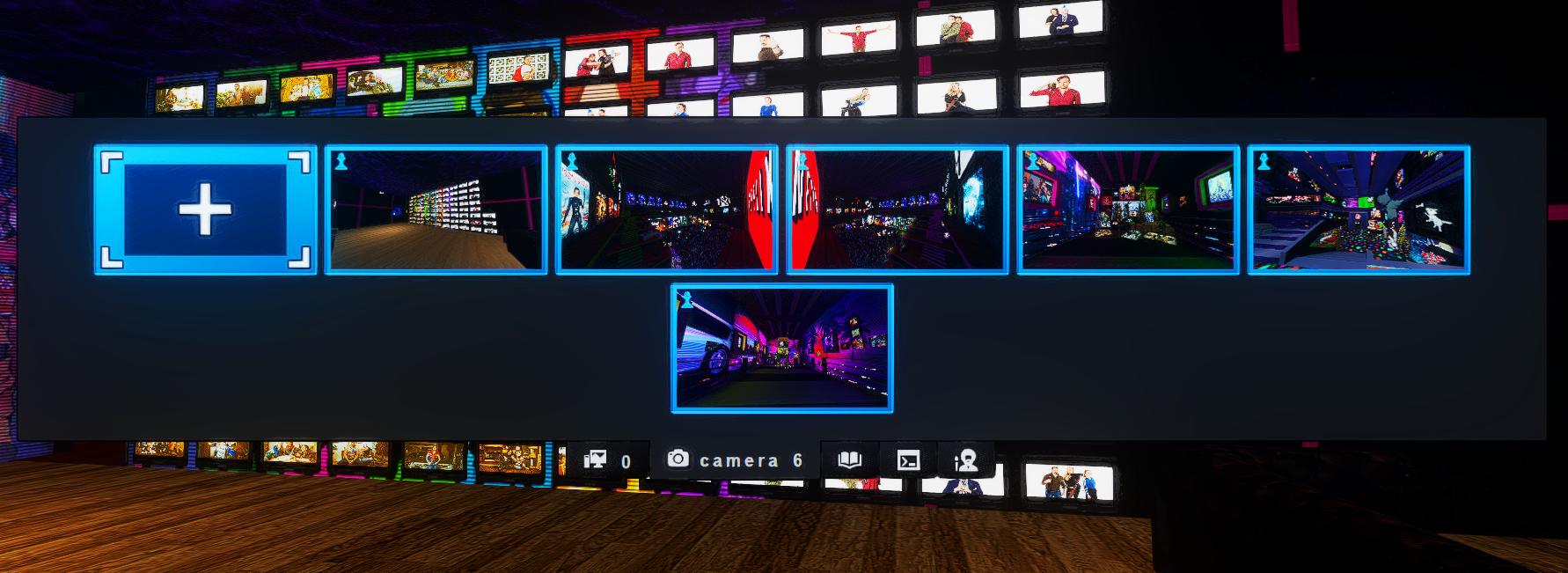
This menu is where you can take screenshots of your arcade. You would do this this for multiple reason. I will explain here.


First, you would take these screenshots in strategic places, as you can use them to teleport around your arcade, so you can get to specific areas fast. All you would have to do is click on the image, and you are there. To take a new screenshot, click the big image with the plus sign to take a picture.

Second, you can spawn them in other maps to teleport to that arcade. To do this, simply click the little chess piece icon on the top left of whichever image you would like to spawn, and it will then become an object you can place down. To access your images from other servers, you can do this from the maps list in the main menu, and press the same icon. It will then show you your images to choose from.
disclaimer: These images are local only, so other people will not see your image. If they have that map installed, they can use your teleport, but it will go to their single player arcade

It's always nice to have at least one screenshot for your maps, that way when you are looking at your maps in the main menu, you have an image there to know where you are going.
F6 - Library Tab
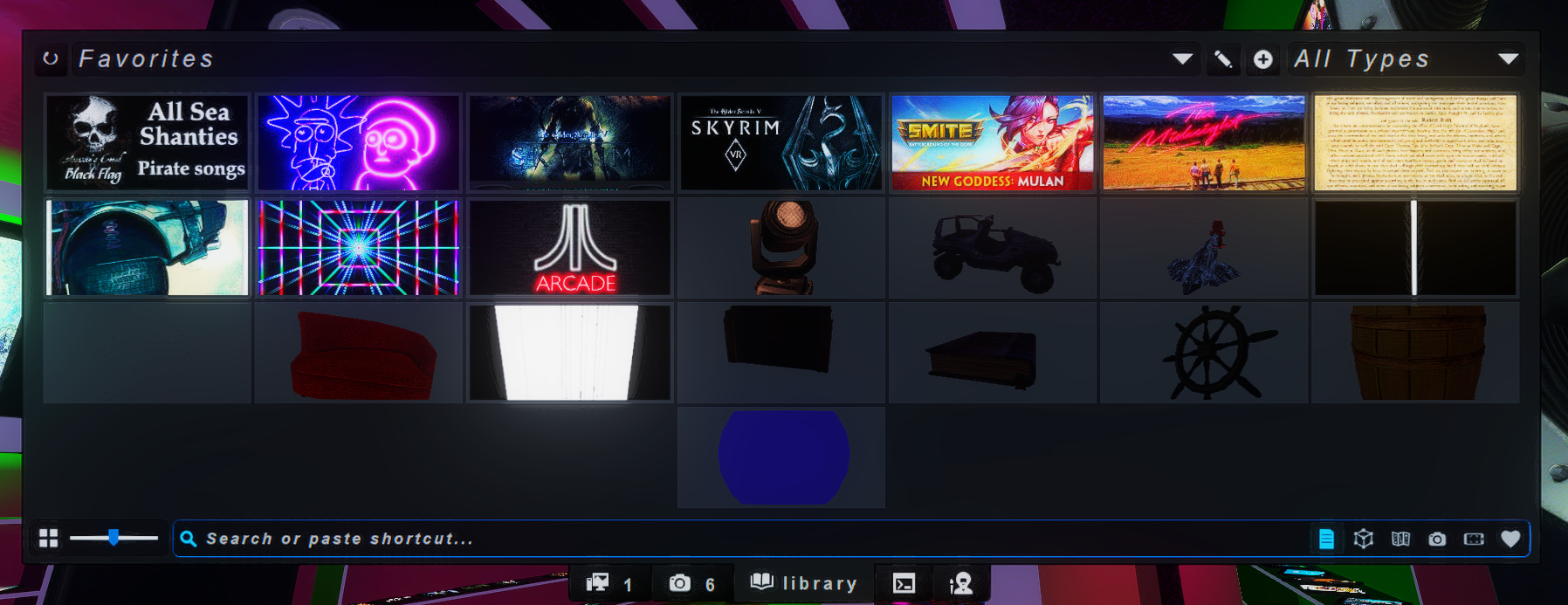
If you press F6, it will bring up your library tab, where you can search your library with a few more options than you can with the middle click search. In this menu, you can also create folders, or "favorites lists", for ease later on.


On the top, we have a drop down tab for your favorites lists. next to it is the buttons to control these lists. You can edit and create new ones from here. Editing them will give you more controls, such as deleting them.


In the main body, you have the items from the favorites list you are currently in. Or, if you have used the search bar at the bottom, your results will show here.

The icons at the bottom right help define searches, and are as follows:

Media, object (models), maps, screenshots, interactive screenshots, favorites

Interactive screenshots are screenshots that keep the metadata attached. So if you take a screenshot of a wall of videos, it will remember the information for all of the in the image. If you search for something using this, it should find the image with the query in it.
F7 - Commands Tab
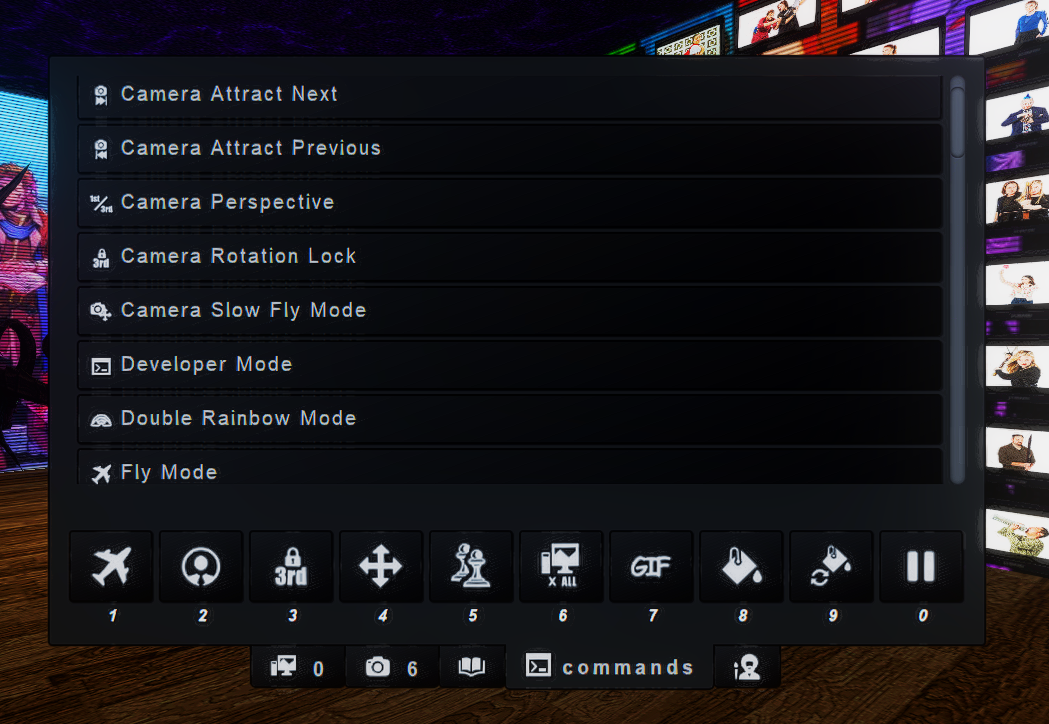
In this menu, there are a host of commands that can be utilized. You can also set them to the number keys, like an rpg hotbar.


In the main body, you have your list of functions. You can click on them form here, and the effect will happen. Or, you can click on one of the 10 buttons across the bottom to "use" that function as well.

If you hover over one of the buttons, another button will appear, and you can set, or reset a command to that number. from then on, you can just click that number while walking around, and the command will happen without having to go this menu. This is most useful with commands like "fly mode" and "object move".
F8 - Paint tab


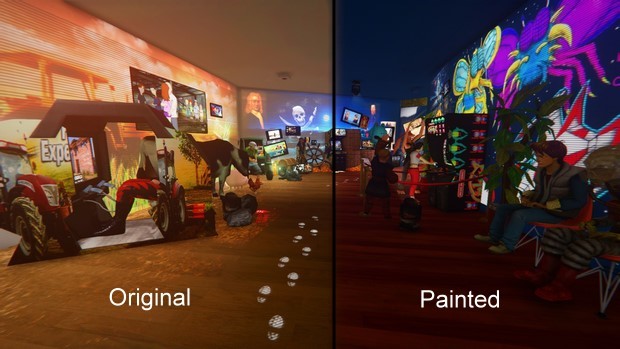
The painting tab allows you to paint surfaces to suit your need. This is useful if you find a map you like, but aren't happy with the color choices the creator used.

At first, your list will be empty. You will have to do some exploring to fill your lists. I highly recommend you utilize favorites lists, as loading one giant list can take a second to load, and doing this a couple times will quickly get annoying.

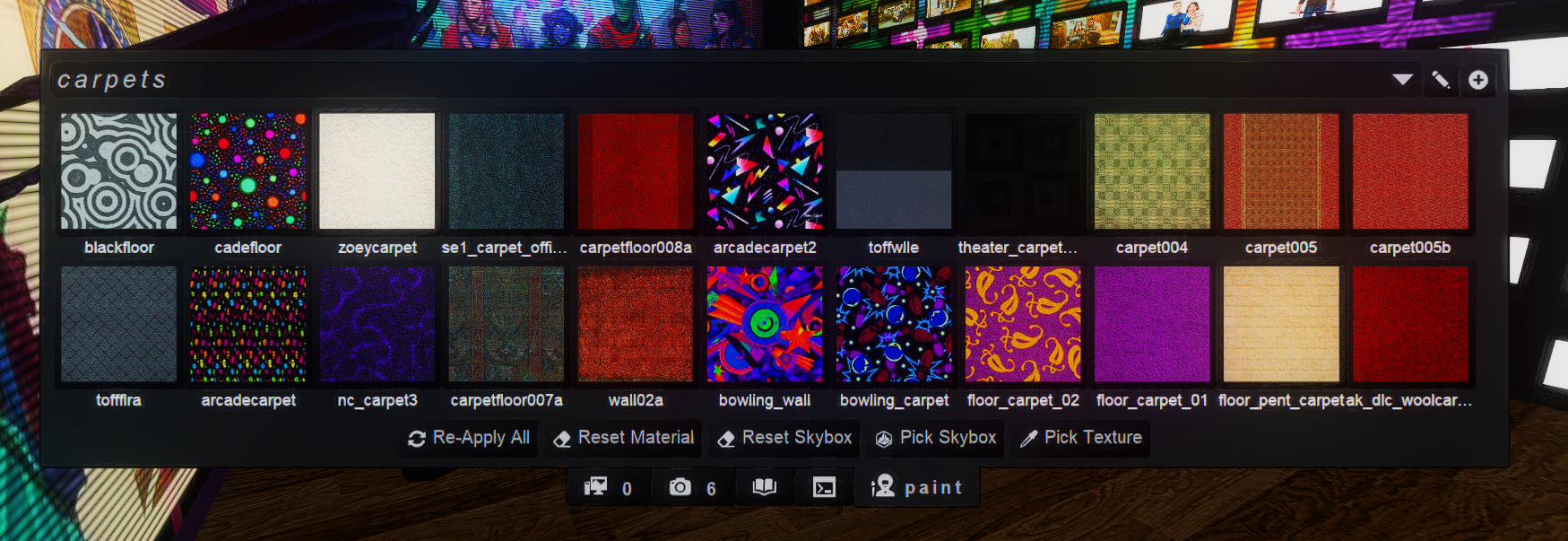
Let's take a look at the menu now..


Here you see all of the textures I have put into this list. if I were to click on one, whatever I am pointed at in the world will then be painted with that texture.

Here is more information from the creator:
(taken from the client update 6/9/2019)

First Step - Add textures to your palette

Load up a map that has textures you like, look at a surface that has the texture, then go to the new Paint Tab on the Tab Menu and click Pick Texture.

Final Step - Paint using your palette

Now that you have a texture in your palette, you can look at any other surface, go to the new Paint Tab on the Tab Menu, and click on your texture in the list to apply it to the material under your crosshair!

Undo Paint / Unpaint

Want to unpaint a surface? Look at the surface, then bring up the new Paint Tab on the Tab Menu and click the Reset Material button to undo any changes you made to the material & reset it back to its natural state.

Reset All Materials

Don't like your masterpiece and want to reset all the surfaces in your arcade back to their default? To do this, look in the Commands Tab of the Tab Menu for a new command "Painted Materials Reset" that will restore all the materials in your current arcade instance to their natural state. (Note that this button is in a different tab so that you don't accidentally click it while trying to paint.)

Custom Texture Palettes

You can have multiple custom texture palettes, very much like favorites lists. So be sure to organize your textures onto palettes that make it easy for you to find the stuff you like! I have one for Neon Retro Wave themed textures, and another for boring old regular architectural textures.

Texture Thumbnails

Until I am able to automate texture thumbnail generation perfectly, there is a button on the Paint Tab that lets you generate thumbnails for textures on-demand. So textures show up as fully functioning generic placeholders by default, but you can give them thumbnails by clicking on their camera icon.


This pretty much explains it, but if youd like to know more, there is a section in pt.2 of the guide
F9 - Social Tab
This tab will only be there if you are in a multiplayer arcade.


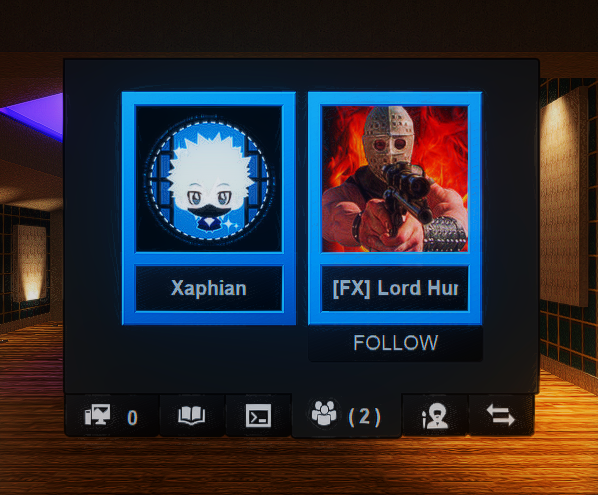
In this tab, you can see everyone that is in the arcade with you.
If you hover over their image, you can follow them, which allows you to sync with them. When they click on a video, it will start for you at the same time. This is a great way to make sure you both see the same things at the same time

Make sure these are not local files, so both people can get to the same web address


If you are hosting the map, you can also ban people if need be.
Can we make something already?!
So you've loaded into a map, in my case meta_lobby, and you found a place you want to start putting down cabinets to play games. That's a great place to start, so let's get going.

To start, click down your middle mouse wheel, and it will open up the menu.


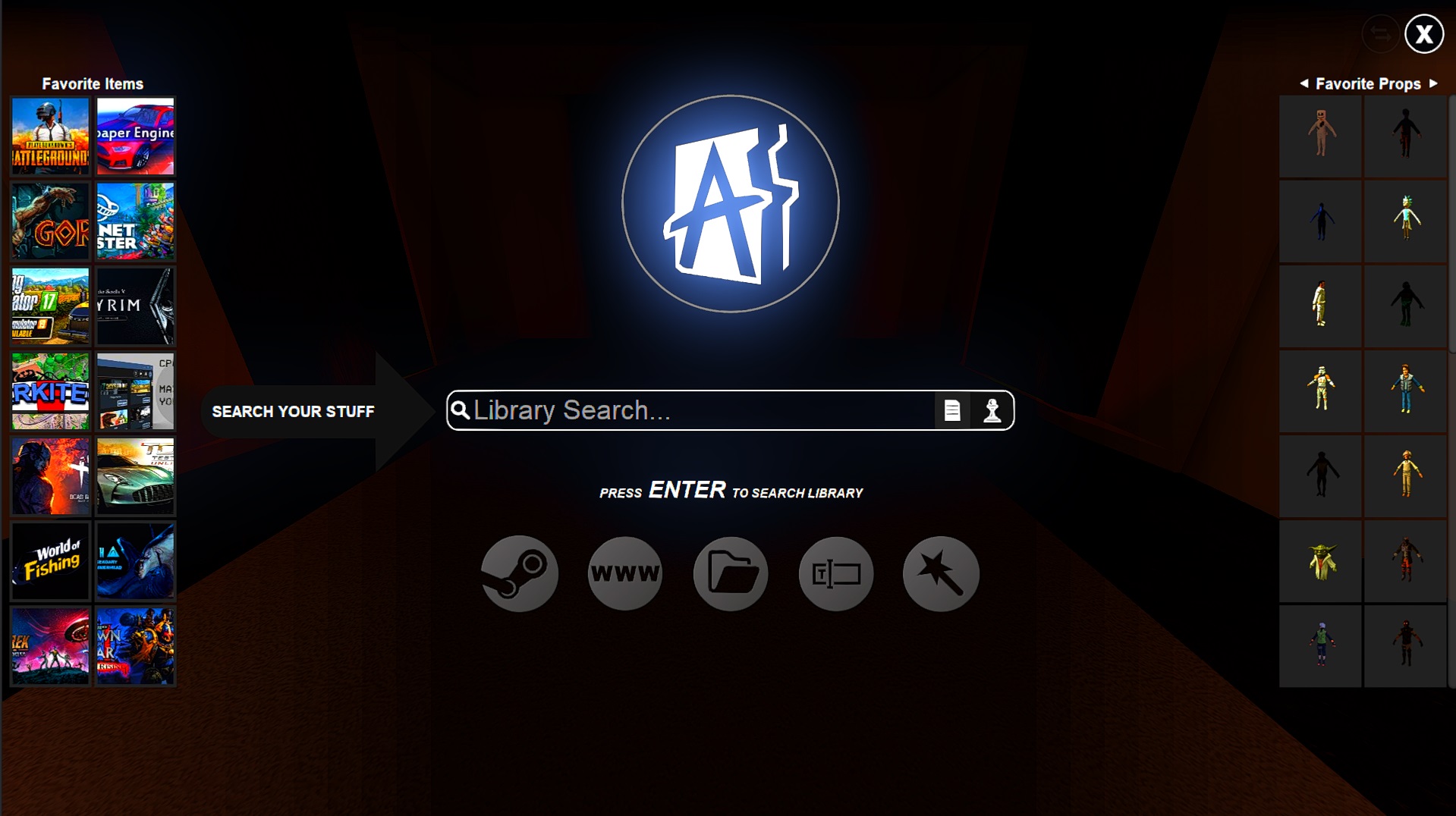
here you will see your favorites list (it will auto populate some things if you haven't favorited anything. You favorite something by clicking the heart, as stated above in the 1-player section) on the left. On the right you will have section you can scroll through, which shows you either a spawnable alphabet, a props section you can populate using a library menu, a last search list, and a list of in-game npc's. In the middle you see the AA (going forward we will use AA, short for Anarchy Arcade) logo, which is clickable to go to the main menu, and a search area. Here you can search for anything you would like to spawn a shortcut for. In this case, we will pick a game.


if you have no items in your lists at all, don't panic. You can either drag and drop a url from the internet, use the wizard to search for something from the internet of steam, or run the import games tool in the settings. I recommend doing this last if you want all your steam games to be in your list

I don't know why you would spawn AA inside of AA, because it won't load, but we will do it to keep with the topic.

After you type in what your looking for and press enter, you will see a list of items with that name, which you can scroll through using your mouse wheel. Once you find what you are looking for, click spawn. now you should have an item in your hand that you can place anywhere you like.

Congratulations! You just created your first arcade!


you can use this same procedure to spawn in anything, including images, youtube links, or any sort of shortcut. Some useful information about shortcuts:

-If a shortcut is to a local (on your computer) file, they will only show up for you in a mp environment.
-if you have a link to Netflix or something similar, other people cannot use your accounts. To another user, it will bring them to their netflix account.
-this also means that there is no file sharing through AA. If you have a link to a movie on you rhard drive, or a paid site, another user will only see the trailer, unless they also have that movie, and have already told AA where that same movie is located for them.
ei: I have Jurassic Park saved on my hard drive and I link it in AA in my arcade. I go to another arcade, and they have Jurassic Park on the wall. If I click that shortcut, AA knows where to go for my copy because I have already set it.
Let's put it all together
Now that we've learned the basics, know your way around the menu, and practiced a little, we will make a themed area using what we've learned, and then learn a couple techniques to make life easier.

We will be using Grand Theft Auto V in this example, and we will be assuming you DO NOT have it in your list (to show that you don't have to own something to add it to your arcade, only to play it).

Middle click your mouse wheel to bring up your menu, and type "Grand Theft Auto V" into the search bar, but DO NOT PRESS ENTER. In stead, we will be pressing the wand icon under the search bar to bring up the wizard, and click the steam store icon. This will search Steam for the text you entered into the search bar. Find Grand Theft Auto V and click it. This should take you to the store page, and the scraper will slide onto the screen from the left that says "apply wizard". Click it.

Now that the shortcut is in your hand, move it to a wall, and place it down. Somewhere where you will have room around it for other things.

Now we will add an image to the wall beside it. Middle click to search again, and type in Grand Theft Auto V again, but this time, click on the wand to bring up the wizards. Click on "Duck duck go" or which ever is your preference, and it will search for that on a search engine within AA, no need to tab out (unless you want to). click on an image you like, and when it centers on it, click it again. This will make the image full screen, and once again, the "Apply wizard" tab should slide into view from the left. Click it and put it on the wall next to your game.

Here is a quick video using the Steam wizard
Congratulations
You have now completed the basic tutorial for Anarchy Arcade! Thank you for taking the time to learn about this wonderful piece of programming, and good luck on your Arcade building journey! Remember to check out pt.2 for more advanced, and more fun tutorials.


I'd like to thank SM Sith Lord, okedoke, daleth, Teasnutz, Funky Pixie,and the rest of the Anarchy Arcade discord group for always being there to help out anyone who needs it, and for being a great community.
10 Comments
SM Sith Lord  [developer] 22 Sep, 2023 @ 4:19am 
@Saiko - if AArcade is telling you your GPU is not supported, it's actually just confused by your texture resolution being low. If you add this launch option, it should fix it:

+mat_picmip 0
Xaphian  [author] 19 Jul, 2023 @ 6:15am 
Saiko - best place is the discord. There is a tech support section and the creator is on there pretty much 24/7
alo 13 Jul, 2023 @ 1:11pm 
how to contact about gpu support or know which are supported cant play game :(
Xaphian  [author] 29 Mar, 2023 @ 6:35am 
added a quick video on how to use the wizard
Xaphian  [author] 29 Mar, 2023 @ 5:49am 
which part wouldn't work? The game won't play because you don't have it. This is just to get it into Anarchy Arcade. Some people like to have games in their arcade for other people to use if/when they join their arcades, or simply as a "wishlist" of sorts
PantherGamer420 28 Mar, 2023 @ 10:16pm 
i could not get GTAV part to work with pic next to the game to play a game i dont have but i got the rest to work
Xaphian  [author] 21 Oct, 2020 @ 8:05am 
If you haven't yet, you need to import your steam list so AA knows what you own. To do this, go to settings from the main menu, import, then steam. Or, if you would like to do it from scratch, when searching for a game in library, click the wand after typing it to search, and click steam. This will search steam for the game you are looking for. Once you click this, it will be in your library.
CARIO55555 20 Oct, 2020 @ 6:06pm 
Hey I can't spawn in any games? When I go to my library no games appear.
Xaphian  [author] 4 Mar, 2020 @ 2:18pm 
it runs whatever you want it to. It can launch anything you already have working on your pc
PizzaTime! 1 Feb, 2020 @ 8:29pm 
Hmmmm yes but can it run melee?