Steam
219 평점
Introduction to Steam Big Picture
Jimo 님이 작성
I will give you an introduction to Steam Big Picture. I will demonstrate how to setup your controller and how you can use its various features.
   
어워드
즐겨찾기
즐겨찾기됨
즐겨찾기 해제
Introduction
This guide will give you an introduction to Steam Big Picture. It will demonstrate how to setup your controller and how you can use its various features.

You can find more information on Big Picture here or you can watch the video below.


Controller Options
You can use Big Picture with any form of peripheral, however it's been designed with controller's in mind. There are many different options to choose from. You can find a list of some of the top-rated and recommended controllers below.


Wireless


Wired


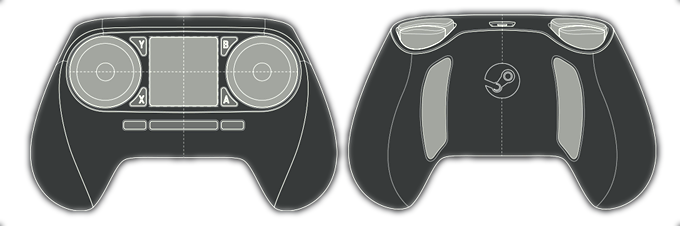
Coming soon you can purchase the official Steam Controller. For more information you can read the full article here.


Configuration


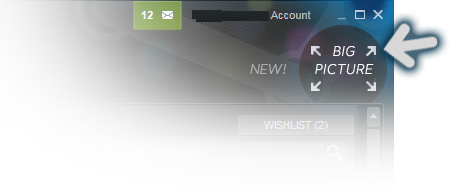
To access Big Picture mode select the button located at the top right of the Steam client.


With Big Picture opened click on the cogwheel icon located near the top to adjust your settings.


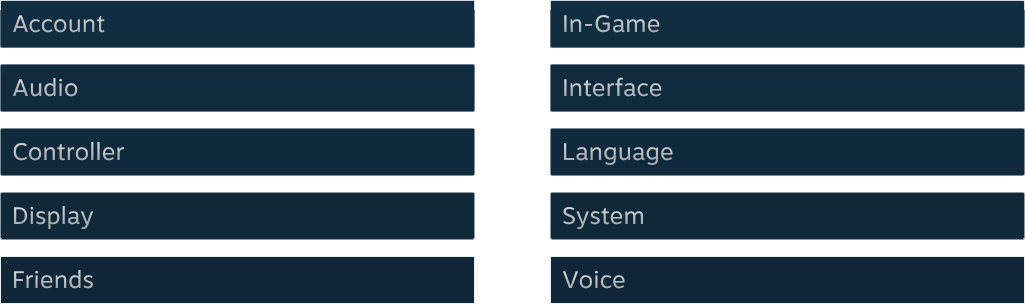
There are several options to choose from on the settings page. Many of the options found here will mimic those found within the Steam client.


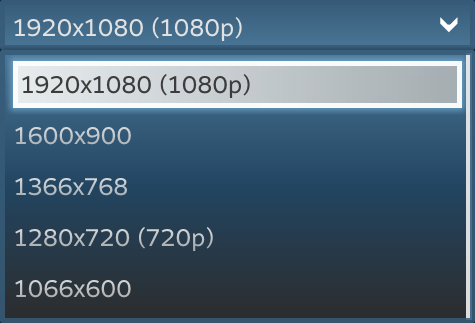
If you're experiencing poor performance with Big Picture you can adjust the resolution by selecting Display. From this page you can also change which monitor Big Picture displays on if you're using multiple outputs.


You also can adjust a series of button binds if your controller is on Direct Input mode by selecting Controller from the settings page. Some controllers will allow you adjust the input mode through driver software, and others will have a physical switch on the device.


If set to Direct Input mode you'll see an Edit Controls button on the Controller page. Clicking on it will pull up a list of mappable button binds which you can adjust to your liking.


There are many different options to adjust, explore each category to get everything configured to your own personal preference.
Library
Selecting Library from the main screen in Big Picture mode will display your game and software collection.


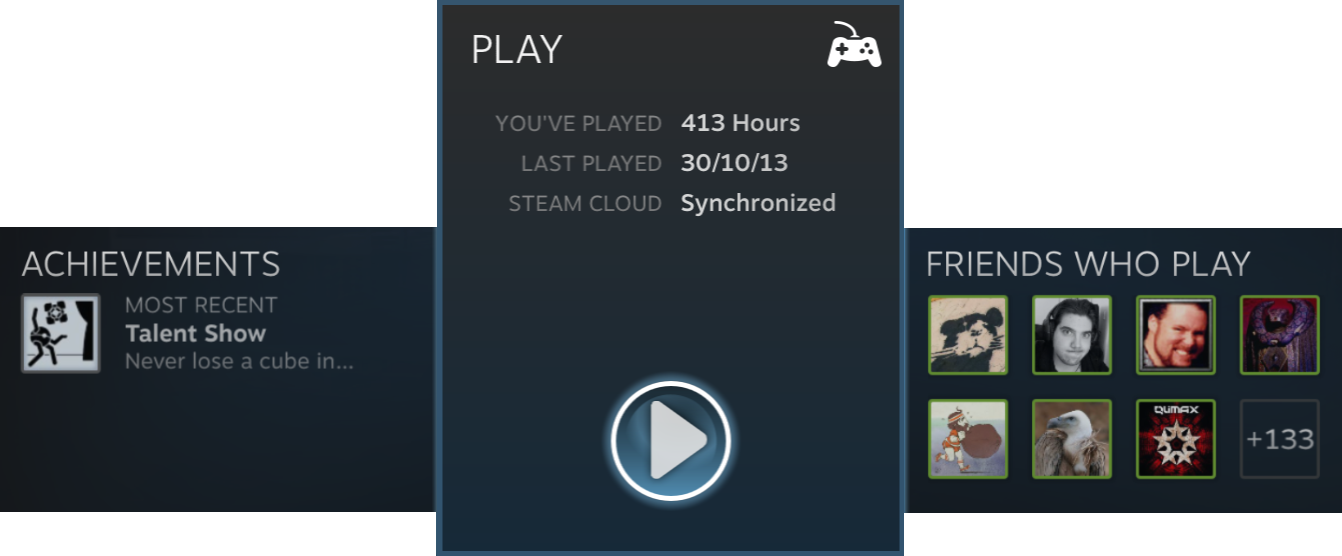
Once you've selected a game from your library you'll be provided with a play button along with sub-menus which display community content, achievements, friends and more. This is the same information which is accessible when pulling up the Steam overlay whilst in Big Picture mode.


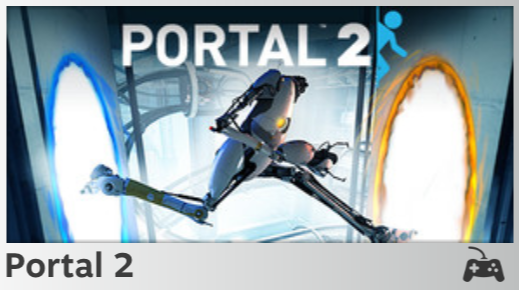
You can view if a game natively supports the use of a controller by looking at the bottom corner of each panel. These icons will also be displayed on Steam storefront pages to indicate if the game supports the use of a controller or not. If no icon is present on the panel it means that it doesn't support the use of a controller at all.


Partial Controller Support: This icon means the game supports the use of a controller, however some parts such as menus and certain game play elements will require a mouse and keyboard.


Full Controller Support : This icon means the game fully supports the use of a controller.
Community
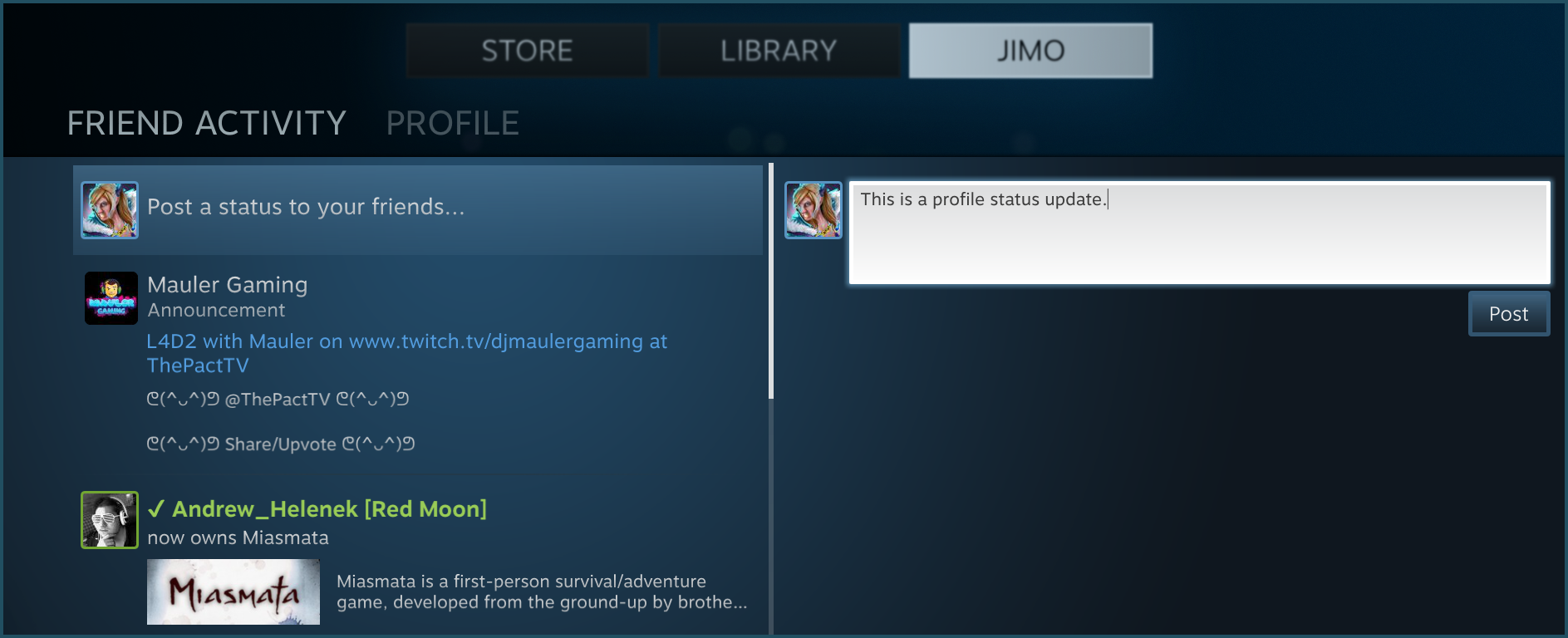
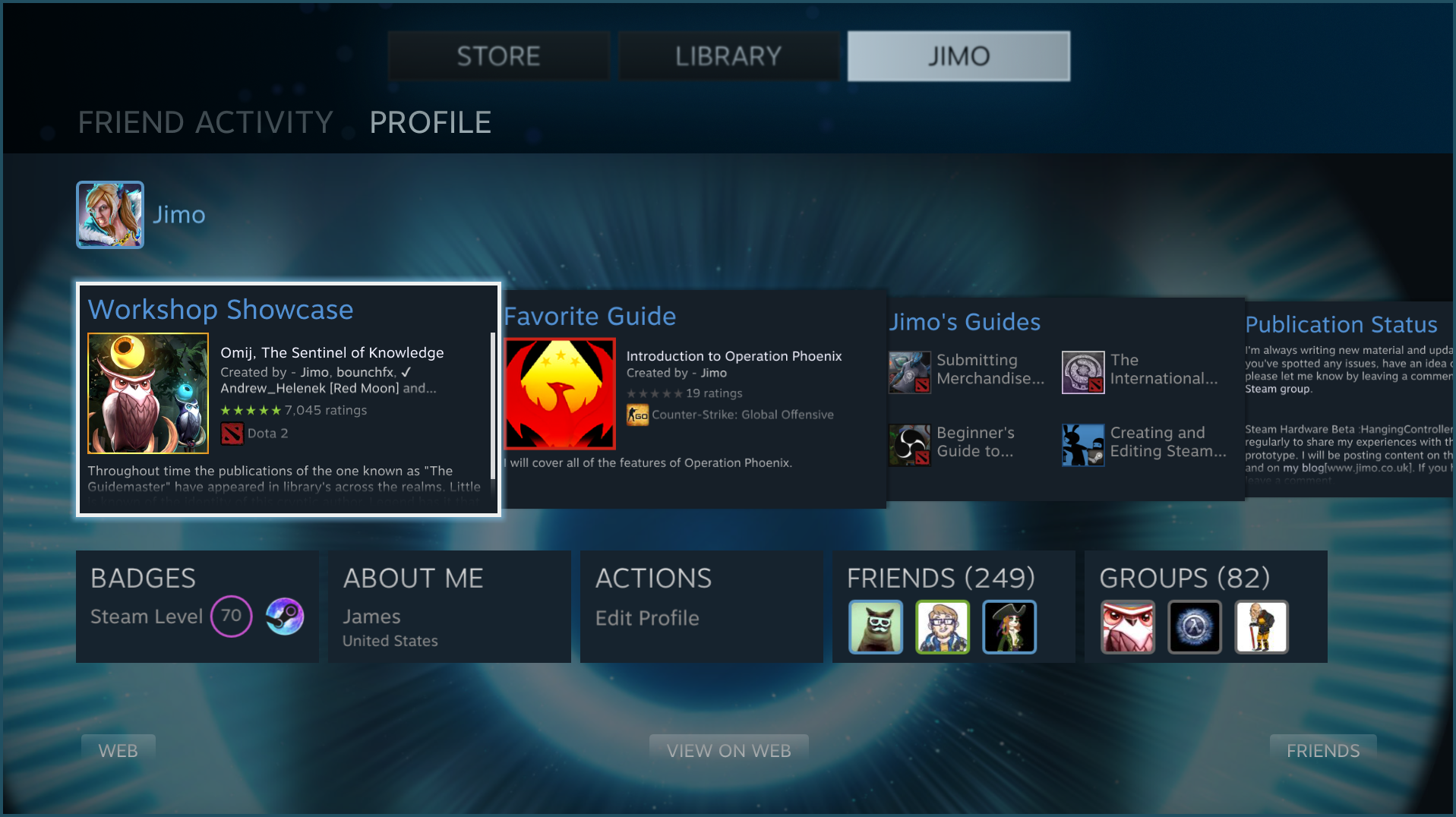
Selecting your name from the main menu of Big Picture will display your community activity.


The Friend Activity button will display your friends recent achievements, recently joined groups, purchases and more. From this page you're also able to create a status update to share with people on your Steam friends list.


The Profile button will display your Steam profile. Here you can view your Steam level, badges and comments you've received from other players.

Friends
You can view your chat conversations on any screen by selecting the Friends button at the bottom of Big Picture. If you have a new chat message a bubble icon will appear near the bottom of the screen.


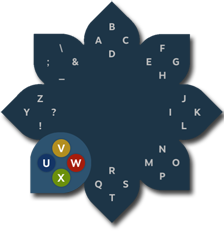
Sending a chat message using a controller is done with the daisy wheel. It's a typing system which utilizes the way the buttons are placed on your controller. It will also attempt to suggest words as you type with it to speed up the process.

Web Browser
Selecting Web near the bottom of Big Picture mode will pull up a web browser which has been designed for use with a controller.


You can navigate through your favorites, history and your current browser tab near the top. If you you'd like to open a new browser tab select Current and choose New Tab.


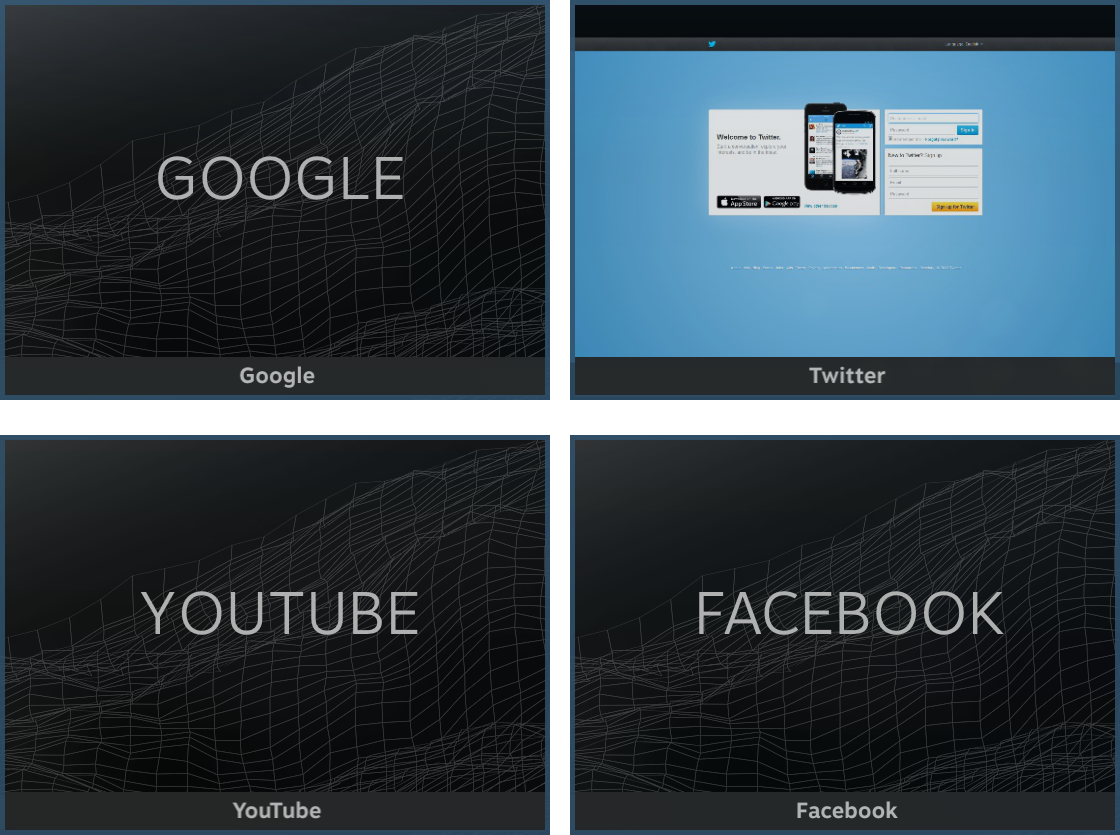
Selecting one of these options will display the website names and a thumbnail in a grid.


From within the browser you add a website to your favorites by selecting the heart icon near the top. If you'd like to return to the browser home screen you can select the house icon.

Selecting More near the bottom of the browser will give you the options of copying the URL, zooming in, refreshing and more.
Closing Notes
댓글 23
aheadgamer2003 2025년 5월 30일 오후 6시 36분 
I missed the old Big Picture...
kabin66 2023년 11월 4일 오후 9시 55분 
oh
=7Cav=PVT.Chapp.Y 2022년 11월 16일 오후 6시 18분 
Big picture...The worst garbage that has come to steam. I will never buy a flight game or any game for that matter i will consider using a controller for if its on steam. You cannot configure controllers with it. Please for the love of god make an option to remove controllers from big picture.
七里滨夜空下的兔女郎 2021년 2월 17일 오전 5시 47분 
good
RookieKiller 2020년 9월 1일 오후 9시 30분 
oh
Tony cant kill 2020년 7월 8일 오후 7시 42분 
oh
✟ (𝔇𝔢𝔰𝔱𝔬𝔯 2019년 3월 24일 오후 6시 46분 
oh
331384549 2017년 11월 17일 오후 5시 09분 
good
CHEVETTILSON DA SILVA 2016년 8월 10일 오전 1시 36분 
grometx 2015년 11월 2일 오후 11시 25분 
good workl